
Settings
Every Settings page, from General, Playback and Appearance to Lyric Highlight, Lyrics, Shortcuts and one page per surface.
Settings is a sidebar and one page at a time. The top group is the app; the DISPLAY group below it is one page per surface.
Pro controls stay visible on a free account rather than being hidden, so the setting a guide points at is where the guide says it is either way. Turning one on prompts to upgrade. Free and Pro lists what each plan unlocks.
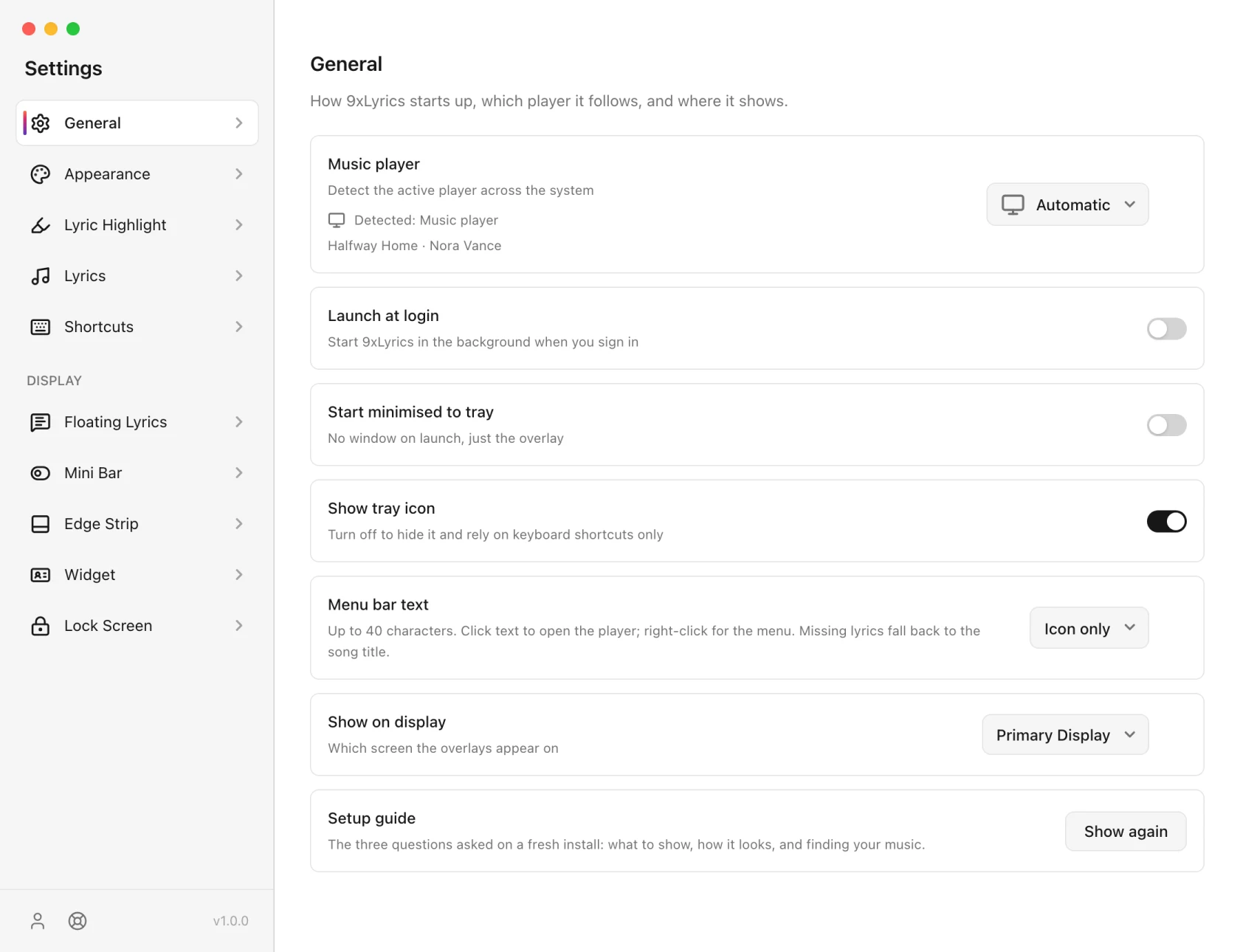
General
Startup, tray behaviour and the display used by overlays. Launch at login and start minimised are off by default.
- Launch at login starts 9xLyrics in the background when you sign in.
- Start minimised to tray: no foreground window on launch; eligible enabled overlays can still appear.
- Show tray icon: off relies on keyboard shortcuts alone.
- Tray icon: Automatic picks what each system's tray expects: the logo in colour on Windows, the flat white mark on Linux and macOS. White, Black and Colour override it.
- Menu bar text (macOS, Pro): Icon only, Song title or Current lyric in the menu bar, capped at 40 characters. Click the text to open the player; right-click for the menu. A song with no lyrics falls back to its title. Icon only is free.
- Show on display: which screen the overlays appear on. Pick a specific monitor and 9xLyrics remembers that exact monitor, so the overlays go back to it when you reconnect it, even after the screens are rearranged. While it is unplugged they use your main screen.
- Hardware acceleration (on by default) lets 9xLyrics draw with your graphics card for smooth overlays. If an overlay flickers or looks wrong on your computer, turn it off and press Restart now to switch to software rendering.
- Setup guide › Show again replays the three first-run questions.
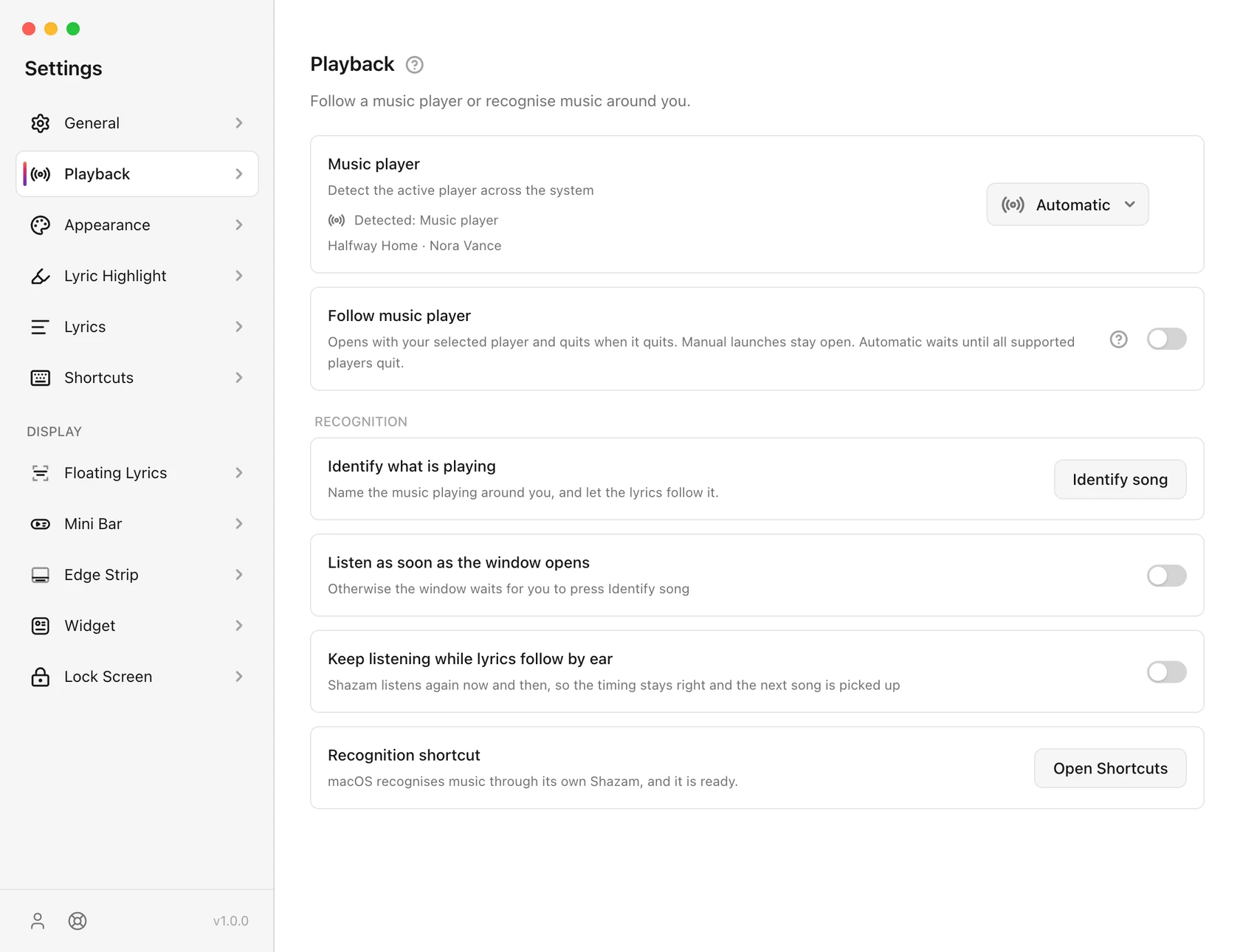
Playback
Music player selects Automatic or a named player. Automatic follows the active system media source, including supported browser sessions. A named selection limits normal detection to that app. The status underneath shows what is detected.
Follow music player (Pro) sits directly below the selector. It is off by default and works in the installed app. Opening a supported native player opens 9xLyrics; quitting it closes a session that was opened automatically. A manually opened session stays independent. See Players and detection.
Appearance
How the settings and lyrics windows look, and what sits behind the words.
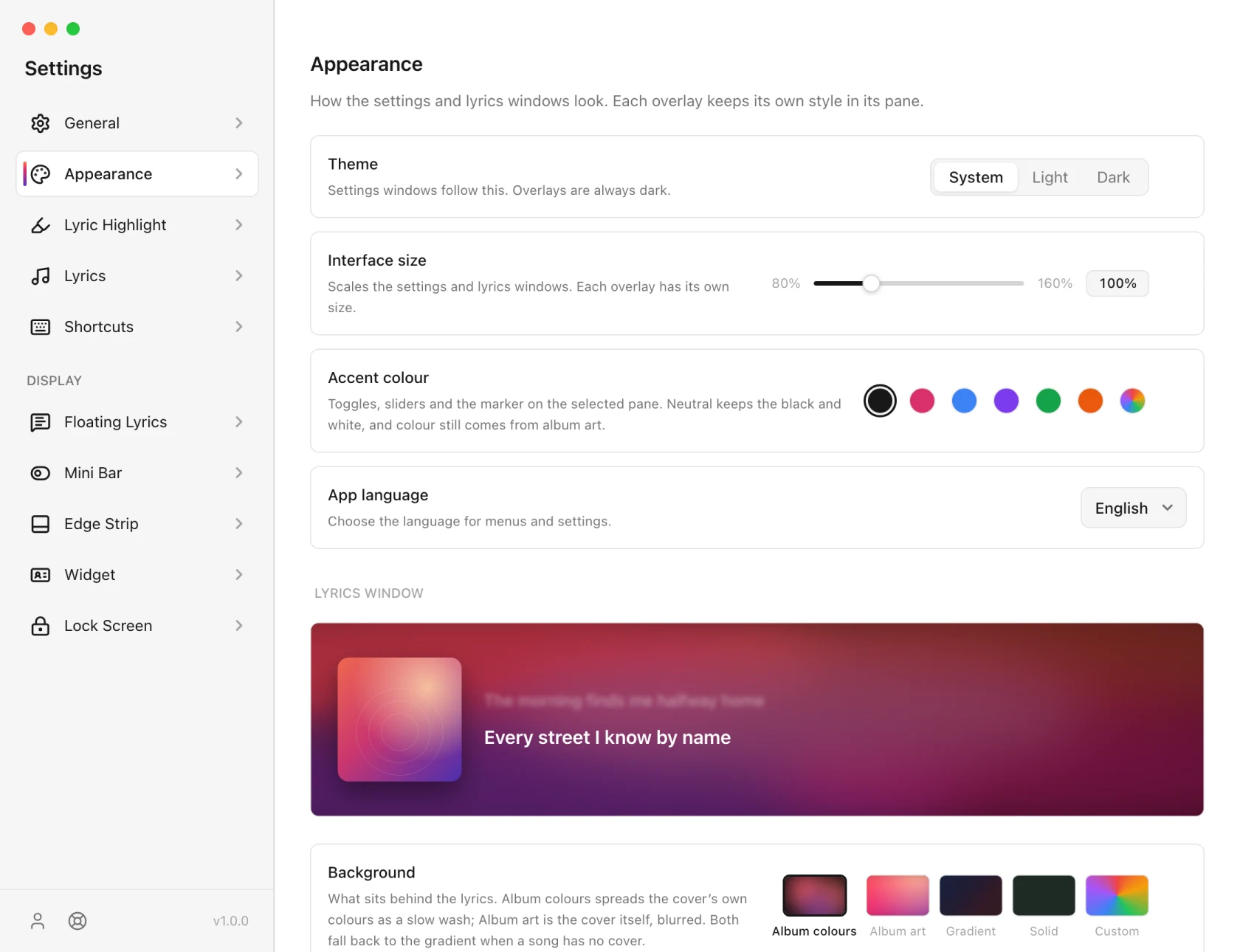
- Theme: System, Light or Dark. It applies to the settings and lyrics windows. The overlays are always dark.
- Interface size: 80% to 160%, scaling the settings and lyrics windows. Each overlay has its own size on its own page.
- Accent colour: the colour of toggles, sliders and the marker on the selected page. Neutral keeps the black-and-white scheme; colour still comes from album art either way.
- App language: nineteen languages, plus System, the default, which follows your computer's language (English when that language is not one of the 19). A language you pick stays saved.
- Background: what sits behind the lyrics. Album colours spreads the cover's own colours as a slow wash; Album art is the cover itself, blurred. Both fall back to the gradient when a song has no cover. Gradient offers five presets, and Solid and Custom are fixed colours. The art treatments and the gradients are Pro; a solid colour is free.
- Blur and Dim control how far the cover is pushed back so the words stay readable.
- Blur the other lines softens the lines away from the one playing, like a depth of field.
Lyric Highlight
The colours the current line is drawn in, shared by every surface, so they are set once: a solid colour or one of seven gradients, the chosen one marked with a check. Covered in Karaoke and highlighting.
Lyrics
Where the words come from, and how they line up with the music.
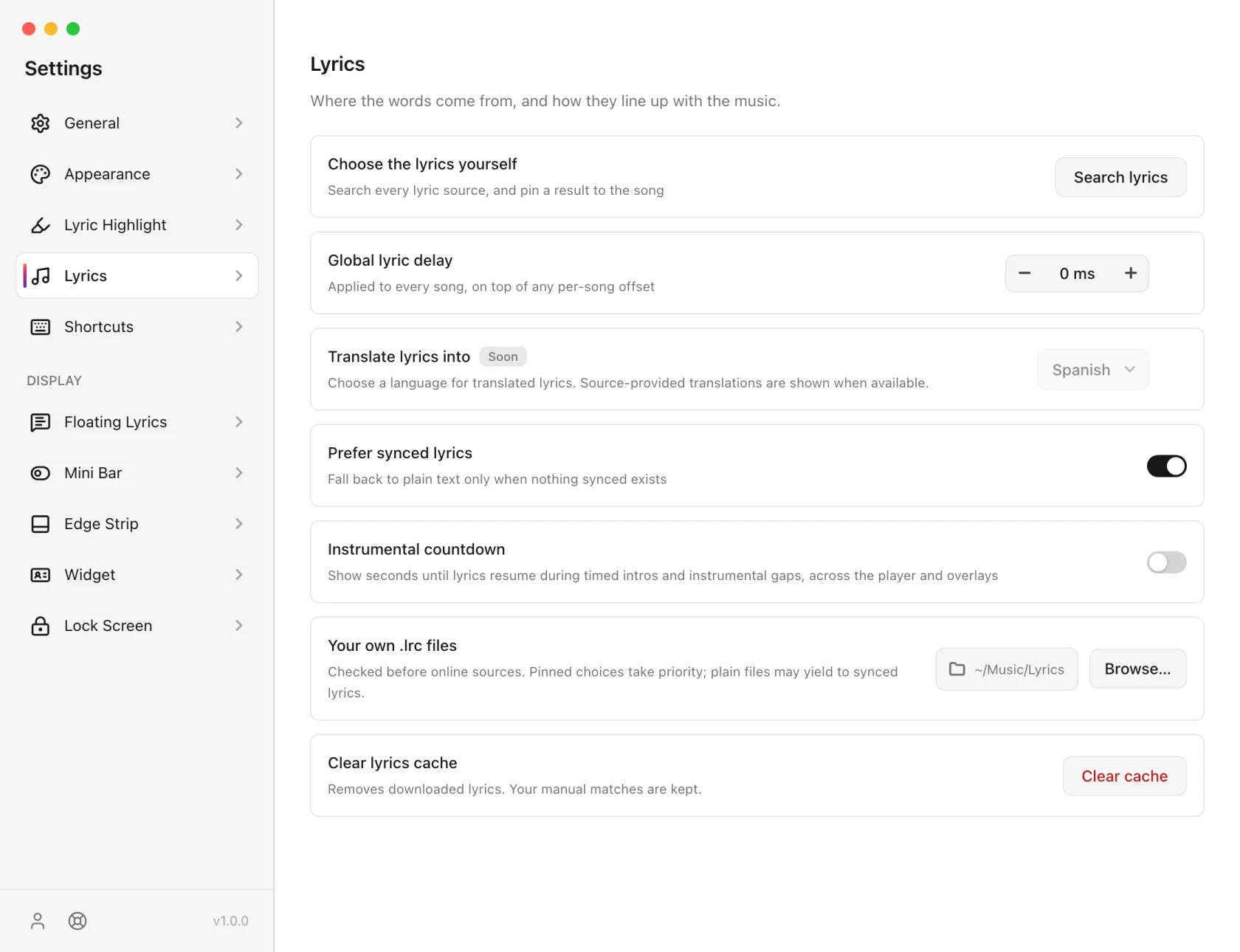
- Choose the lyrics yourself (Pro): opens Search lyrics, the same thing the Lyrics Window's Wrong lyrics? button opens: search every source, paste or load your own, or use a YouTube video's captions. See the Lyrics Window.
- Global lyric delay: applied to every song, on top of any per-song offset. Use it when the whole system runs ahead or behind.
- Prefer synced lyrics: on by default; plain text is used only when nothing synced exists.
- Instrumental countdown: shows the seconds until the words come back during intros and instrumental gaps, across the player and the overlays. Off by default.
- Your own .lrc files: a folder checked before anything online. A file you have beats every source. Lyrics you chose or saved still take priority; a plain text file may yield to a synced one.
- Remember played songs: on by default. Records the songs you play for Library › Recently played. Turn it off and nothing new is recorded. Clear history beside it empties the list.
- Clear lyrics cache: removes downloaded lyrics. Lyrics you chose or saved yourself, the Library and your saved lines are kept.
Recognition in Playback
Identify Song is Pro, under Playback.
- Identify what is playing listens now. Press again to cancel.
- Listen as soon as the window opens starts recognition when you open its window. Off by default.
- Keep listening while lyrics follow by ear schedules another attempt near the end of the recognised song, with a limited set of retries if no match is found. Off by default; the microphone is not continuously listening.
- Recognition shortcut on macOS installs or opens the required Apple Shortcut. Windows and Linux need no extra setup.
The result window offers Show lyrics and stays open until you choose what to do. This works even when automatic listening is off. Songs you identified are listed in Library › Identified.
Shortcuts
See Keyboard shortcuts.
The DISPLAY group
All DISPLAY surfaces require Pro or an active trial. Each has a live preview drawn with your current song:
Overlay interaction
The Interaction section on each overlay page controls how it responds to the mouse. The rule is the same on Floating Lyrics, Mini Bar, Edge Strip and Widget:
| Settings | Under the pointer |
|---|---|
| Both off | The full overlay: toolbar or hover controls, and the Mini Bar expands. It takes clicks. |
| Click-through on | The overlay stays visible and clicks pass through. No toolbar, drag handle or hover controls. |
| Hide while the mouse is over it on | The overlay fades out and lets every click through, whatever Click-through says. |
- Click-through starts on for Floating Lyrics and Edge Strip, and off for Mini Bar and Widget.
- When a song has no lyrics, every overlay shows a Search button that can be pressed even with Click-through on.
- Lock position prevents dragging on Floating Lyrics, Mini Bar and Widget. Drag handles appear on hover, show a four-arrow cursor, and disappear when position is locked.
- The Position section on each overlay page has Show on every display (off by default) and Show on every workspace (on by default).
Closing an overlay temporarily hides it without disabling its saved setting. Tray › Show overlays restores dismissed, enabled overlays. Restarting also clears temporary dismissals. An overlay turned off in Settings stays off; the restore action does not enable it. Playback, pause settings and your licence still determine which overlays can appear.
The sidebar footer
Two buttons at the bottom: your account, and support. The version number sits beside them, and turns into an update notice when there is one. See Updates.
Where settings are stored
Per machine. One account across two computers keeps two sets of settings, so a laptop and a desktop can show different things. Nothing about your settings leaves the machine.
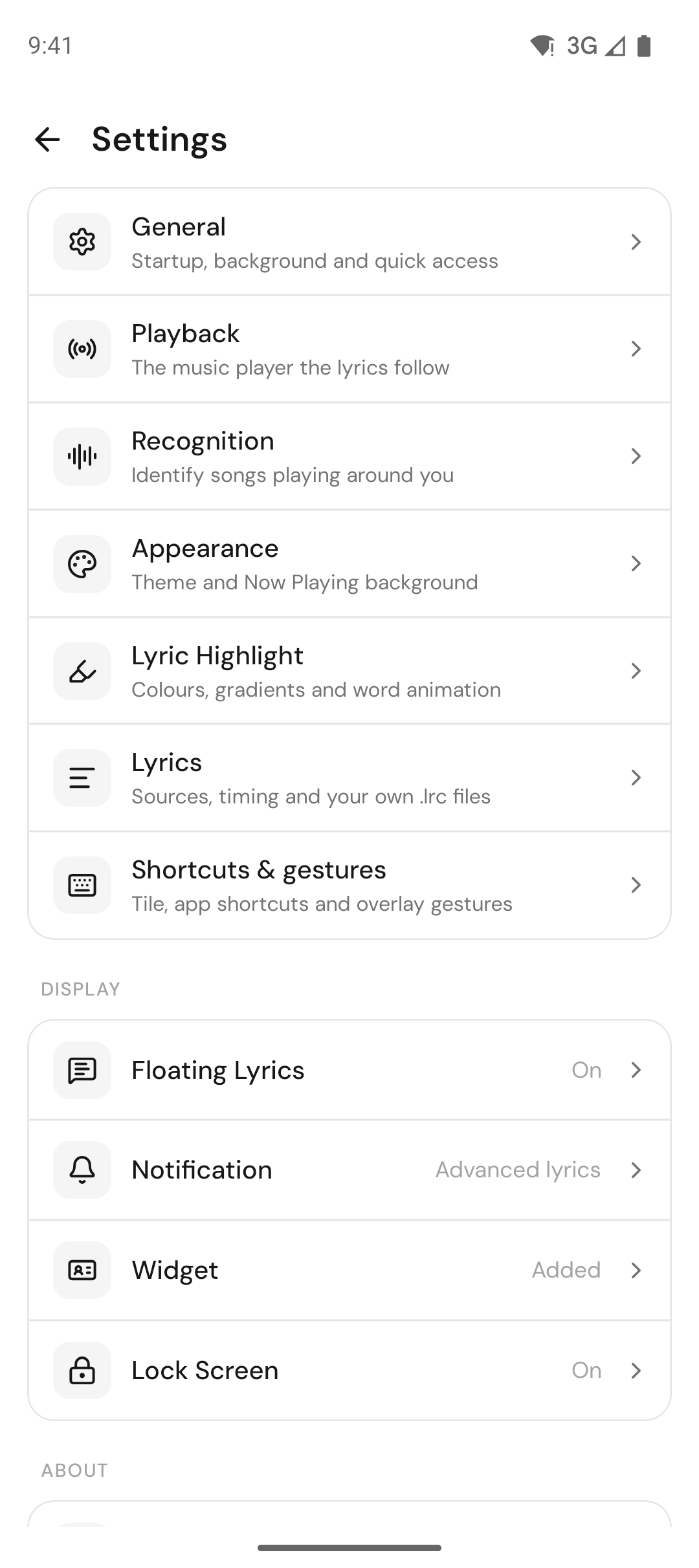
On Android
The phone app's Settings follow the same layout, with pages made for a phone:
| Page | What it holds |
|---|---|
| General | Start after a restart (Pro), Battery use (set it to Unrestricted to keep lyrics in sync with the screen off), the Quick Settings tile, and Setup guide › Show again |
| Playback | The detected music player, choosing one player, and Follow music player (Pro) |
| Appearance | Theme (System, Light or Dark), app language, and the background behind the lyrics: a solid colour, or album colours, album art and gradients (Pro), with blur and dim |
| Lyric Highlight | Word-by-word highlighting, the highlight animation (Pro), and a colour or gradient |
| Lyrics | Prefer synced lyrics, instrumental countdown, global delay, your own .lrc files, choosing the lyrics yourself (Pro), Remember played songs, and clearing history or the lyrics cache |
| Recognition | Identify Song (Pro), listening as soon as Identify opens, keep listening, and the home-screen shortcut |
| Notification | The notification style and background, and showing it on the lock screen |
| Lock Screen | The song and the current line on a locked phone |
| Floating Lyrics | The overlay over other apps |
| Widget | The home-screen widget |
| Shortcuts & gestures | The Quick Settings tile, app-icon shortcuts and double-tap |
Settings stay on each device, so your phone and your computer can each be set up their own way. More in 9xLyrics on Android.