
Songs and Library
Play local music, browse your listening history, and keep the lines you starred.
The right-hand rail in the Lyrics Window keeps four views one click away: Lyrics, Songs, Recent and Saved. Identify sits at the bottom and requires Pro. Local music playback, history and saved lines are free.
Local music
Open Songs to scan and play audio files on this computer. Browse All, Albums, Artists or Folders, or open Up next to manage the queue. Use search to narrow the collection. All and Albums support list and grid layouts.
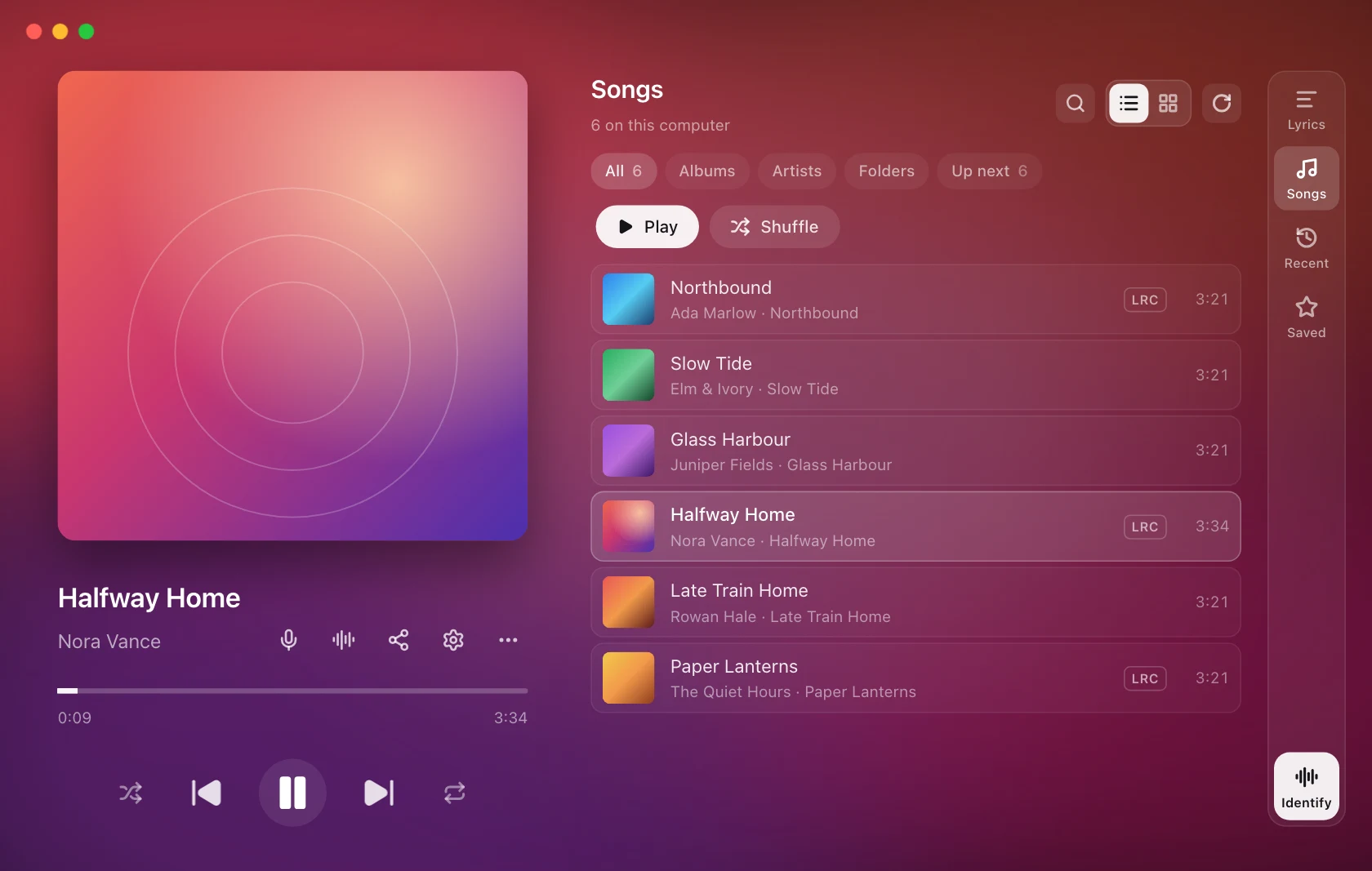
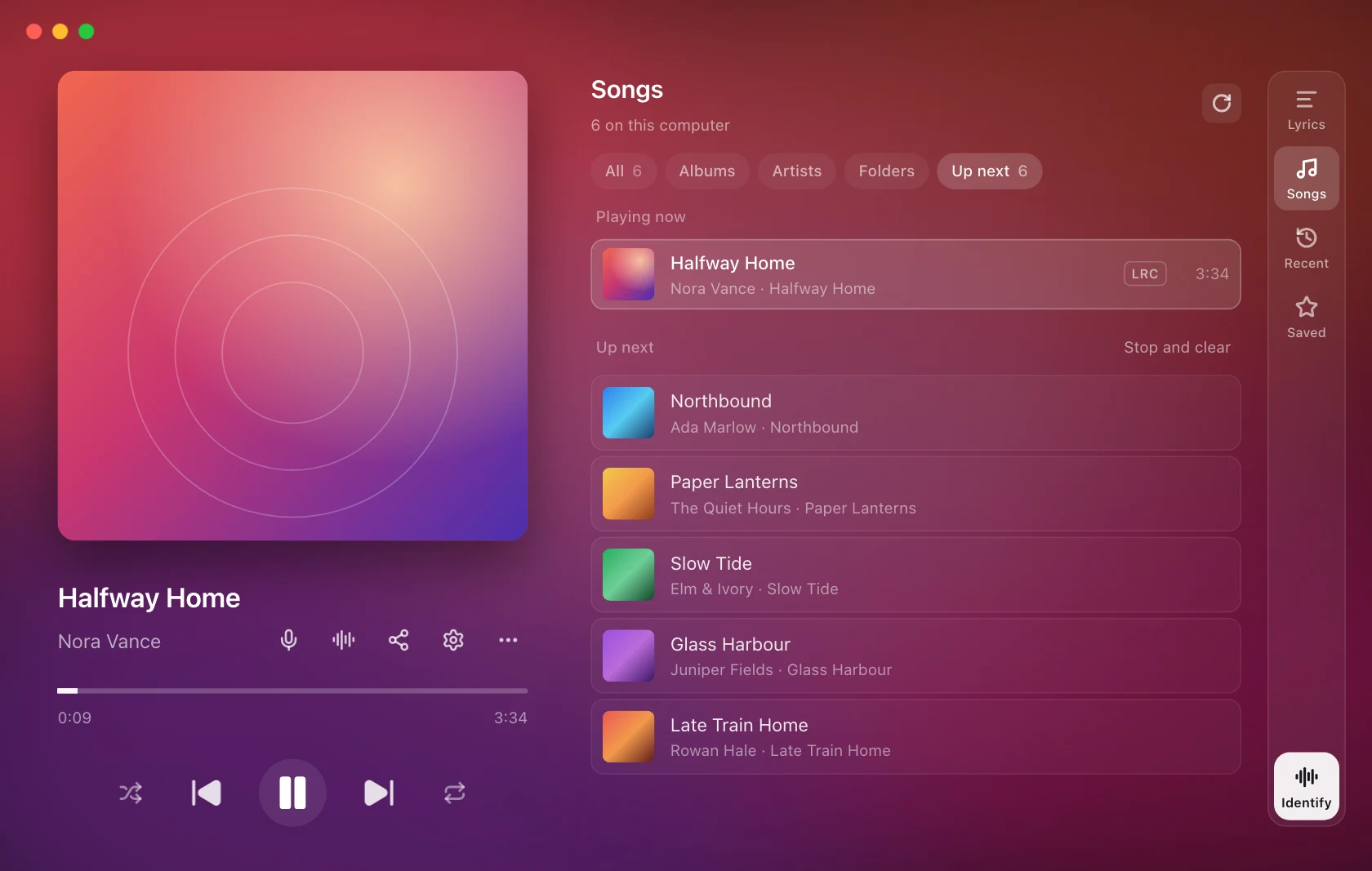
Click a song to play from that point in the list, or choose Play or Shuffle for a collection. Hover a song for Play next, Add to Up next and Show in folder. The built-in player's controls include shuffle and repeat (off, all or one). In Up next, jump to a queued song, remove it, or choose Stop and clear. The queue is not restored after restarting the app.
Folders and scanning
In Songs › Folders, add a folder or stop scanning one. Removing a folder from the collection does not delete its audio files.
The first time you open Songs, 9xLyrics starts with your Music folder and asks once: Scan this whole computer? Say yes to find songs saved anywhere on this computer, like Downloads and other drives. It skips hidden, system, application and cache folders and very short or small files. Not now keeps the scan to your chosen folders. Your answer is remembered, and you can change it any time in Folders with Scan this whole computer.
Chosen folders also include short tracks. Refresh to rescan; selected folders are watched for changes.
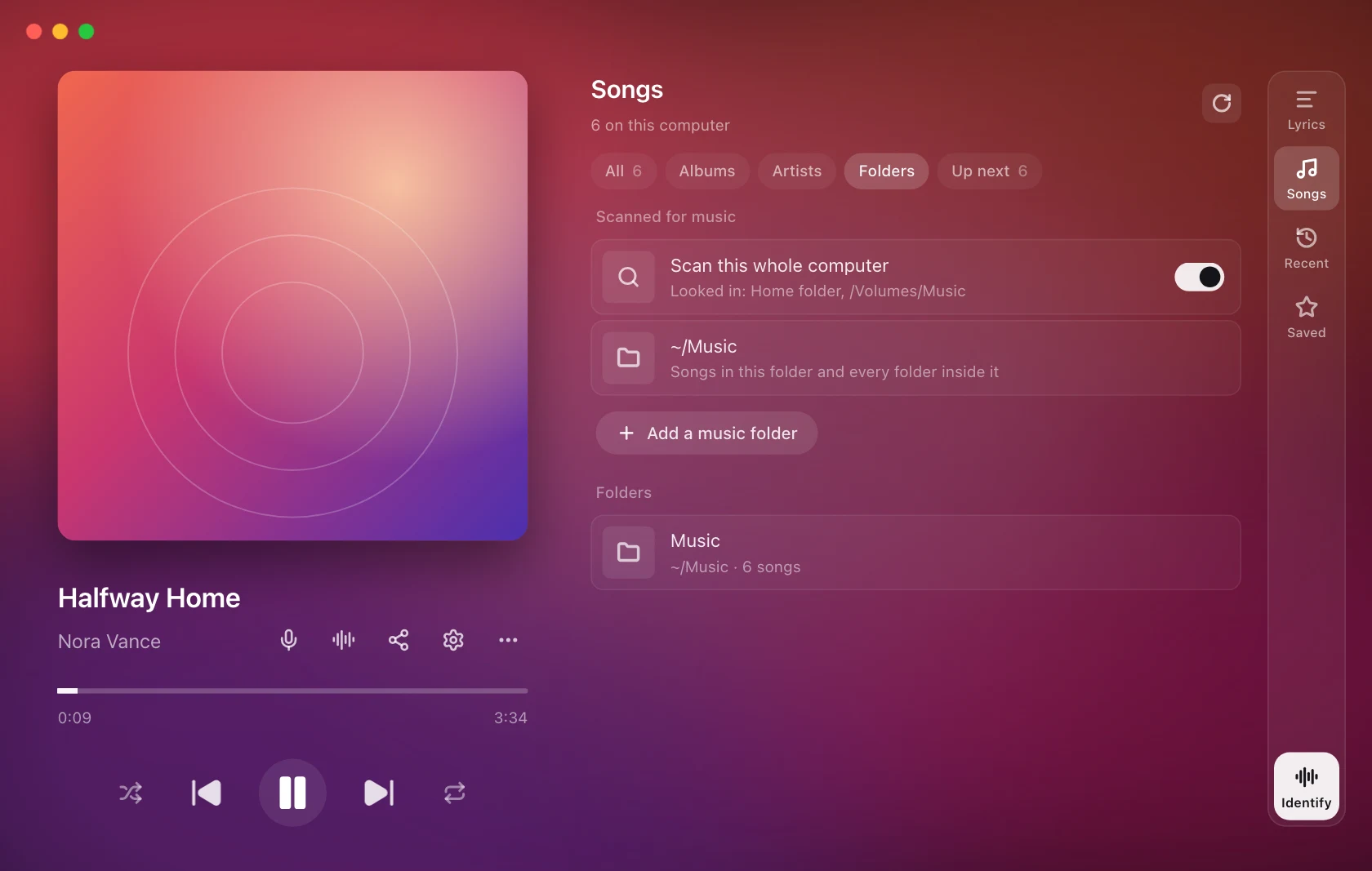
Files are indexed where they are, not copied or changed. Missing files disappear on rescan. If you restore a file, refresh the collection and play it again. Some audio formats cannot be decoded and appear dimmed; supported formats can also depend on the file's encoding.
Lyrics and offline playback
A matching .lrc beside the audio file takes priority, followed by lyrics
embedded in the file, then the normal lyrics folder, cache and online sources.
An LRC or TXT badge shows lyrics found with a file. Local audio and local
lyrics work offline; new online matches need a connection.
For files without artist tags, online music catalogues may receive the cleaned filename to find a title, artist, album and cover. Original files are never retagged. See Privacy.
The built-in player continues when the Lyrics Window closes. Use the app's own Play/Pause, Next and Previous shortcuts; operating-system media keys and media flyouts do not control this player.
Listening history
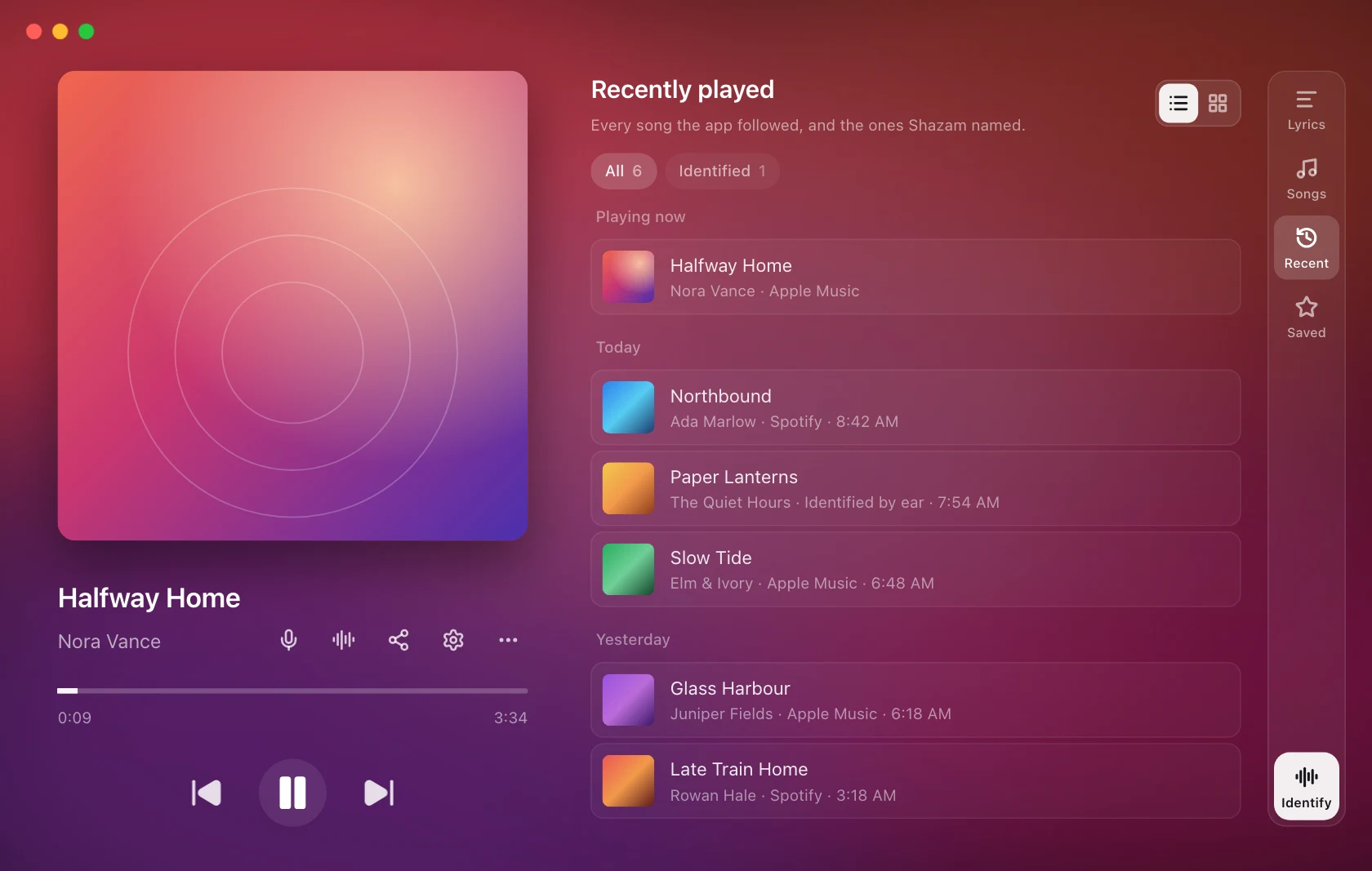
Recent remembers songs you listened to; Saved keeps the lines you starred. Open a past song to read its lyrics again, even after the player has moved on or the app has restarted.
Opening history and saved lines
Choose Recent or Saved in the Lyrics Window's right-hand rail. Recent has All and Identified filters. Songs are grouped by Today, Yesterday and then date, with the current song marked Playing now. Switch between a list and cover grid where offered. Lyrics in the rail or Escape returns to the current song's lyrics.
What gets recorded
A song is added after it has played for 20 seconds. Skipping through a playlist records nothing. Playing a song again moves it back to the top.
Every Shazam match is recorded the moment it is made, even when the lyrics stay with the player you are using. Its page offers View on Shazam.
Open any song to read its lyrics again. They are looked up the same way as when the song plays, so lyrics you chose or edited for it show here too.
Saved lines
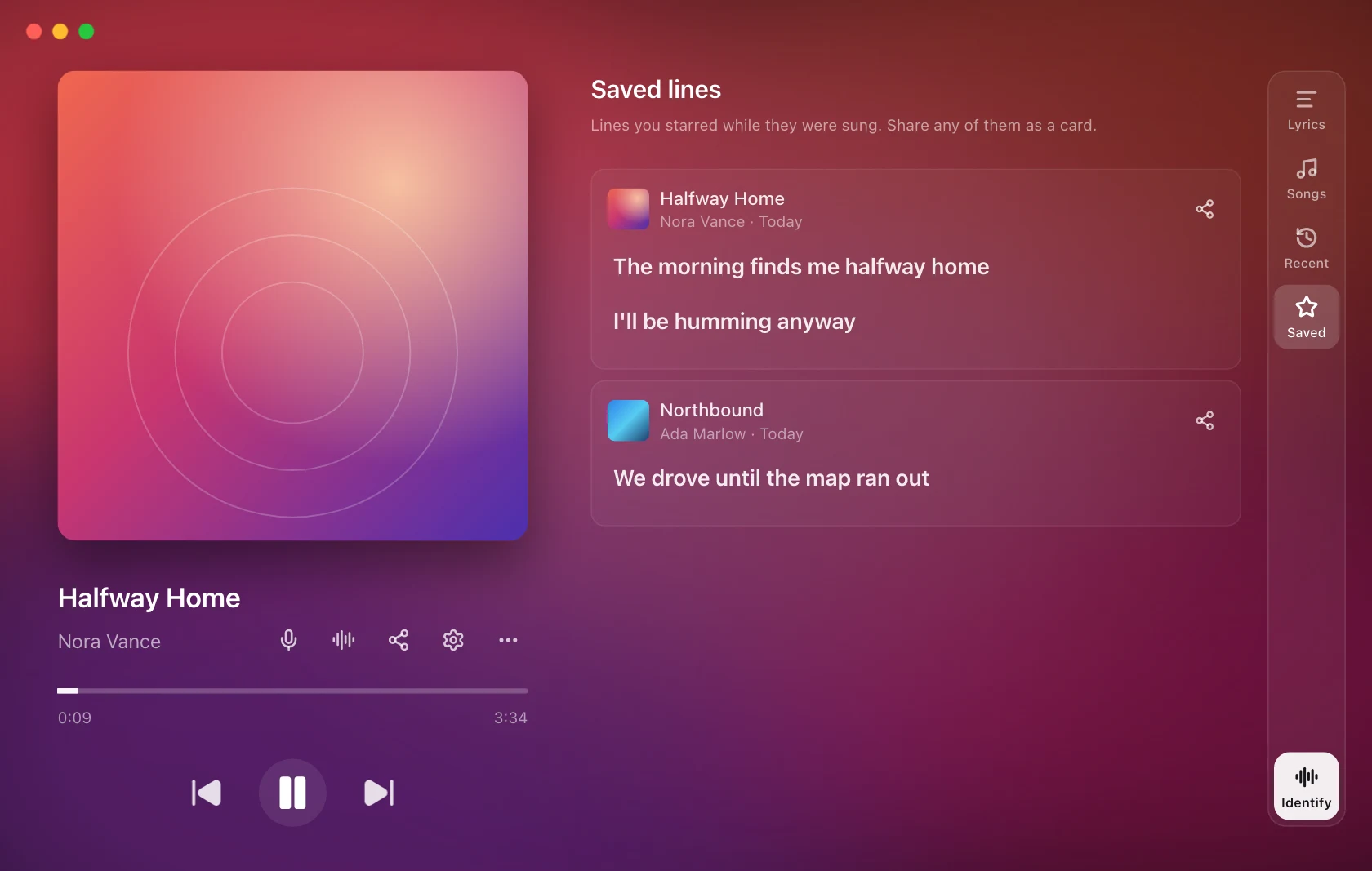
Star a line to keep it:
- Hover any line in the Lyrics Window and click the star beside it. It works on synced and plain lyrics. A saved line keeps a filled star; click it again to remove it.
- More › Save the current line stars the line being sung.
- Save the current line in Shortcuts does the same from any app. It has no key by default.
Lines from the same song share one card, in the order they are sung. The same words starred while playing the song in another player count as the same line.
From a card you can open the line in its song, remove it, or share it.
Sharing from the Library
Share on a saved line, or on a song opened from the Library, opens the share composer with those lines ready to pick. Sharing is Pro; the Library itself is free.
Limits and privacy
The Library keeps up to 500 songs and 1,000 saved lines; the oldest go first. It is stored in the app's data folder on this computer and is not sent anywhere.
- Remember played songs: turn it off and nothing new is recorded.
- Clear history: empties Recently played.
Clear lyrics cache does not touch the Library or your saved lines. See Privacy.