
Tools, Skills, and MCP
What the built-in tools do, how skills shape answers, and how to connect an MCP server safely.
Three things in the Library let the assistant do more than talk, and they work differently enough to be worth separating.
Using tools, skills and MCP servers in chat is part of Pro, and included in the 3-day trial. On a free account you can still browse, create and configure all of them, and the assistant can always save memories. See Free and Pro.
| What it is | Where it comes from | |
|---|---|---|
| Tool | A function the model can call to do something | Over 25 built in, or write your own |
| Skill | Instructions that shape how the assistant answers | 3 built in, or write your own |
| MCP server | Someone else's tool collection, connected over the Model Context Protocol | Community list, or add your own |
Tools
Library → Tools lists everything the model can call. The built-in set covers the web, your own workspace and a browser:
- The web: Search Web, Read Webpage, YouTube Transcript, Capture Screenshot
- Your workspace: Search Knowledge, Search Attachments, View Attachment, Search Conversations, Summarize Thread, Manage Notes, Manage Memory
- Making things: Generate Image, Generate Document (a PDF, Word or text file you can download)
- Working with you: Ask User, Manage Todos, Cite Sources, Get Current Time
- The browser pane (desktop): Open Browser, Observe Browser, Act in Browser, Extract Page, Screenshot Browser, Page Errors, Browser Tabs, Find in Page, Download File, Attach Files to Page
Tools marked Core (Manage Memory, Ask User, Cite Sources, Manage Todos and Read Skill among them) are always on, because the others rely on them. Every other tool has Enable tool and Disable tool, so you can turn off anything you would rather the model never reach for.
What a tool actually does
Open any tool and the whole contract is on screen, which is unusual and worth using.
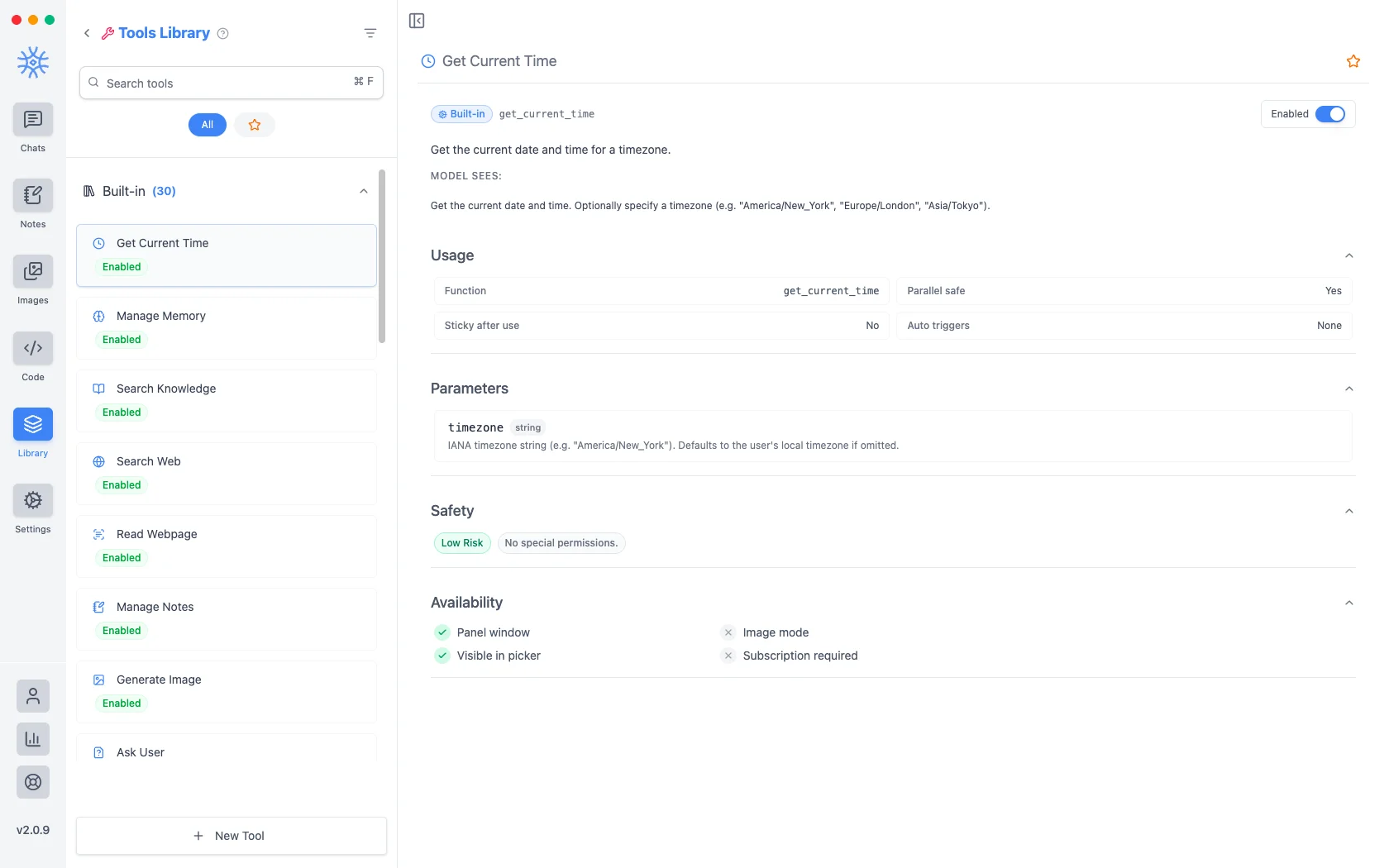
- MODEL SEES is the literal description the model reads when deciding whether to call the tool.
- Usage gives the function name, whether it is safe to run in parallel, whether it stays active after use, and what can trigger it automatically.
- Parameters lists exactly what it accepts.
- Safety carries a risk level and states what permissions it needs: Get Current Time, for instance, is Low Risk with no special permissions.
- Availability shows where it works, including whether it needs a subscription.
Read the Safety line before enabling anything you did not add yourself. It is the quickest answer to "what can this reach".
Use a tool in a chat
Ask for the action directly when you want a specific tool. For example, “What time is it in India right now? Use the Get Current Time tool.” The assistant runs the tool, waits for its result, and then writes the answer from that result.
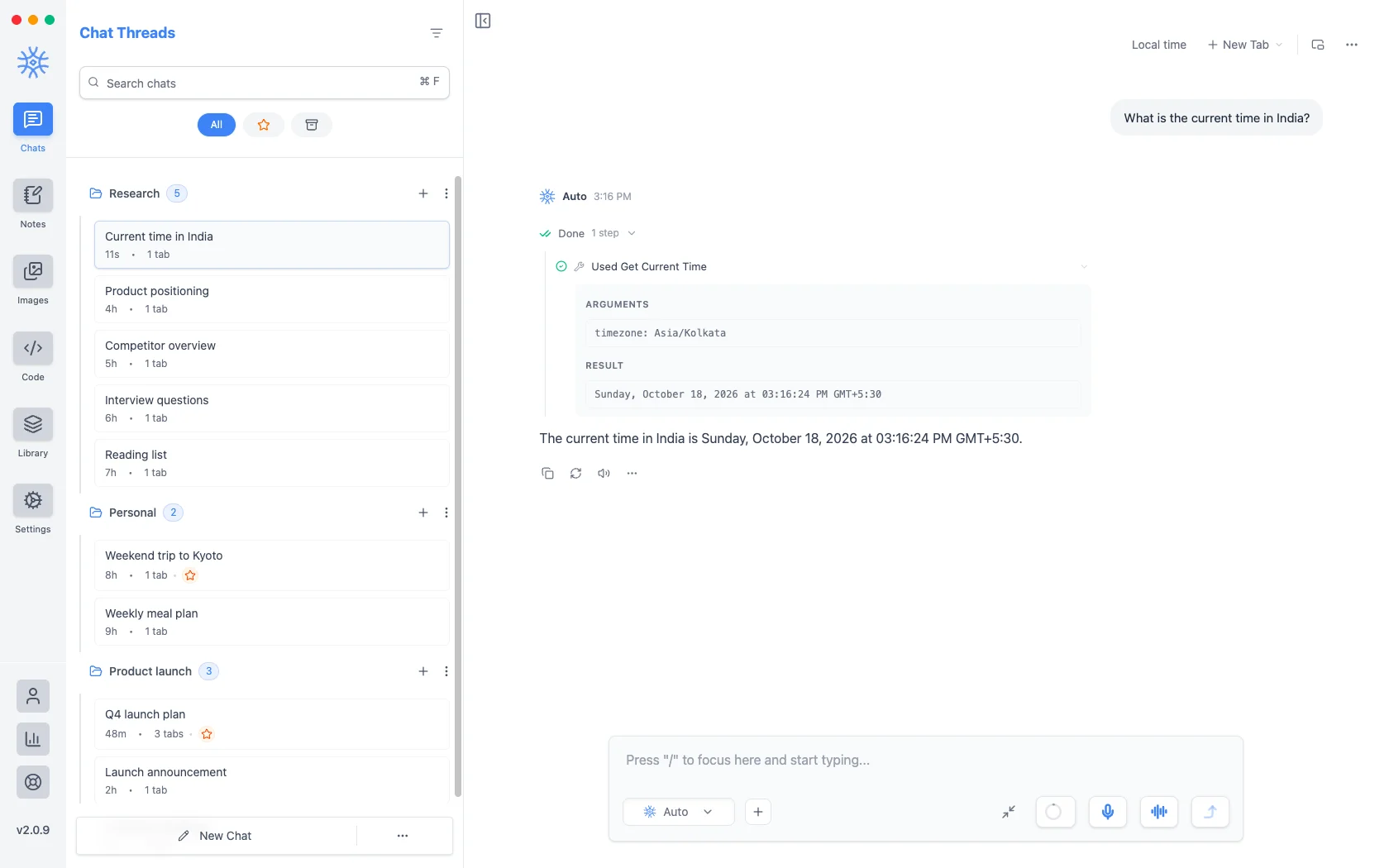
The collapsed row records which tool ran and how long it took. Choose the row to inspect the arguments supplied by the model and the result returned to it. That makes it possible to verify the work instead of relying only on the final sentence.
What a tool sends
Search Web and Read Webpage send a query or a URL out to the internet. Search Knowledge, Search Attachments, and Search Conversations read your local data and put what they find into the conversation, which then goes to whichever model you are using. A local model keeps all of it on your machine; a cloud model does not.
Your own tools
New Tool connects the assistant to any web API. Four tabs set it up:
- Main: a Title, the Function name the model calls, a Description the model reads, and its Parameters.
- Request: the Method (GET, POST, PUT, PATCH or DELETE), the
Endpoint URL, Request headers, and a Secrets vault for keys,
referenced as
{{NAME}}so they never appear in the tool itself. - Advanced: Enabled, Confirm before run (ask you before every call), Context triggers, and Stay available after first use.
- Test: Run test calls the endpoint so you can check the result before the assistant uses it.
Task lists and questions
On longer jobs the assistant keeps a task list with Manage Todos, and Ask User lets it stop and ask you a question with answer cards. Answer the question to let it carry on.
Skills
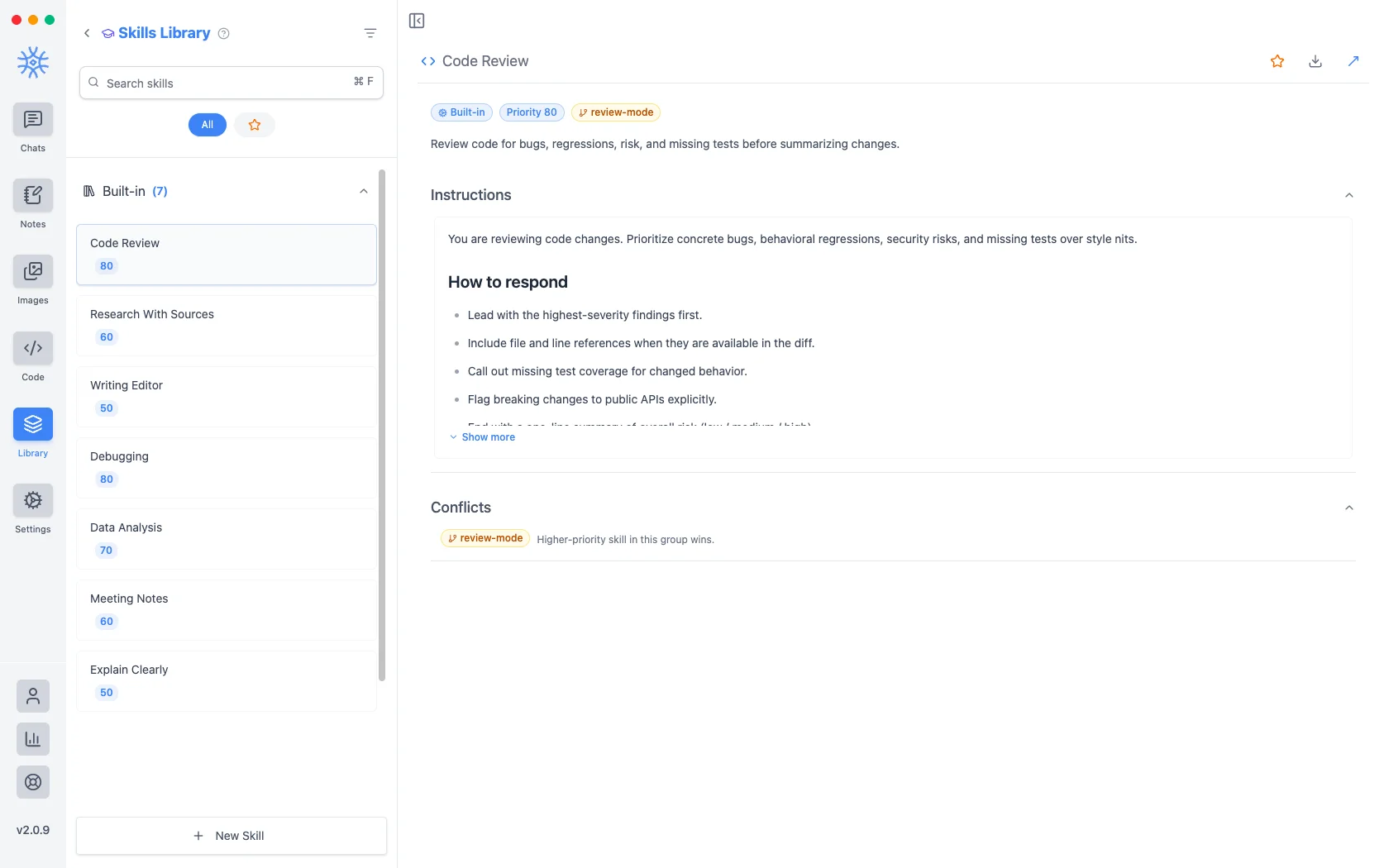
Library → Skills holds instruction sets that change how answers are written rather than what the assistant can do. Each has a priority deciding which wins when more than one applies.
The three built in are Code Review (priority 80), Research With Sources (60), and Writing Editor (50). Open one and you see its instructions and its How to respond rules. Code Review, for instance, leads with the highest-severity findings, cites file and line where the diff provides them, calls out missing test coverage, flags breaking API changes, and closes with an overall risk rating.
Because skills are just instructions, you can read exactly what one does before
enabling it. New Skill lets you write your own, or import one: drop a
SKILL.md file on the Import tab, or paste an HTTPS link to one. The import
fills in the form for you to review before you save. Download SKILL.md
exports a skill to share.
MCP servers
Library → MCP Servers connects external tool collections over the Model Context Protocol, so their tools appear alongside the built-in ones. The Community tab offers ready-made servers such as Filesystem, Memory, Sequential Thinking, GitHub, Brave Search and Postgres; Add MCP Server connects your own.
A server connects one of three ways:
- STDIO (desktop): a program on your computer, with its Command, Args and Environment variables.
- HTTP or SSE: a server on the network, with its URL and Request headers. This is how MCP works on mobile.
Servers that need you to sign in open your browser when you choose Connect, and Forget saved sign-in signs out again. Enabled connects the server when the app starts. Trust Server skips the confirmation before each call, and a local STDIO server must be trusted before it runs.
On desktop, the 2.0.9 security update requires a new browser sign-in for remote MCP servers that use it. See After updating to 2.0.9 for the affected connections and steps.
Adding one
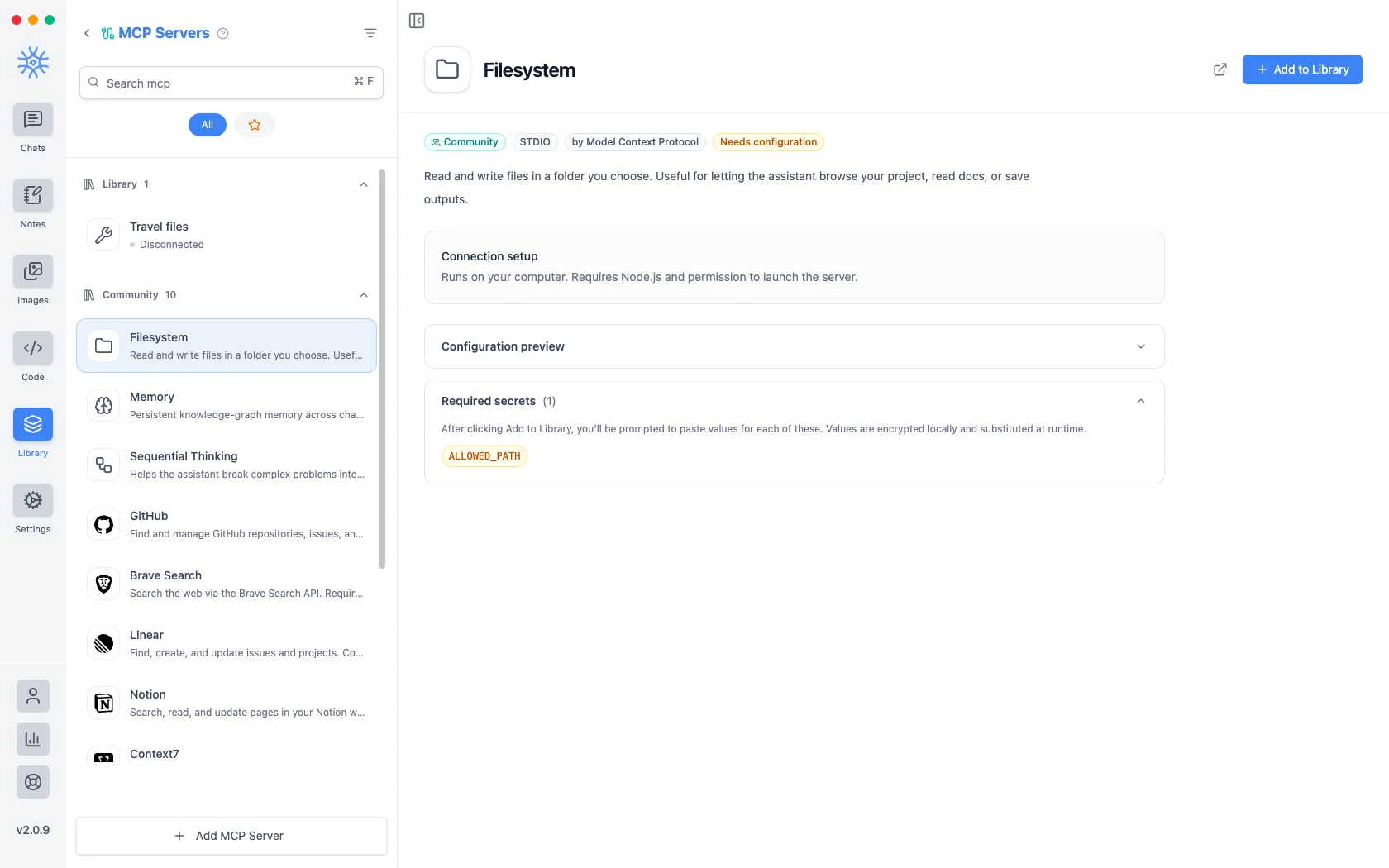
Each entry shows a Configuration preview before you commit: the command it
will run and the arguments it will receive, so you can see that Filesystem is
npx -y @modelcontextprotocol/server-filesystem pointed at a path you choose.
Servers that need credentials list them under Required secrets and mark themselves Needs configuration. Choosing Add to Library prompts you for each value; they are encrypted locally and substituted in when the server runs, rather than being stored in the configuration itself.
Deciding what to give one
An MCP server is a program running on your machine with whatever access you grant it, so treat adding one like installing software:
- Scope it. Filesystem asks for an allowed path. Give it the narrowest folder that does the job, not your home directory.
- Read the command. The configuration preview shows exactly what will run.
- Prefer servers you can identify. The community entries name their publisher.
- Remember the model sees the results. Whatever a server returns enters the conversation, and travels wherever that conversation goes.
Checking connections
On desktop, Settings → Tool diagnostics shows every MCP server with its status (Connected, Connecting…, Disconnected, Failed or Authentication required) and a Test connection button, lists your HTTP tools, and keeps a Recent activity log for the session. Arguments and results are not stored there.
Turning things off
Every tool can be disabled, skills can be disabled, and an MCP server can be removed from the Library. If the assistant is doing something you did not expect, that is the first place to look: disable the tool, ask again, and see whether the behavior goes away.