
Settings
Every settings section - general, startup and tray, appearance, language, notifications, default models, keyboard shortcuts, data and exports, and tool diagnostics.
Open Settings from the sidebar (on mobile, from the drawer). Settings is a two-pane screen: the sections are listed on the left, and the one you choose opens on the right. Settings marked Pro show a Premium label on a free account, so you can see everything Pro adds in the place you would use it.
| Section | Desktop | Mobile |
|---|---|---|
| General | Yes, with Startup and tray | Yes |
| Appearance | Theme, accent colour, interface size, true black, reduce motion, setup guide | Theme and setup guide |
| Language | Yes | Yes |
| Notifications | Yes | No |
| Default models | Six models, audio, transcription and file search | Four models, audio, transcription and file search |
| Keyboard shortcuts | Yes | No |
| Data & exports | Yes | Yes |
| Tool diagnostics | Yes | No |
General
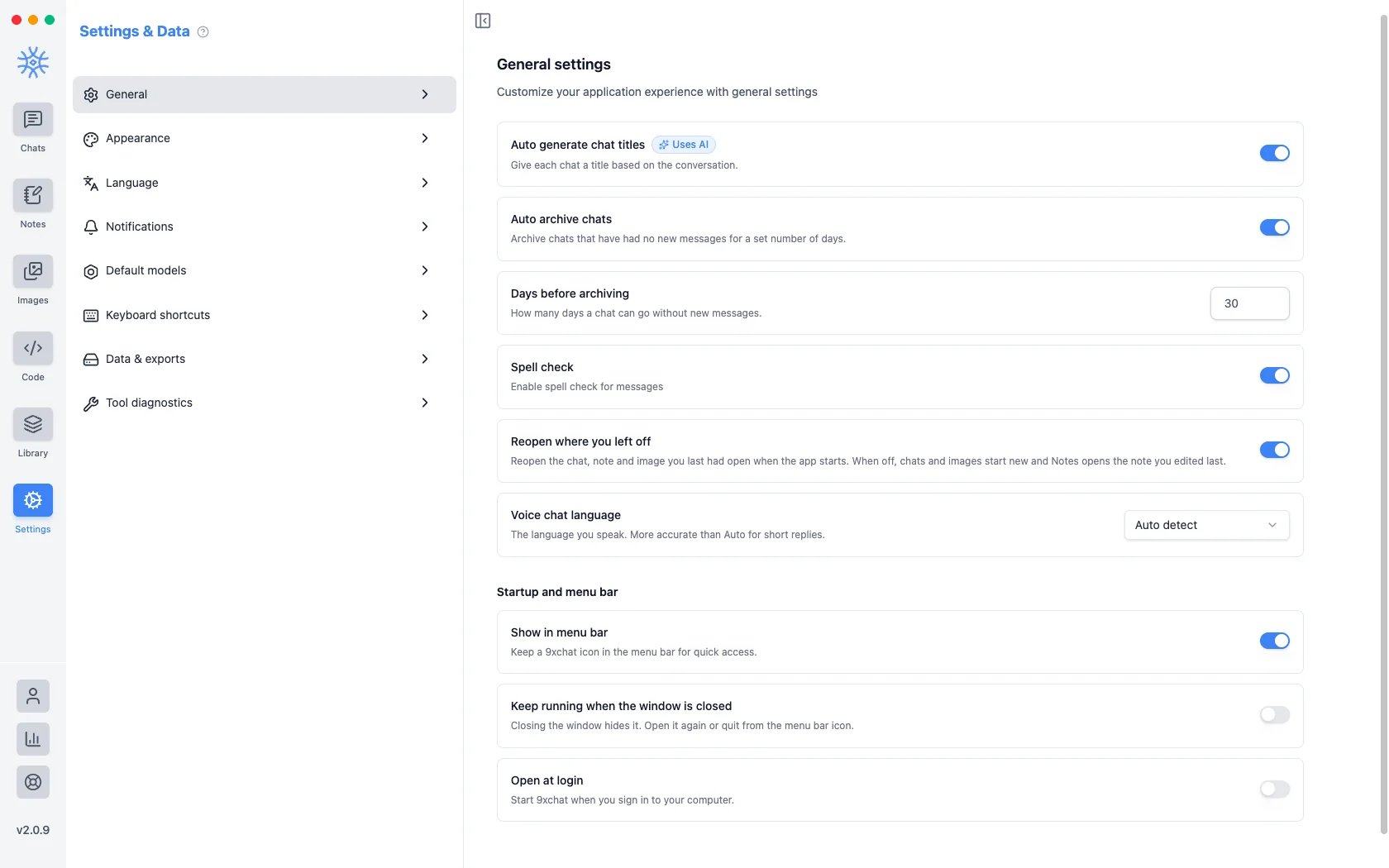
- Auto generate chat titles Pro names each chat from its conversation, so your list reads as a list of subjects rather than "New Chat". It uses your Titles and summaries model.
- Auto archive chats moves chats with no new messages out of the list after Days before archiving (30 by default). Archiving hides a chat; it does not delete it.
- Spell check underlines misspellings as you type.
- Reopen where you left off opens the chat, note and image you last had open when the app starts.
- Voice chat language is the language you speak. Naming it is more accurate than Auto detect for short replies.
Startup and tray
On macOS this group is called Startup and menu bar.
- Show in system tray (macOS: Show in menu bar) keeps a 9xChat icon there for quick access. Tray icon style (Windows and Linux) offers Auto, Colour, White and Black.
- Keep running when the window is closed hides the window instead of quitting. It needs the tray icon.
- Open at login starts 9xChat when you sign in.
- Start in the tray (macOS: Start in the menu bar) waits in the tray after a login start instead of showing the window.
Desktop and shortcuts shows what the tray menu offers.
Appearance
- Theme: System, Light or Dark. System follows your device, including a scheduled switch at sunset.
- Accent colour (desktop): Blue, Violet, Green, Amber, Rose, Slate, or any Custom colour. It colours selected rows, links and the send button.
- Interface size (desktop): 90%, 100%, 110% or 125%. It scales everything, not just the text.
- True black (desktop): pure black backgrounds in dark mode, which save power on OLED screens.
- Reduce motion (desktop): turns off animations and transitions.
- Setup guide: Show again reruns the first-run setup with your current answers filled in.
Language
App language sets the language of menus, buttons and messages. 9xChat speaks 19 languages and the change applies immediately, with no restart.
This is separate from Voice chat language in General (the language you speak) and from the language a model answers in, which follows how you write to it.
Notifications
Desktop only. Enable notifications turns them on, then choose Chat replies, Image generation and Failed tasks separately, and whether to play a Notification sound. In-app alerts appear while the window is focused; system notifications appear in the background. Private chats never notify, and message content is never included.
Default models
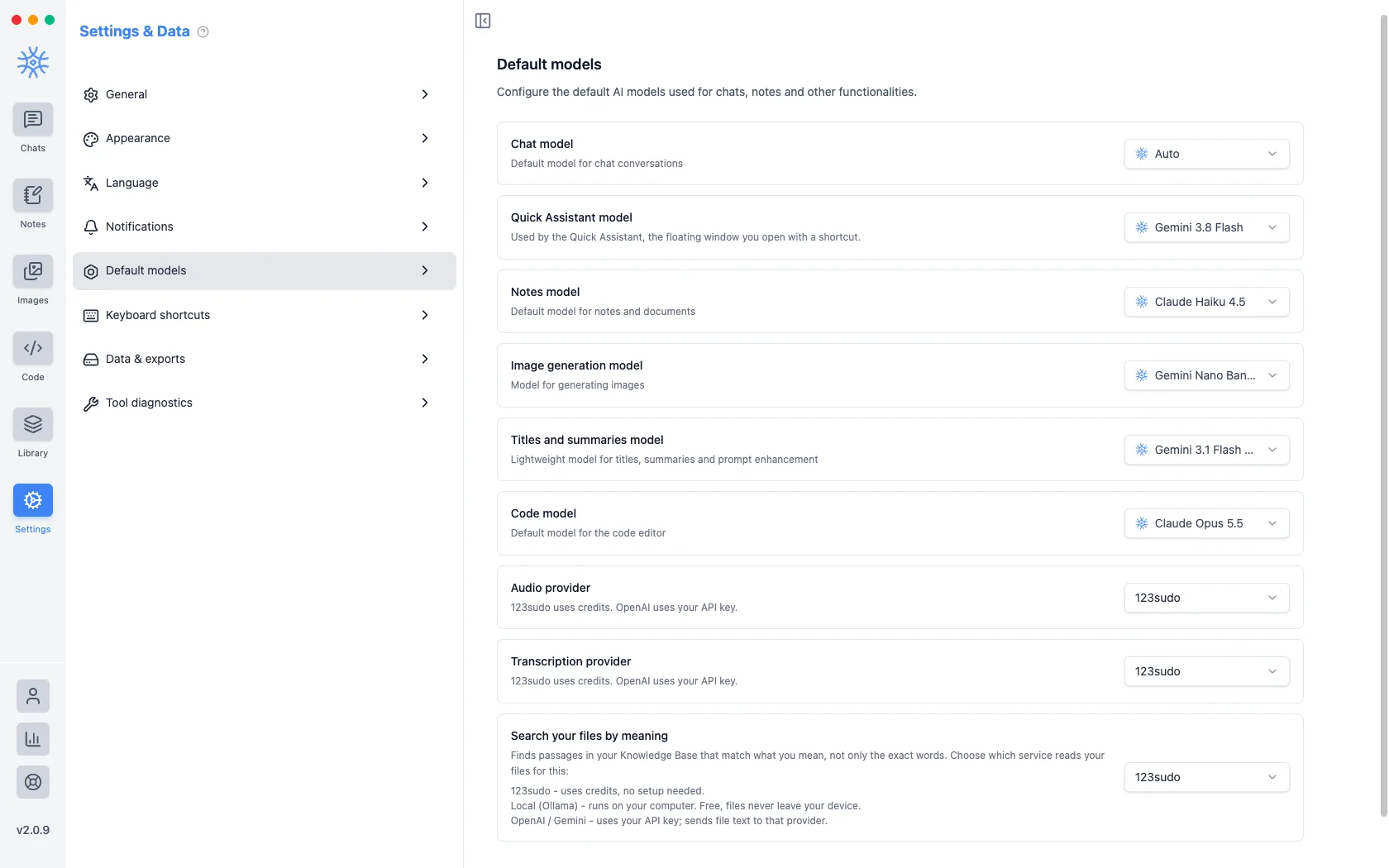
Each kind of work starts on its own model, because the best model for a long chat is rarely the best one for writing a title.
| Setting | Used by |
|---|---|
| Chat model | New chats |
| Quick Assistant model | The Quick Assistant (desktop) |
| Notes model | Notes and the AI Editor |
| Image generation model | The image playground |
| Titles and summaries model | Chat titles, summaries and Enhance Input |
| Code model | The Code workspace (desktop) |
A default is a starting point, not a lock: you can change the model in any chat, and the chat keeps that choice.
Below the models:
- Audio provider (read aloud and voice) and Transcription provider (dictation): 123sudo uses credits and needs no setup; OpenAI uses your API key.
- Search your files by meaning chooses what reads your Knowledge files so
the assistant can find passages by meaning, not only exact words:
- 123sudo: uses credits, no setup needed.
- Local (Ollama) (desktop): runs on your computer, free, and files never leave your device.
- OpenAI or Gemini: uses your API key and sends file text to that provider.
Changing it asks Index knowledge with this provider?; choose Switch & reindex to rebuild the index with the new provider.
Keyboard shortcuts
Desktop only. To change a shortcut, hover its row, choose the edit button and press the new combination; Esc cancels. A combination already in use is refused with the name of the action that has it.
| Action | Windows and Linux | macOS |
|---|---|---|
| Open global search | Ctrl+F | ⌘F |
| Quick Assistant Pro | Alt+Space | ⌥Space |
| Quick switcher | Ctrl+P | ⌘P |
| Toggle sidebar | Ctrl+B | ⌘B |
| New chat | Ctrl+N | ⌘N |
| Delete chat | Ctrl+Backspace | ⌘⌫ |
| New tab Pro | Ctrl+T | ⌘T |
| Reopen closed tab | Ctrl+Shift+T | ⌘⇧T |
| Open settings | Ctrl+, | ⌘, |
| Private chat | Ctrl+Shift+N | ⌘⇧N |
| Send message | Enter | Enter |
| New line | Shift+Enter | ⇧Enter |
Send message and New line are fixed. The Quick Assistant shortcut works from any app, and with Pro or an active trial.
Data & exports
Save your data to a file, bring it back from one, and keep automatic backups on this device.
Exporting
On the Export tab, choose what goes in the backup: Chats, Notes,
Images, Prompts, Models, Agents, Skills, Tools,
MCP Servers, Attachments, Knowledge Base, Memories and
Settings. Then choose Export backup to save a .json file.
- Tools and MCP Servers export with their credentials removed.
- Settings exports without your model API keys.
- Knowledge Base exports collections and their scopes; the files themselves travel under Attachments.
API keys and saved secrets are never included, so a backup is safe to move between devices. Keep your keys where you keep passwords, and enter them again after restoring.
Restoring
On the Import tab, choose Choose backup file and pick a 9xChat .json
backup. Restoring never throws away your work:
- items missing here are added,
- an item on both sides is updated only when the backup copy is newer,
- your newer edits are kept,
- your current data is backed up first, so you can undo the restore from Recent Backups.
The result lists what was added, updated and kept. Tools and MCP servers from a backup stay disabled until you review and enable them. Restart the app when asked to finish.
Automatic backups
Automatic backups saves a local backup Daily, Weekly or Monthly, keeps the last 5, and skips a backup when nothing changed. It is part of Pro on desktop and included on every plan on mobile.
Back up now and every restore are free on all plans. The backups list marks the Latest backup and the one taken Before restore, and offers Restore, Delete this backup and Open folder.
Tool diagnostics
Desktop only. Check your connections and review recent tool activity:
- MCP servers with their status and a Test connection button.
- HTTP tools you have added. Test one from its Test tab in the Library.
- Recent activity for this session, with Clear. Arguments and results are not stored here.