
Code workspace
Point 9xChat at a project folder to inspect, search, run scripts, execute git operations, and review AI diffs across your codebase.
Code turns 9xChat into an agentic coding environment. Instead of copying and pasting disconnected snippets, you open an entire project folder on disk. The AI assistant can explore your directory tree, read files, search across code, run project scripts, inspect git history, and propose edits.
The Code workspace is part of Pro on desktop, and included in the 3-day trial. See Free and Pro.
Opening a workspace
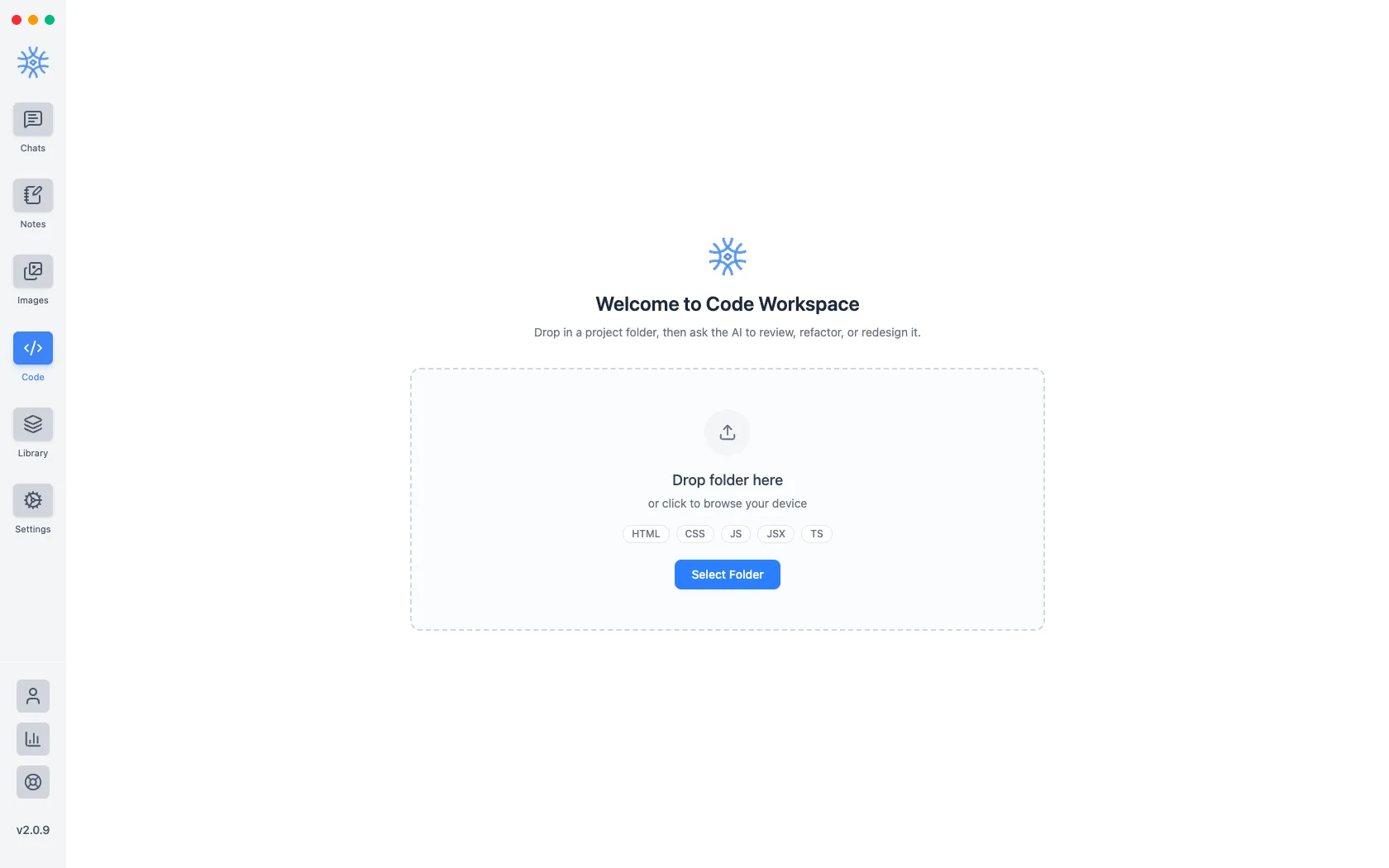
- Drop any project directory onto the Code screen, or click Select Folder.
- 9xChat indexes the folder structure and displays it in the left project panel.
- Your recent workspaces are saved under Recent Workspaces for fast access.
A workspace can hold more than one folder: add a second root when a change spans an app and the library it depends on. The first folder stays the primary root, which is what decides where an ambiguous path resolves. Changing the folders in a workspace clears the AI undo history, so the app asks you to keep or reject any pending edits first rather than stranding them.
Workspace navigation
The Code workspace layout is split into specialized panels:
- Sessions Sidebar: Keep separate conversation threads for different tasks in the same codebase (e.g., refactoring auth logic vs. adding unit tests).
- File Explorer: Browse your file hierarchy with file type icons and folder expansion.
- Quick File Finder (
⌘P/Ctrl+P): Fuzzy search filenames across your project to jump directly to any file. - Full-Text Project Search: Grep text, functions, and symbols across the entire workspace with match previews.
- Syntax-Highlighted File Preview: View files side-by-side with line numbers and language highlighting.
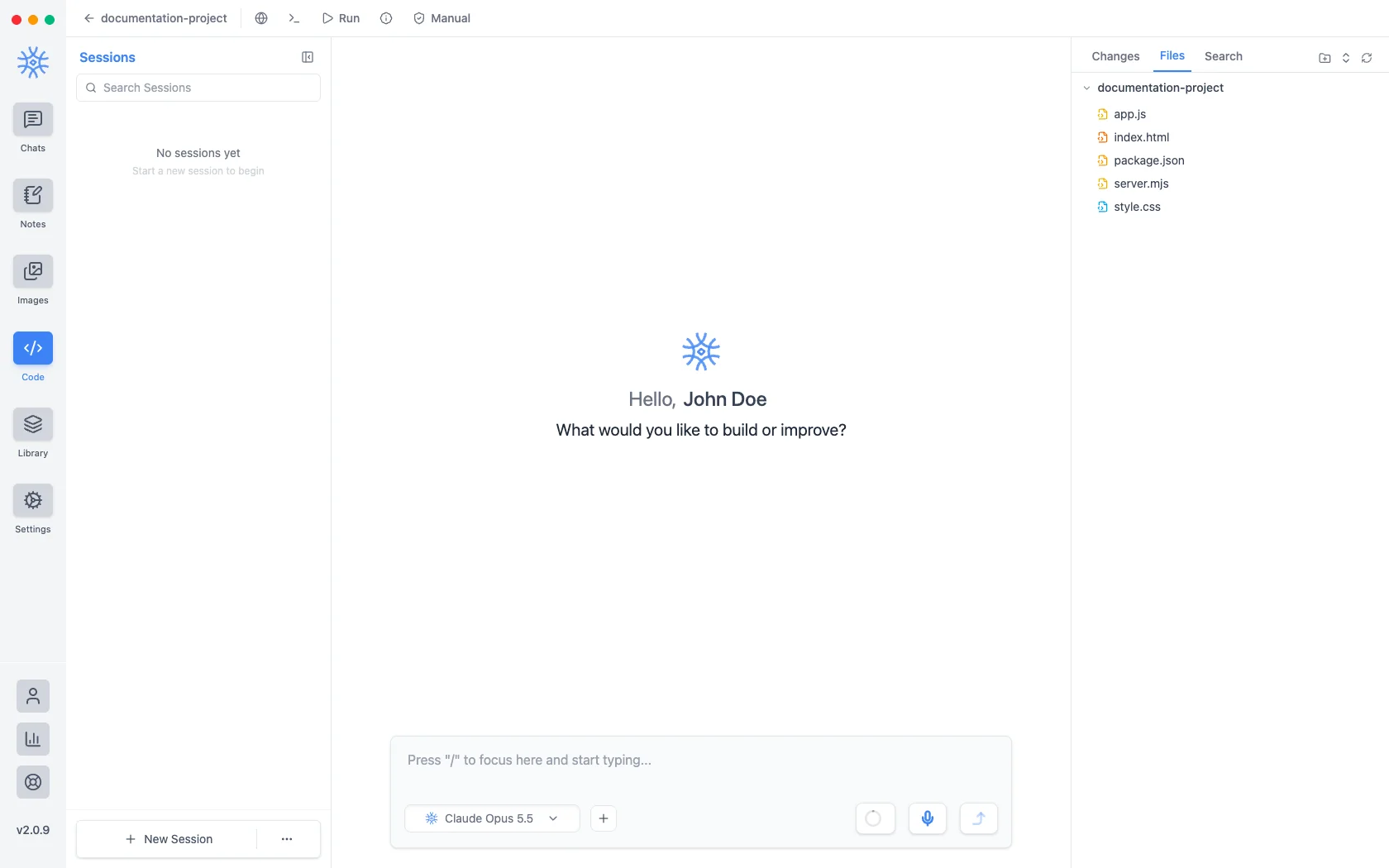
Agentic coding tools
When chatting in a Code session with supported cloud models, the assistant has access to built-in developer tools:
| Tool Category | Capabilities |
|---|---|
| File Operations | Read files, create new files, list directory contents, and search both filenames and file contents |
| AI Edits & Diffs | Propose exact string replacements or rewrites across one or multiple files |
| Git Integration | Check git status, view git diff, inspect commit history, and stage commits |
| Script Runner | Execute npm/yarn/pip scripts, run test suites, and monitor running background processes |
| Package Management | Check and install project dependencies |
| Browser | Open a page in a pane beside the workspace and read what is on it |
Content search uses ripgrep when it is installed on your machine, which removes the file and result ceilings a JavaScript scan needs. The assistant calls the same tool either way, so nothing about the conversation changes; a large repository simply stops being searched in a truncated form.
Whether ripgrep is present or not, the same rules decide which files may be read. A faster search does not widen what the assistant is allowed to see.
The agentic coding workflow relies on tool-calling capabilities supported by cloud models. Ollama models do not currently support tool execution in 9xchat.
Reviewing AI edits
Edits are staged rather than written, and the diff viewer shows additions and deletions with line numbers and syntax highlighting. Keep writes the change to disk; Undo discards it.
Manual and Auto
Each session is either Manual, where every change waits for you to keep or undo it, or Auto, where edits apply as they are made. Deleting and renaming a file still ask in Auto mode, because those are the two that are painful to reverse.
Auto mode is per session and resets to Manual when the app restarts. Write access is not something that should quietly persist across launches.
Auto mode stops on its own after a failed apply, or after ten turns without review, and the card says which. A long refactor legitimately runs several turns, and so does a model looping on its own bad edit. From inside the loop the two look identical, so the count is what stops the second one. Turning auto back on resets the counter.
Keep your code under version control
Keeping an AI edit modifies real files in your project directory on disk. Always work in a git repository or maintain a backup so you can revert changes if needed.
Running this project's scripts
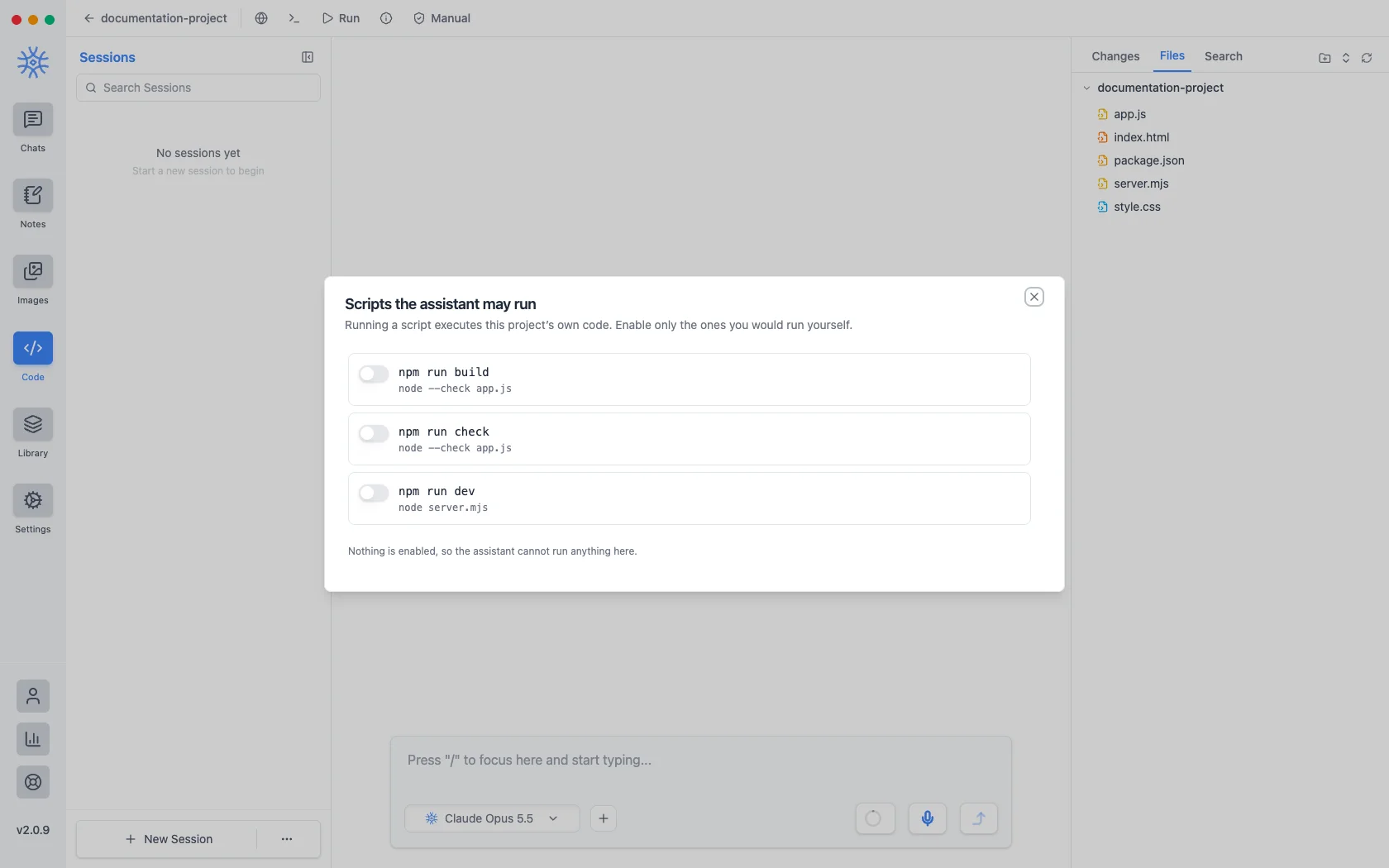
Scripts the assistant may run lists what package.json defines and lets
you enable them one at a time. Nothing is enabled by default, so a fresh
workspace cannot run anything until you say which scripts are safe, and if
the project has no package.json, or defines no scripts, the dialog says so
rather than offering an empty list.
Turning on Auto mode enables every script in the list for as long as it is on.
A script that keeps running (a dev server, a watcher) moves to Running scripts, where you can read its output or stop it. Output is replayable, so a background run started earlier in a session can still be read after you have moved on, and the count of running processes stays visible in the top bar. A process you cannot see is the one thing this capability must never create.
Previewing a page
Run appears when the workspace contains an entry HTML document, and opens it in an executing preview beside the editor. Local stylesheets, scripts, and images are loaded from the workspace so the page renders as a whole rather than as bare markup.
The preview is isolated: no access to the app, no network, and no file access of its own. That is why its resources travel inside the document, and why a page that fetches from the internet will show those requests blocked.
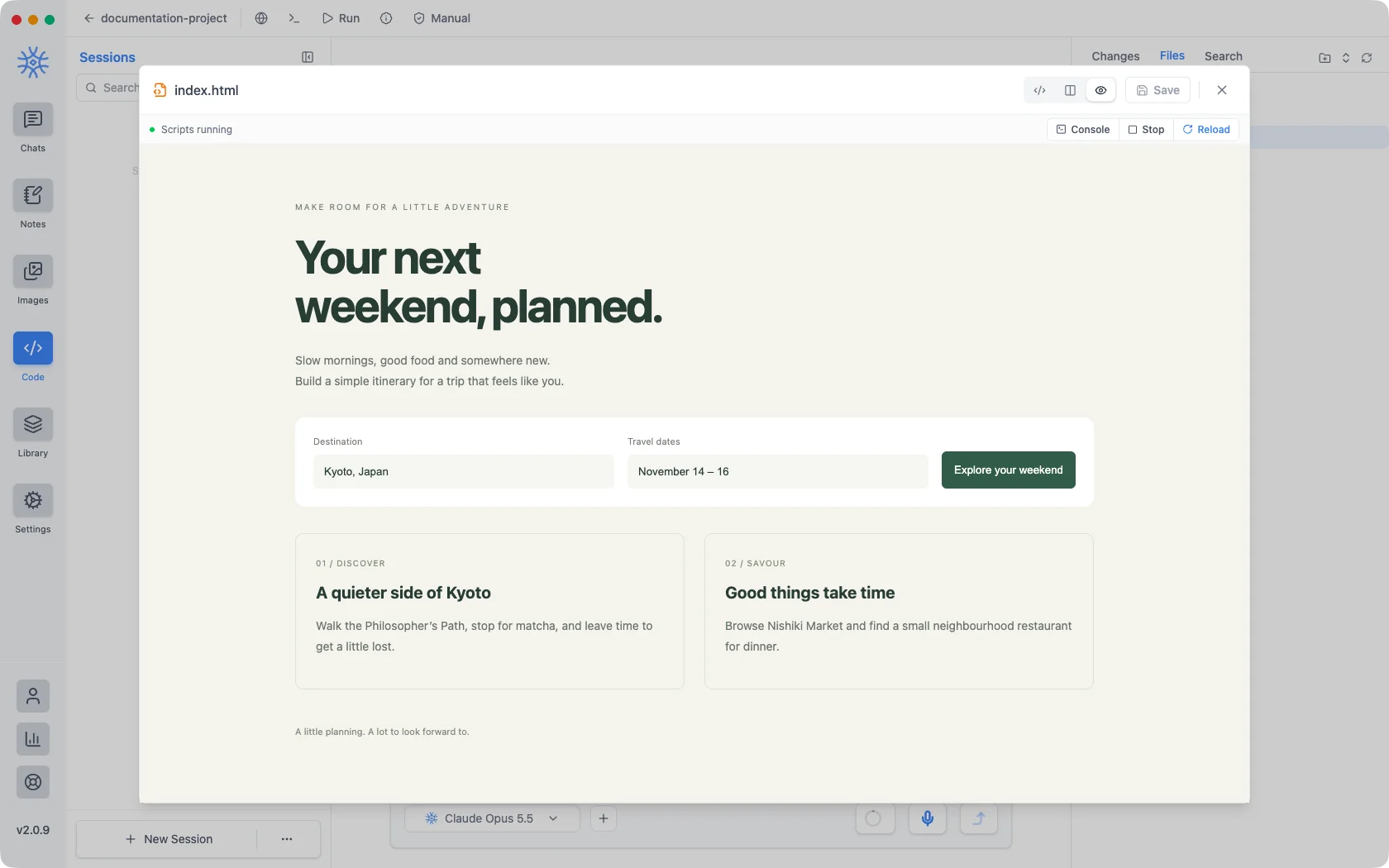
Browser opens a real page in a pane beside the workspace, which is the other half: the preview is for a document you are editing, the browser pane is for one you are looking at.
Workspace memories
A Code session can remember things scoped to the workspace rather than the conversation, so a fact about how a project is built survives into the next session on the same codebase. Session Memories lists workspace memories above session ones; both are also in Library → Memories, where a workspace filter shows them by name.
Watching what it costs
View Session Usage breaks down what a coding session has spent. Agentic turns read more files and call more tools than a chat does, so this is worth checking on a long refactor rather than at the end of the month.
The browser pane in chat
The browser works in ordinary chats too Pro: choose New Tab → New Browser Tab to open a page beside the conversation. The assistant can open pages, read them, take screenshots, fill in forms and click through a site with the browser tools, while you watch every step.
Sign-ins, downloads, uploads and anything that changes a website still wait for you, so you stay in control of what happens on your accounts.