
The download queue
Watch, pause, resume, cancel and retry transfers, and read the three recovery actions on a failed one.
Open Downloads from the left sidebar. It is the queue: what is transferring now, what is waiting, and what stopped. Finished files are not here - they move to Library.
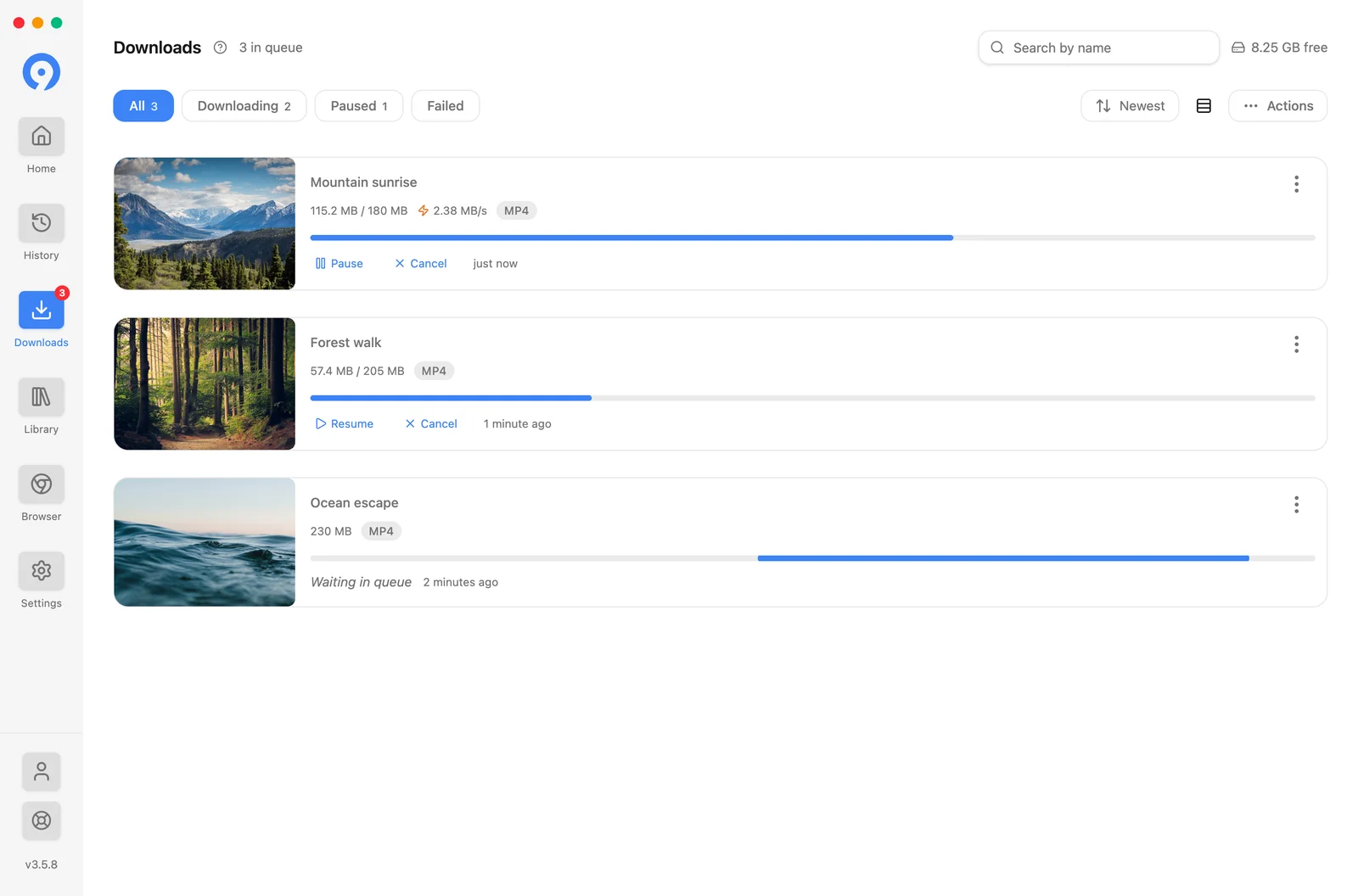
Reading the screen
The filters across the top - All, Downloading, Paused, Failed - carry their own counts, so the queue's state is legible before you read a single row. Search by name narrows a long queue.
An active row shows bytes received against the total, the current speed, and a progress bar, with Pause and Cancel beneath it. A stopped row shows why, and offers the three recoveries described below.
Actions applies to the queue as a whole - pausing, resuming, restarting or clearing groups of items at once - and Clear Failed removes the stopped rows without touching the running ones.
Right-clicking any row gives the same actions as a native menu.
The compact queue on Home
The panel down the right of Home shows the same queue while you keep extracting, with View all to open this screen. It also carries the free space on the destination drive and Open folder.
When an item stops
A failed row names its reason, and the reason decides which of the three actions is the right one:
- Retry resumes the same transfer. Use it for a network drop, a rate limit, or a server error.
- Restart re-extracts the source and starts again with a fresh link. Use it when the message says the link expired or the format is gone.
- Browser opens the source in the built-in browser, so the download can use the session that page establishes. Use it for a sign-in wall or a challenge.
Troubleshooting lists the messages and what each one means.
Auto-Retry Failed (Settings → Downloads → Queue recovery) retries on a schedule without asking. It needs an active trial or subscription; retrying by hand does not.
What a running queue survives
- Pausing. A paused transfer keeps what it has and resumes from there when the source allows it.
- Sleep and wake. A transfer interrupted by the machine sleeping is picked back up rather than started over, where the source allows it.
- Quitting. With Keep running when the window closes on, closing the window leaves the queue running - see Desktop integration. Otherwise 9xbuddy offers to resume what was interrupted the next time it opens.
Speed, connections and parallel transfers
Three controls in Settings → Performance decide how hard the queue pushes: Connections (parts of one file at once), Parallel Downloads (files at once) and Speed Limit (KB/s across everything).
A speed limit uses a single connection by construction, so Connections is
ignored while one is set. Set the limit back to 0 to get multi-part downloads
again.
Editing a finished file
Trimming a clip and converting a video to MP3 both happen in the Library, on the finished file, and both are covered in Library → Editing a file.