
Settings
Every settings section in the desktop app - appearance, playback, downloads, notifications, desktop, search, performance, extraction, cookies, network, and shortcuts.
Open Settings from the left sidebar. Settings is a two-pane screen: the sections are pages listed on the left, and only the one you choose is shown.
Advanced controls stay visible on a free account rather than being hidden, so the setting a guide points at is where the guide says it is either way. Saving one that needs a subscription prompts to upgrade. Free and Pro lists what each plan unlocks.
Appearance
Theme and language, plus the controls that decide how dense the app is.
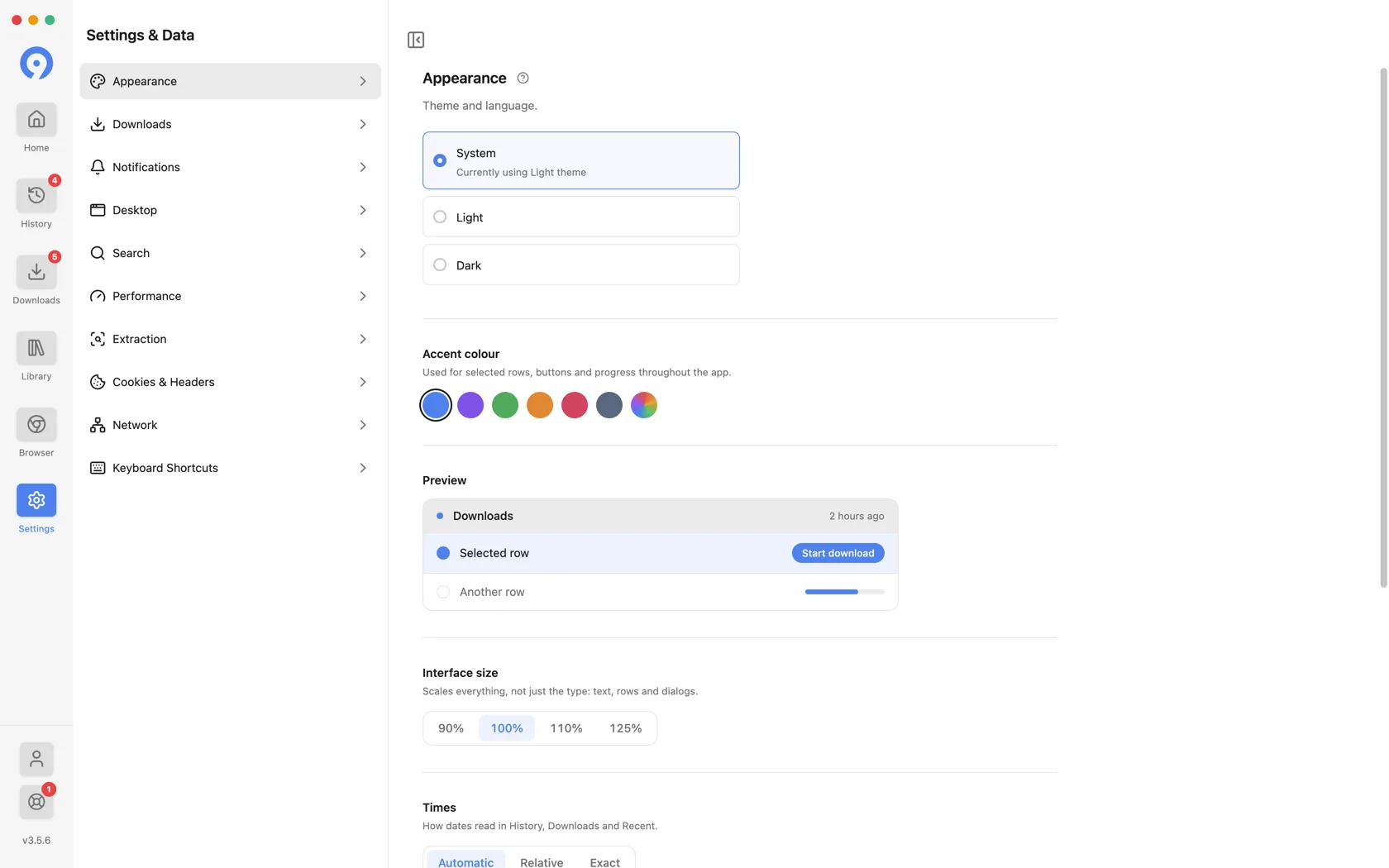
- Theme follows the system, or forces Light or Dark.
- Accent color sets the color used for selected rows, buttons and progress. A preview under the swatches shows the effect before you commit.
- Interface size scales everything, not just the type - text, rows and dialogs - at 90%, 100%, 110% or 125%.
- Times decides how dates read in History, Downloads and Recent: Automatic, Relative (2 hours ago) or Exact.
- Show Recent on Home lists the links you resolved recently under the search box. Turn it off and Home leaves that space empty; the entries stay in History either way.
- True black paints pure black backgrounds for OLED screens. It applies in dark mode only.
- Reduce motion turns off animations and transitions.
- Language sets the language 9xbuddy is shown in, from nineteen options.
Playback
How a finished file opens when you play it from Downloads, Library or History.
- Open files in my default player skips the built-in preview and opens the file in whatever your system already uses for it, such as VLC. Turn it on if you have a favorite player with your own subtitles, speed and audio settings.
- Open videos in full screen starts every preview full screen for a distraction-free watch. Press Esc or F to come back to the app.
Volume and mute carry over on their own: the next preview starts where the last one left off, so there is nothing to set.
Downloads
Where files are saved, and what happens to a transfer that stops.
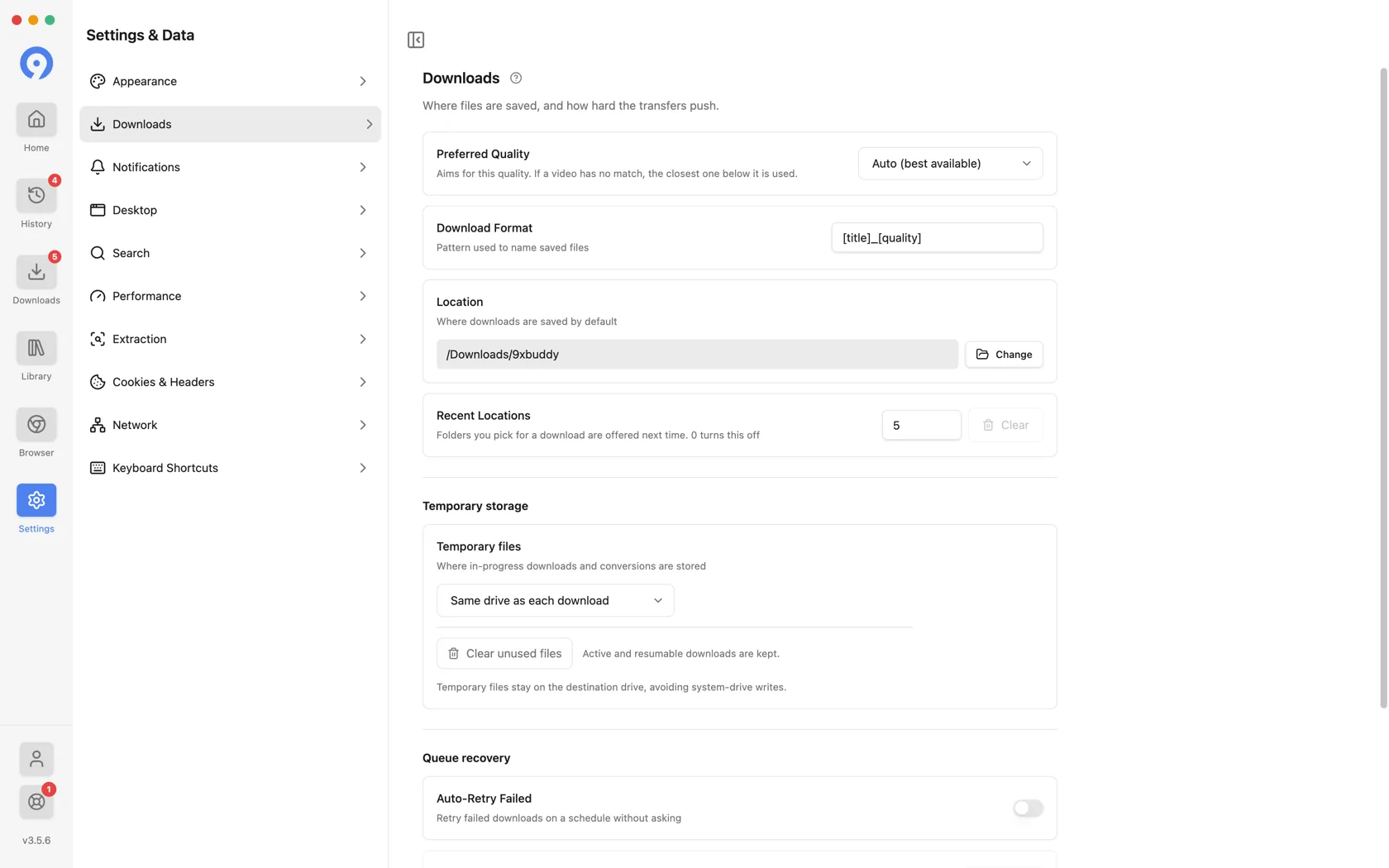
- Preferred Quality aims for one quality. If a video has no match, the closest one below it is used. Auto (best available) is the default.
- Download Format is the file-naming pattern,
[title]_[quality]by default, so a 1080p clip called Sunset is saved asSunset_1080p.mp4. - Location is the folder every download is written to.
- Recent Locations sets how many previously used folders the location menu
offers, from 0 to 20.
0keeps no history. Clear empties the list and carries its current count.
See Saving somewhere else, once for what does and does not end up in that list.
Temporary storage
Temporary files decides where an in-progress download or conversion is written before it is published to its final name:
- Same drive as each download (default) keeps the work beside its destination, so nothing is written to the system drive.
- Custom folder puts every in-progress file in one place you choose.
- System temporary folder uses the operating system's, which may be on another drive.
Clear unused files removes leftovers from transfers that will never finish. Active and resumable downloads are kept.
Queue recovery
Auto-Retry Failed retries failed downloads on a schedule without asking, with Retry Every (sec) and Max Retry Attempts beneath it. This needs an active trial or subscription; retrying an item by hand from Downloads does not.
Notifications
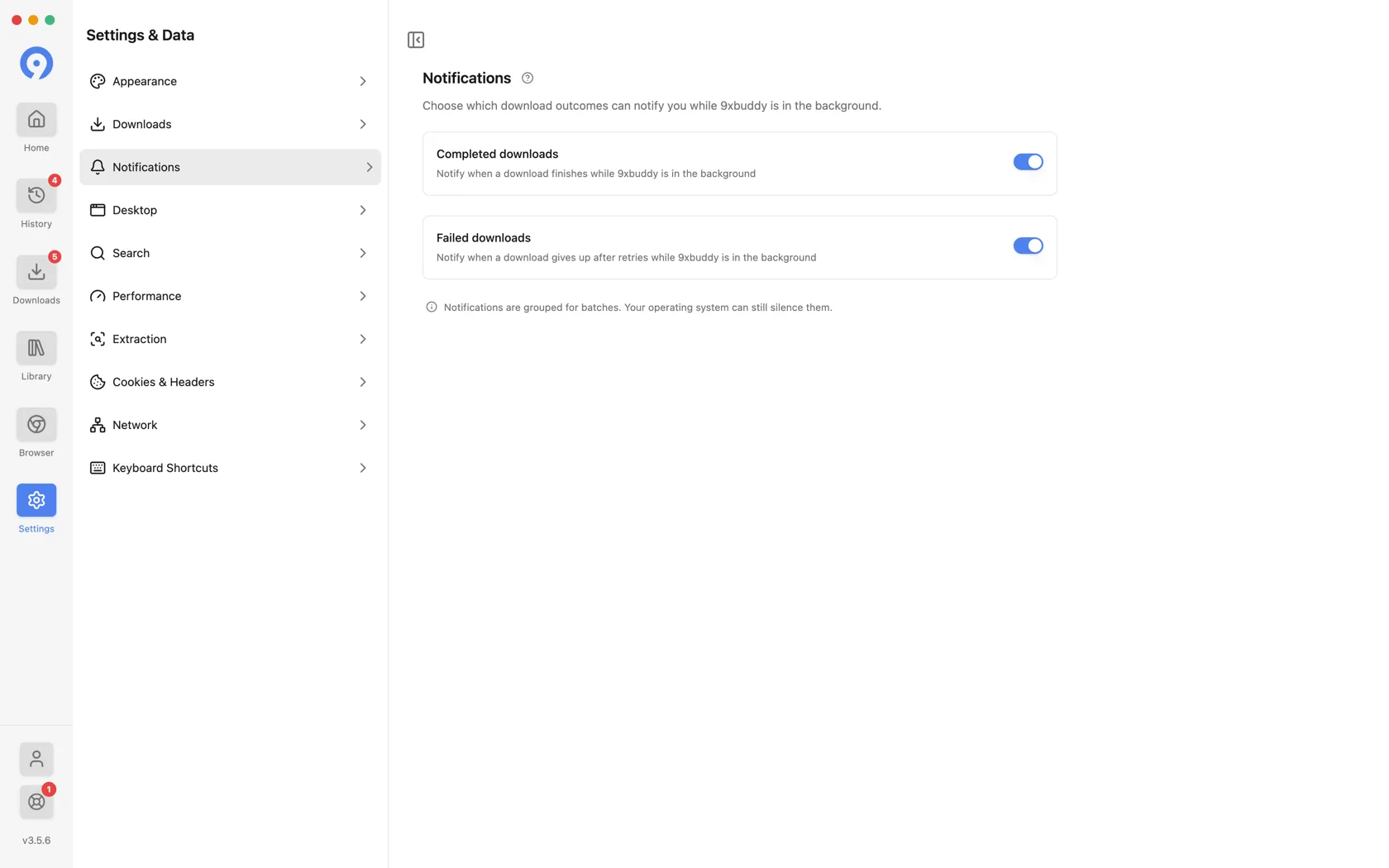
Which download outcomes may raise a system notification while 9xbuddy is in the background - Completed downloads, Failed downloads and Clipboard downloads, separately. A failed-download notification fires when the item gives up after its retries, not on the first stumble. Clipboard downloads covers what a Download taken from the clipboard popup did, which is the only report of it: the popup closes as soon as you press it.
Notifications are grouped for batches, and your operating system can still silence them.
Desktop
How 9xbuddy behaves outside its own window.
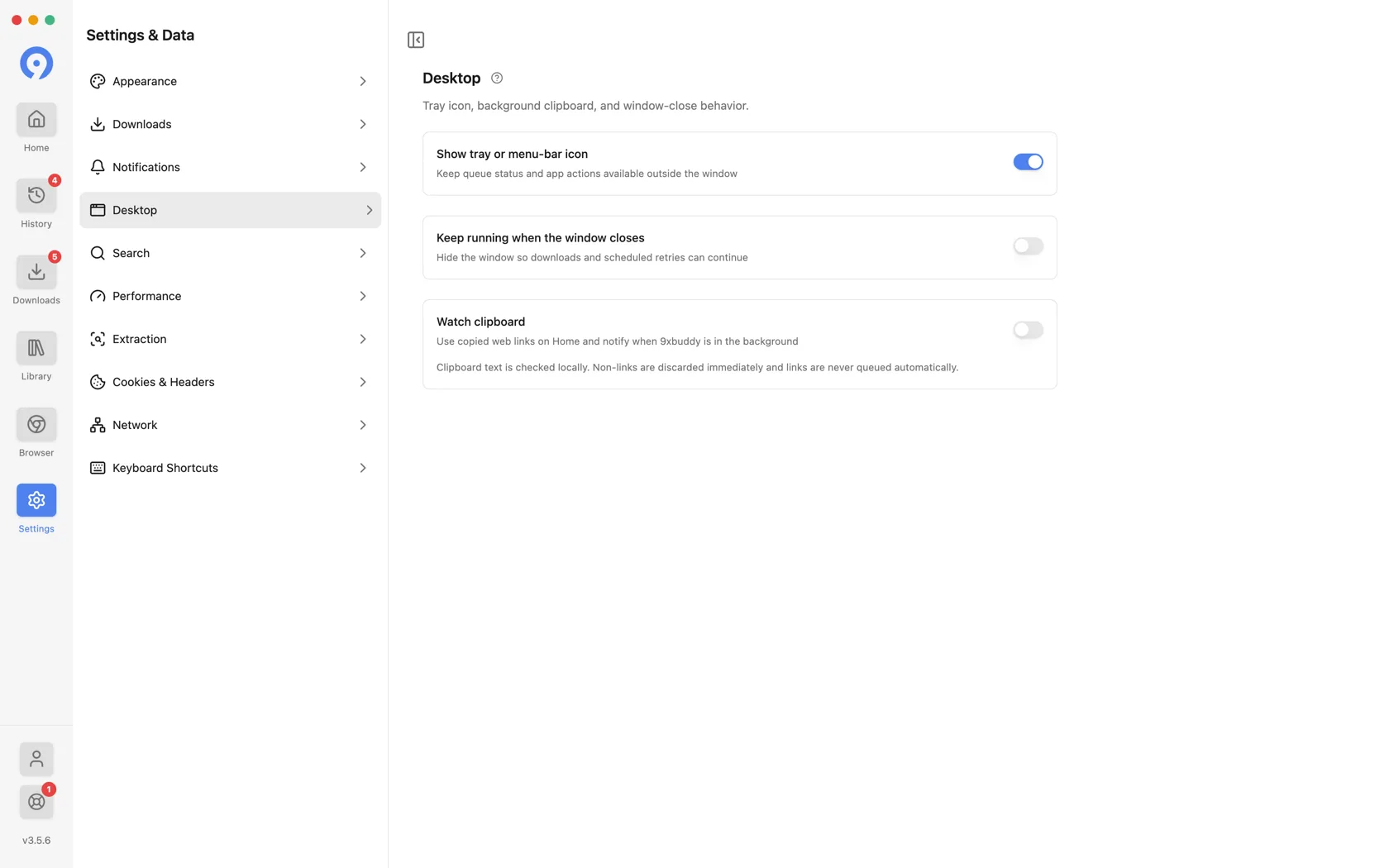
- Show tray or menu-bar icon keeps queue status and app actions available from the macOS menu bar or the Windows and Linux system tray.
- Keep running when the window closes hides the window instead of quitting, so downloads and scheduled retries continue. It requires the tray icon, because without one there is no dependable way to bring the window back.
- Watch clipboard offers links you copy on Home, and notifies you when 9xbuddy is in the background.
- Clipboard prompt keeps System notification as the default. With paid Pro or an active trial, choose Advanced popup · Pro to get Download and Review beside the pointer. Download uses your preferred quality and the folder you last chose in Saving to, even if you did not start that download; Review lets you choose before queueing.
Clipboard text is checked locally. Anything that is not a link is discarded immediately, and a link is never queued automatically - it is offered, and you decide.
Desktop integration and shortcuts covers what the tray menu holds and how the clipboard offer appears.
Search
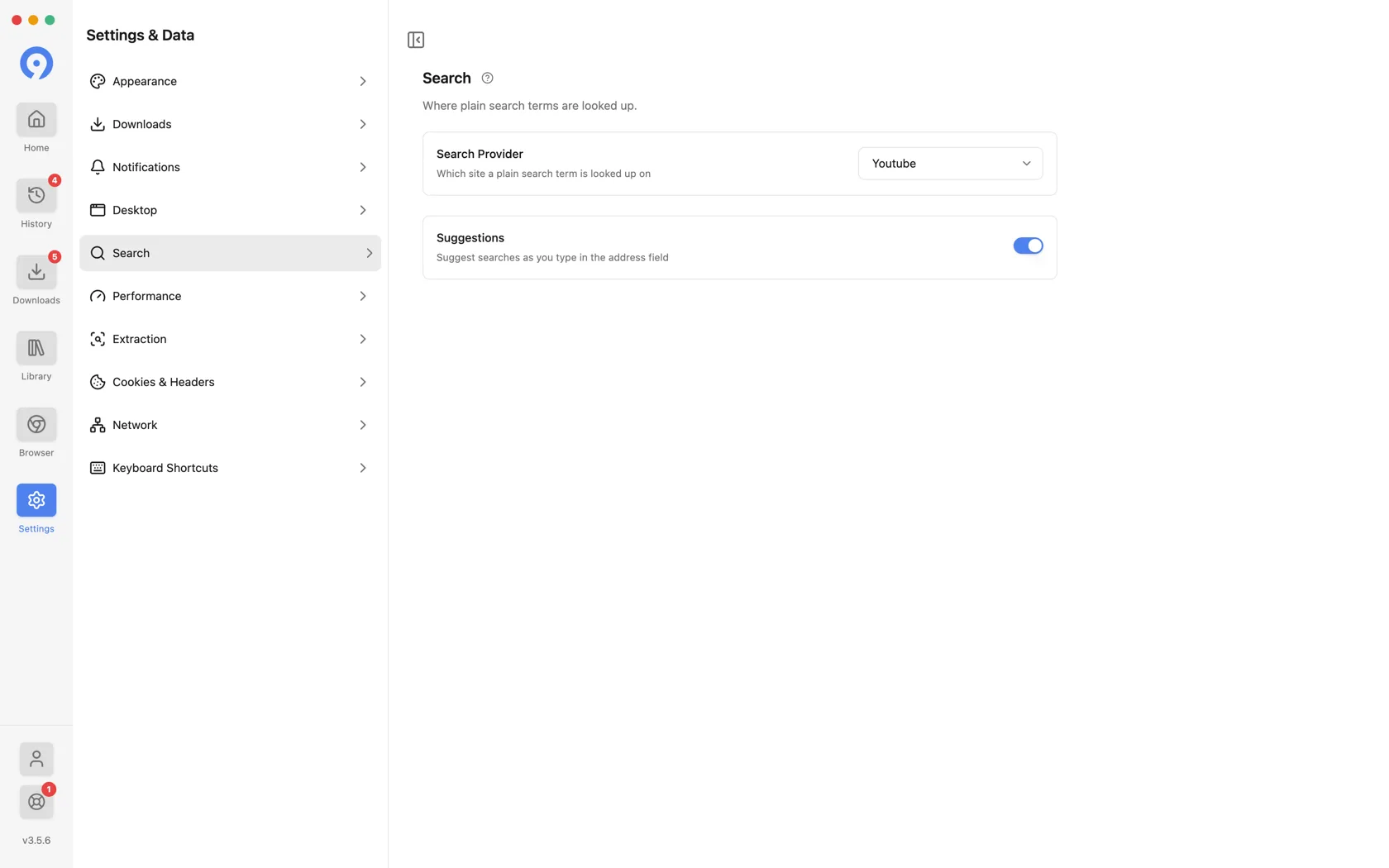
Home takes a search term as readily as a link. This section decides what happens to the term.
- Search Provider picks which site a plain search term is looked up on. YouTube is the default; YouTube Music, Dailymotion and Vimeo are among the alternatives.
- Suggestions turns the as-you-type suggestion list on or off.
Performance
Free uses one connection and one active download. Pro makes both configurable. Setting a speed limit is free.
- Connections controls how many parts of a single file download at once. It does not make each part faster.
- Speed Limit caps the total transfer rate in KB/s, shared across every
download.
0means unlimited, and the field prints the equivalent in MB/s as you type. - Parallel Downloads controls how many files run at once.
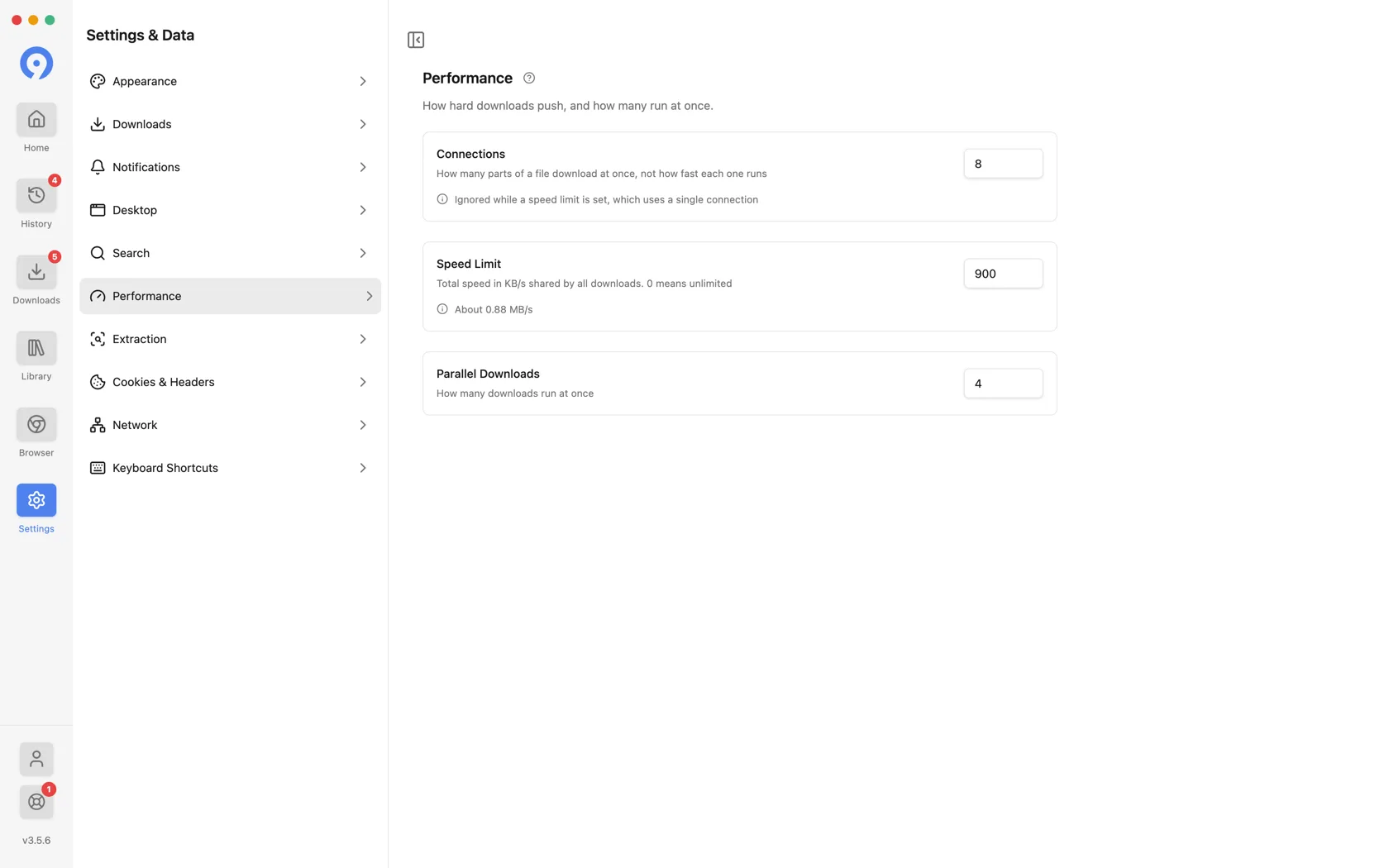
Higher values can use more CPU, memory, network capacity, and server resources. If transfers become unstable or a source throttles requests, lower these values.
Connections is ignored while a speed limit is set - the row says so in
place. Throttling is measured over one connection, so a capped download uses a
single connection regardless of the value above. Set Speed Limit back to
0 to get multi-part downloads again.
Extraction
How links are resolved, and what happens when that fails.
- Backup Extractor tries a second extractor when the first cannot resolve a link.
The rest of the page is grouped under Bulk, because it only applies to a bulk paste:
- Bulk Retries sets how many times an unstable extraction batch is retried.
- Retry Delay (ms) sets the wait between those attempts.
- Select the first sets how many extracted links arrive already ticked. The rest still extract - they are just not selected for you.
- Hold at most sets how many links one bulk session keeps. Extraction stops expanding once it is full.
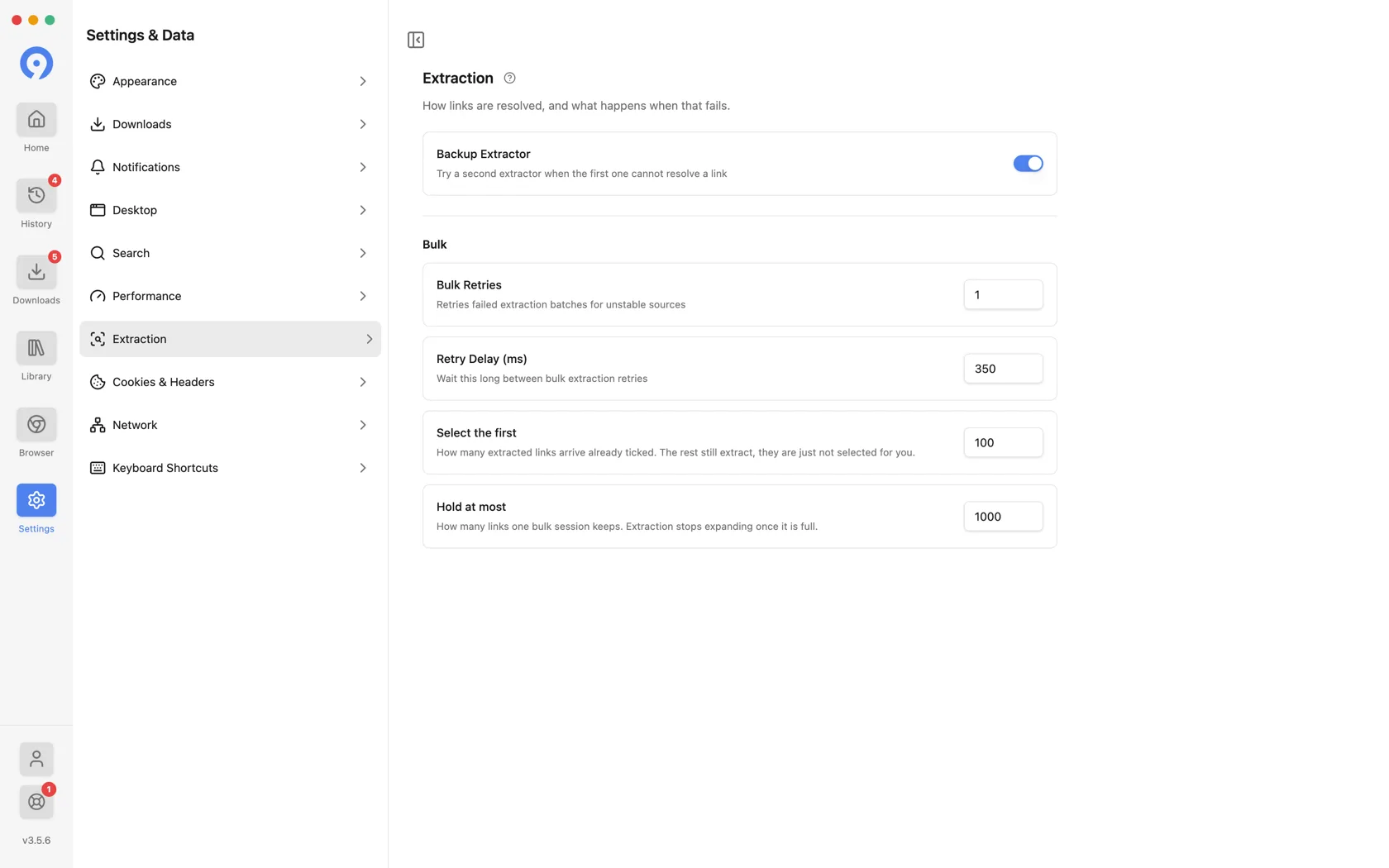
The last two are ceilings on a session, not on what a source may contain. A channel with more videos than Hold at most stops expanding at that number rather than failing.
Cookies & Headers
Two tabs on one page. Cookie sources chooses the signed-in session 9xbuddy borrows; Custom headers adds request headers by hand.
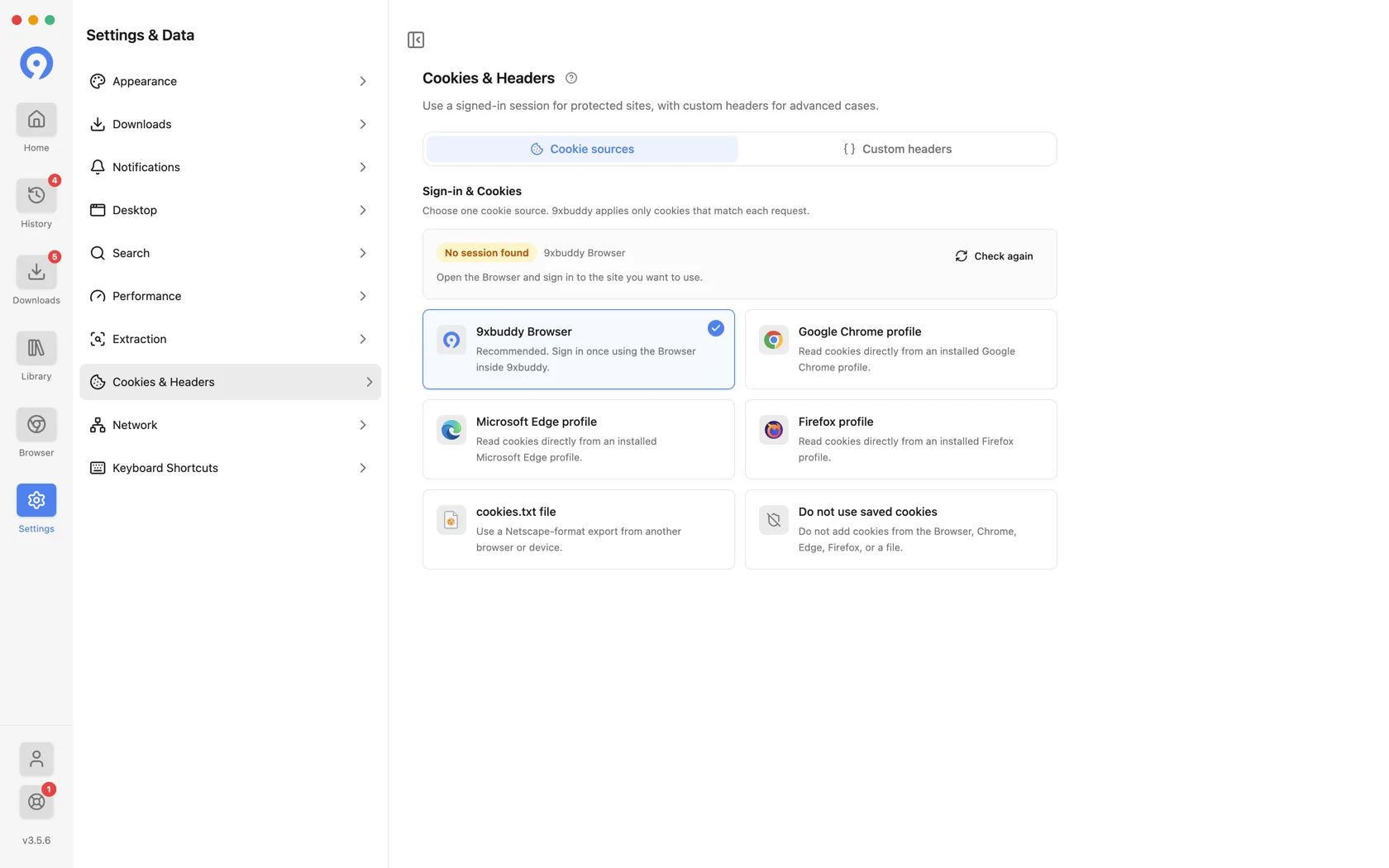
Both are covered in full, with the recipes for each header, in Browser, cookies and headers.
Network
Connection routing owns the proxy switch and an honest Active or Disabled label. Proxy server keeps host, port and optional authentication in the page itself - there is no separate dialog.
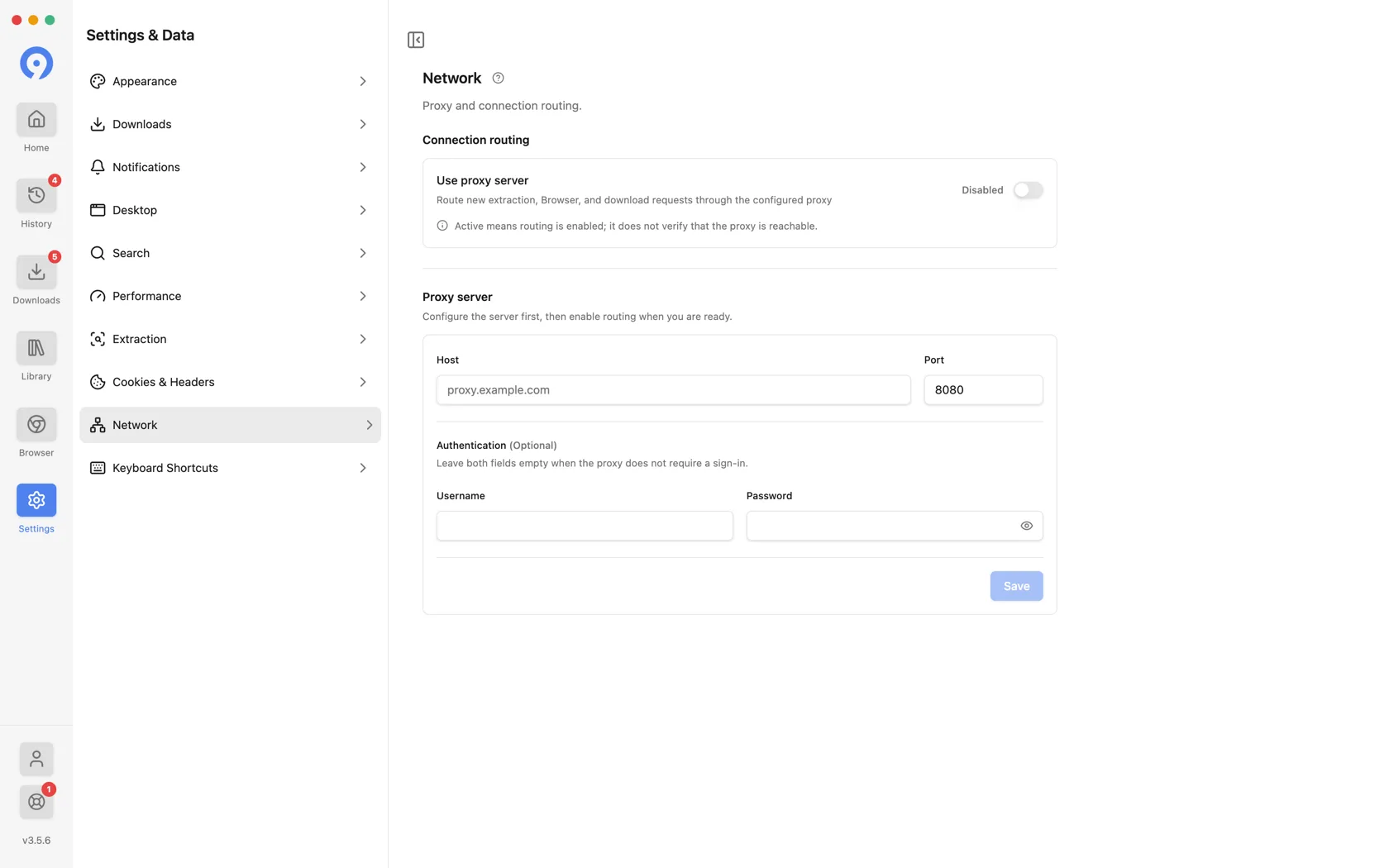
Configuration can be prepared while routing is disabled; enabling it saves and validates the current fields. Username and password are optional - leave them empty for a proxy that does not authenticate.
An enabled proxy is used for everything 9xbuddy fetches, the built-in Browser included - not only for downloads.
Proxy credentials are sensitive. Do not include them in screenshots or support messages.
Keyboard Shortcuts
Every app-wide shortcut, each one re-bindable, with Restore Defaults at the top. Shortcuts work while 9xbuddy is the active application.
| Action | Default |
|---|---|
| Open Home | Ctrl/Cmd + 1 |
| Open Downloads | Ctrl/Cmd + 2 |
| Open Library | Ctrl/Cmd + 3 |
| Open History | Ctrl/Cmd + 4 |
| Open Browser | Ctrl/Cmd + 5 |
| Open Settings | Ctrl/Cmd + , |
| Focus Link Field | Ctrl/Cmd + L |
| Find on Current Screen | Ctrl/Cmd + F |
| Toggle Sidebar | Ctrl/Cmd + B |
Choose Change on a row and press the combination you want. Shortcuts the operating system reserves are refused, and two actions cannot share one combination.