
Library
Your finished files - collections, favourites, filters, previews, editing, and dragging a file out to Finder or Explorer.
Library is every file 9xbuddy has finished downloading. It is where a completed transfer ends up, and the screen to open when the question is where did it go.
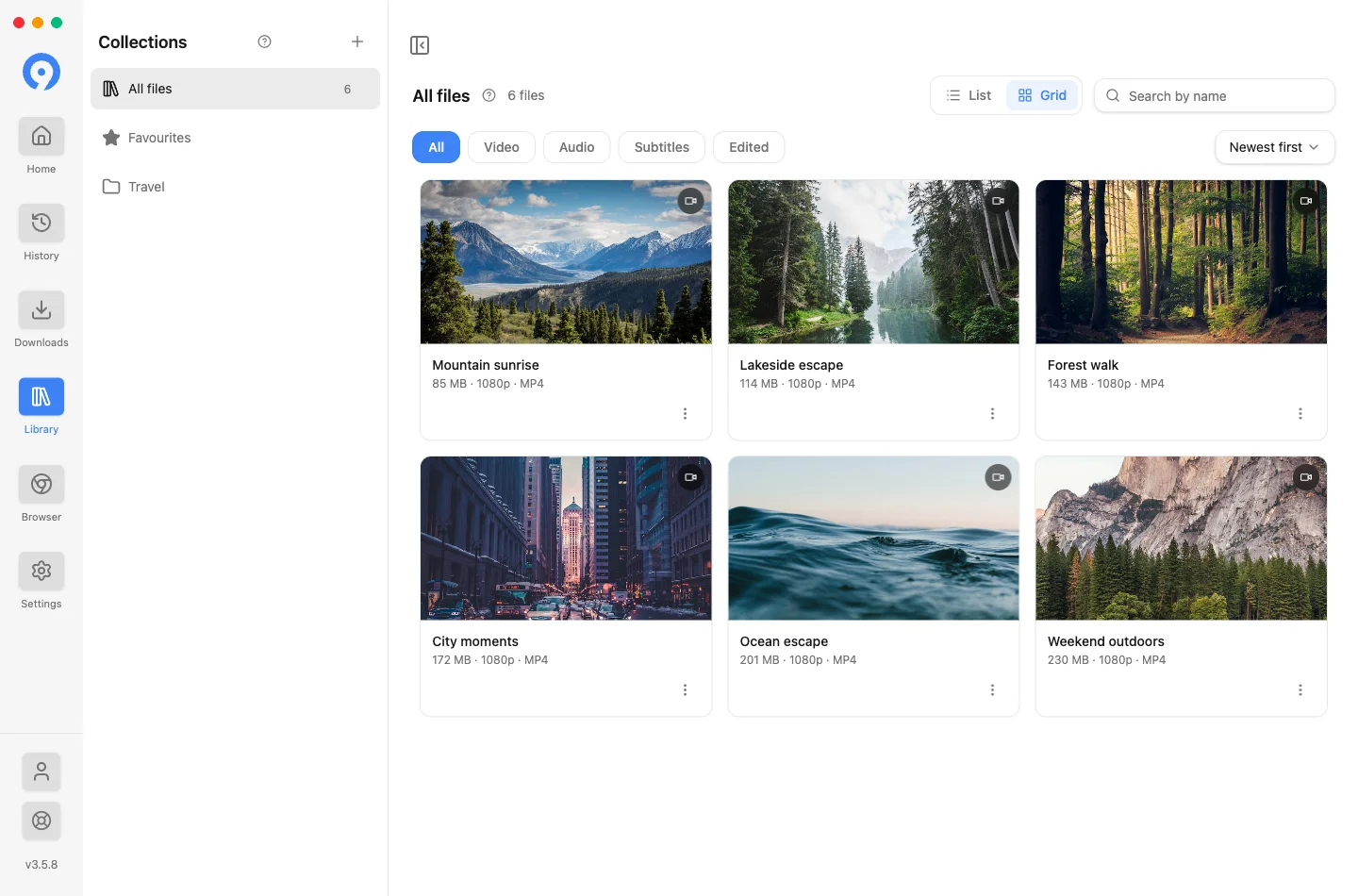
Library, History, collections, favourites and artwork all work on a free account. What needs a trial or subscription is editing a file after the fact - see Free and Pro.
Library, Downloads and History
Three screens hold different things, and knowing which is which answers most "where is my file" questions.
| Screen | A row is | Use it for |
|---|---|---|
| Downloads | a transfer happening now | Watching, pausing and retrying the queue |
| Library | a file on disk | Finding, playing, organising and editing what you have |
| History | an attempt, with a status | Seeing what you tried, including what failed |
A failed download produces no file, so it can never appear in the Library. That is what History is for.
Finding a file
Four controls narrow the list, and they combine:
- Collections in the left sidebar: All files, Favourites, and any collection you have made.
- Type: All, Video, Audio, Subtitles, and Edited - anything the app produced itself by trimming or converting.
- Search by name, which matches the file name and the extension.
- Sort: newest, oldest, largest, by name, or your own custom order.
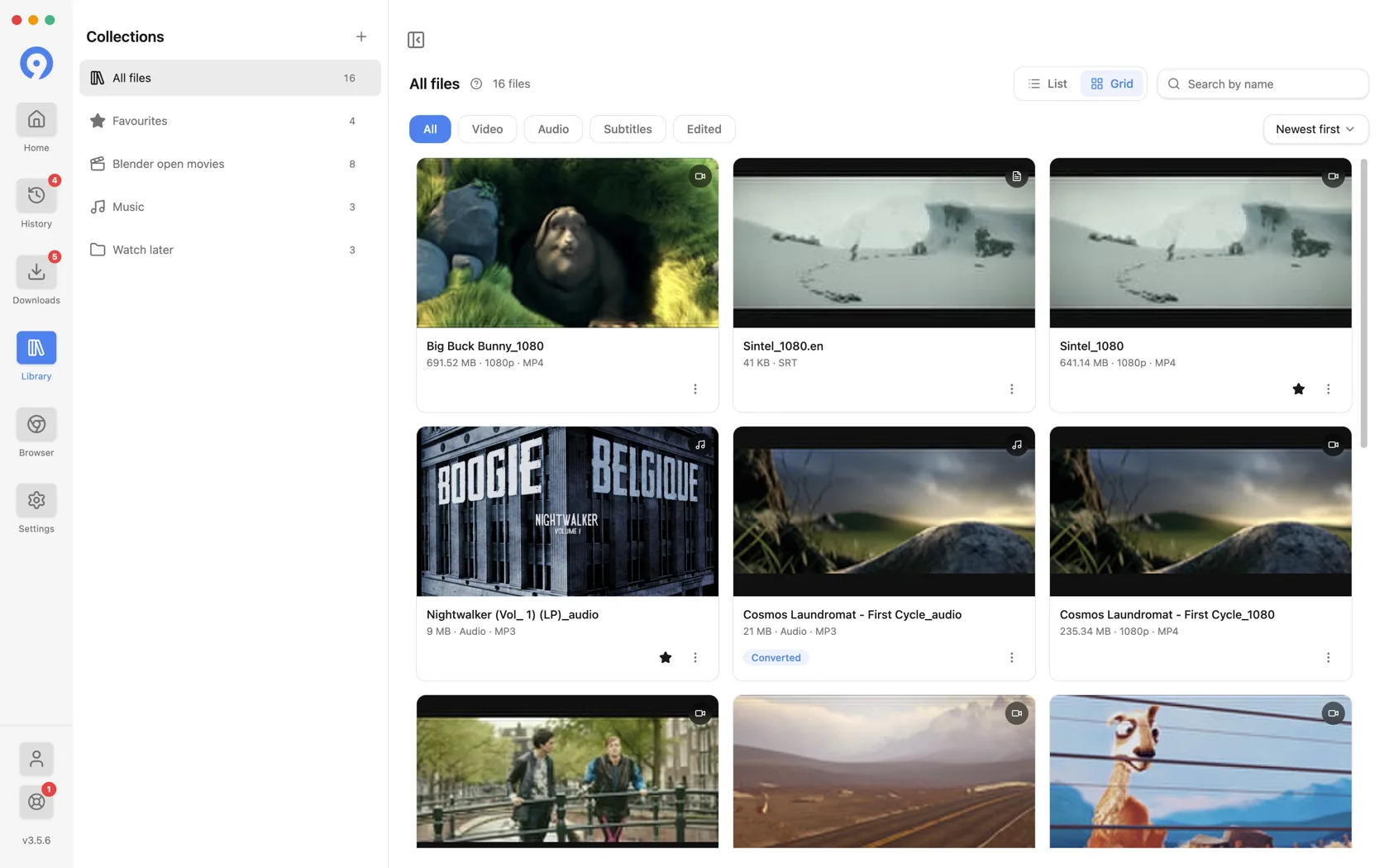
List and Grid switch how the results are drawn. Grid puts a thumbnail first and suits video; list is denser and puts the name first.
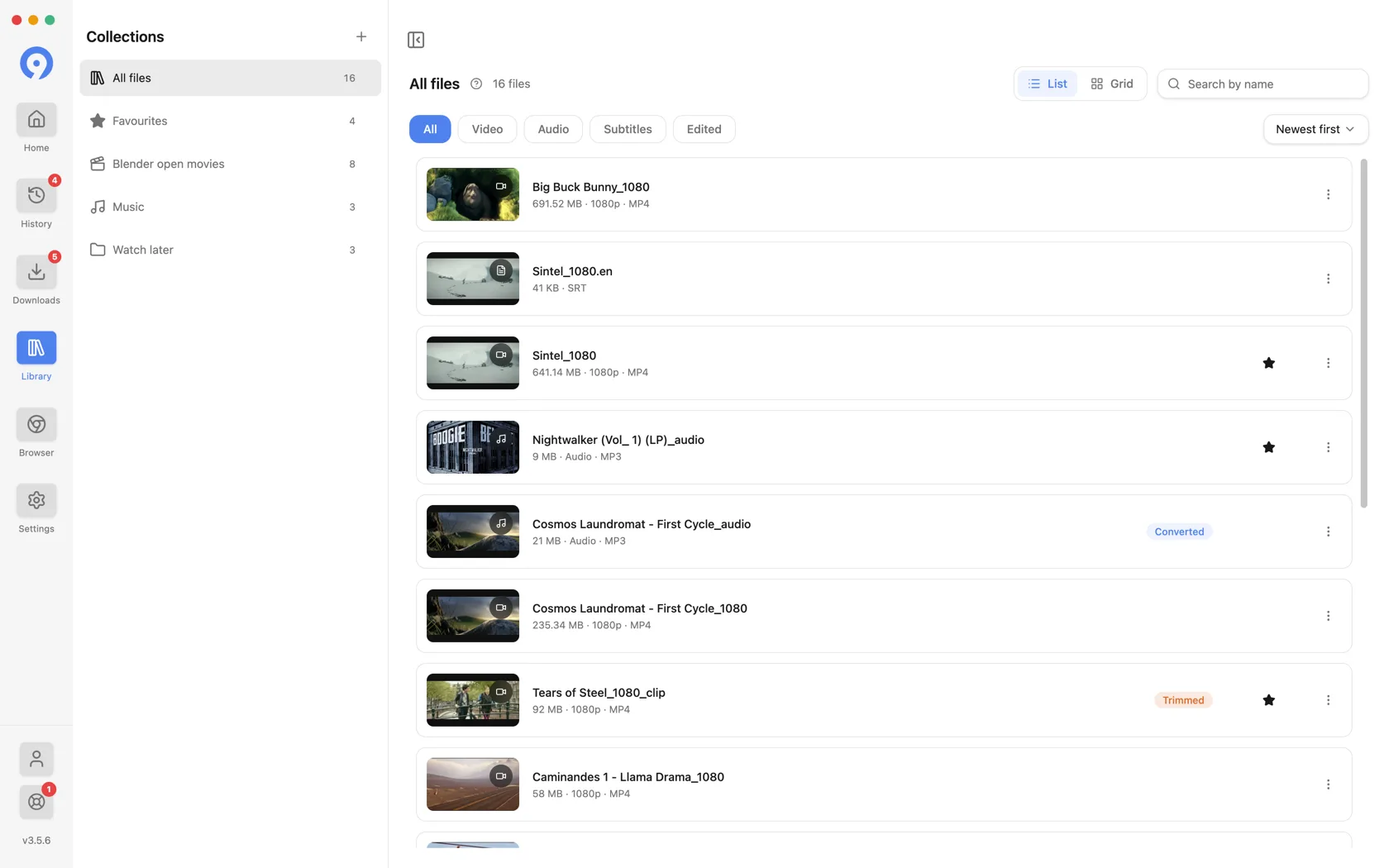
The type filter goes by what the file is, not by where it came from. A subtitle saved from a video page appears under Subtitles, and an MP3 converted from a video appears under Audio.
Collections
A collection is a folder for your Library, and it does not move anything on disk - a file can be in several collections at once, or none.
- Choose + beside Collections to make one, give it a name and a glyph.
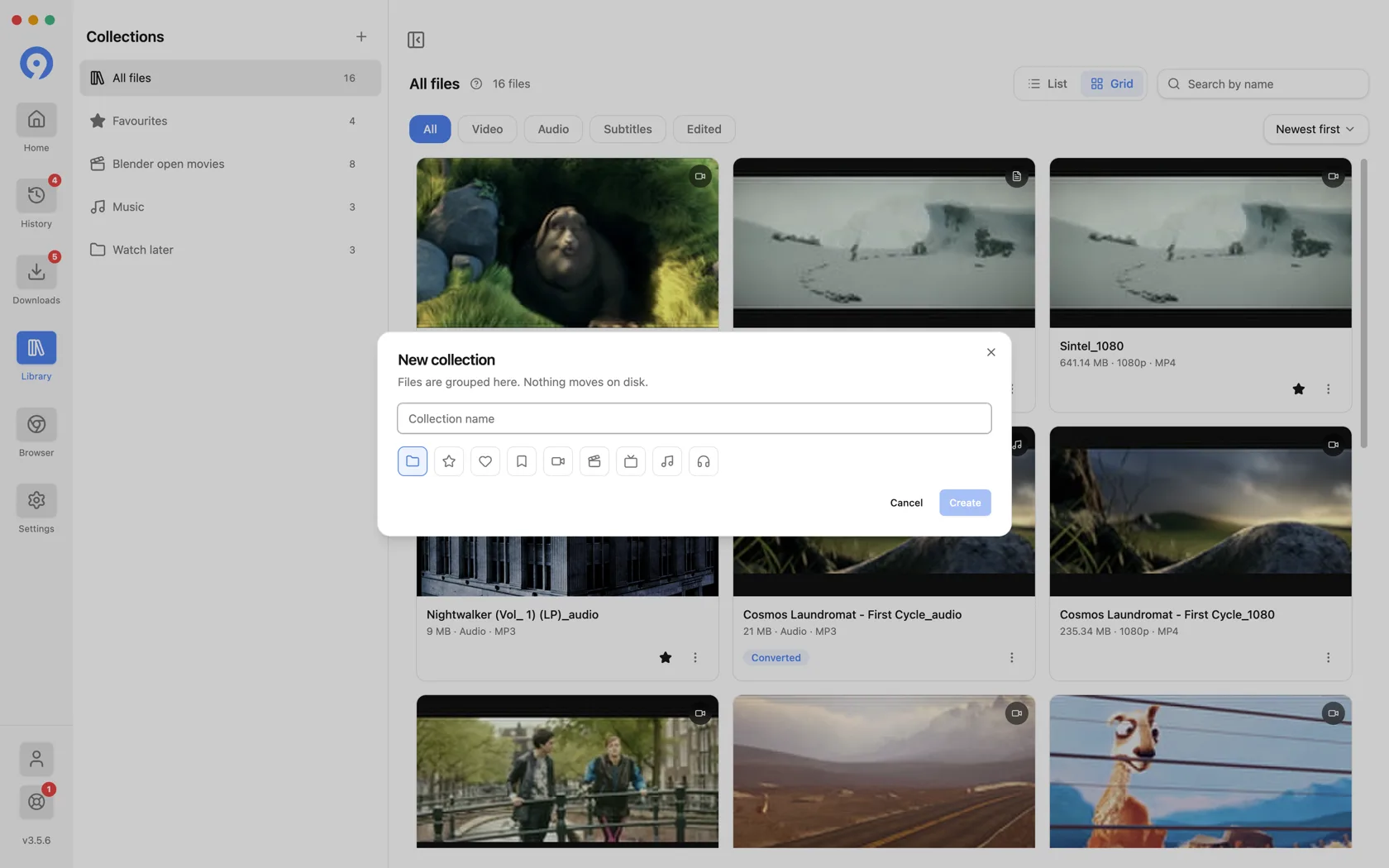
- Drop a card, or a selection of cards, onto a collection to file it there.
- A row's menu offers Remove from collection, which leaves the file alone.
- Favourites is the built-in collection. The star on a card puts a file in it, and takes it out again.
Deleting a collection removes the grouping and nothing else. The files stay in the Library and stay on disk.
What a row can do
Select a card's ⋮ menu, or right-click the row for the same list as a native menu:
- Show in folder reveals the file in Finder or your file manager - the quickest answer to "where did it go".
- Edit opens the editor described below.
- Thumbnail (or Artwork, on audio) sets or clears the picture the card shows.
- Copy source URL puts the page the file came from on the clipboard.
- Extract again takes that source back to Home, so you can fetch another format from it.
- Move file to Trash deletes the file from disk, through your operating system's Trash.
- Remove from Library drops the entry and leaves the file where it is.
Those last two are the pair worth reading twice: one deletes the file, the other only forgets it.
You can also drag a card straight out of the window into Finder or Explorer, or into any application that accepts a file - the drag hands over the real file, so dropping it into a mail message attaches it.
Playback and format preview
Play supported video and audio from your free Library. On desktop, click a card for a local preview, or choose Open file to use your default app. Playback depends on the file's format and codec.
With an active trial or Pro, desktop also lets you preview available source formats before downloading. This checks a format from the source; Library playback opens a file already saved on your device.
Editing a file
Choose Edit on a completed video or audio file.
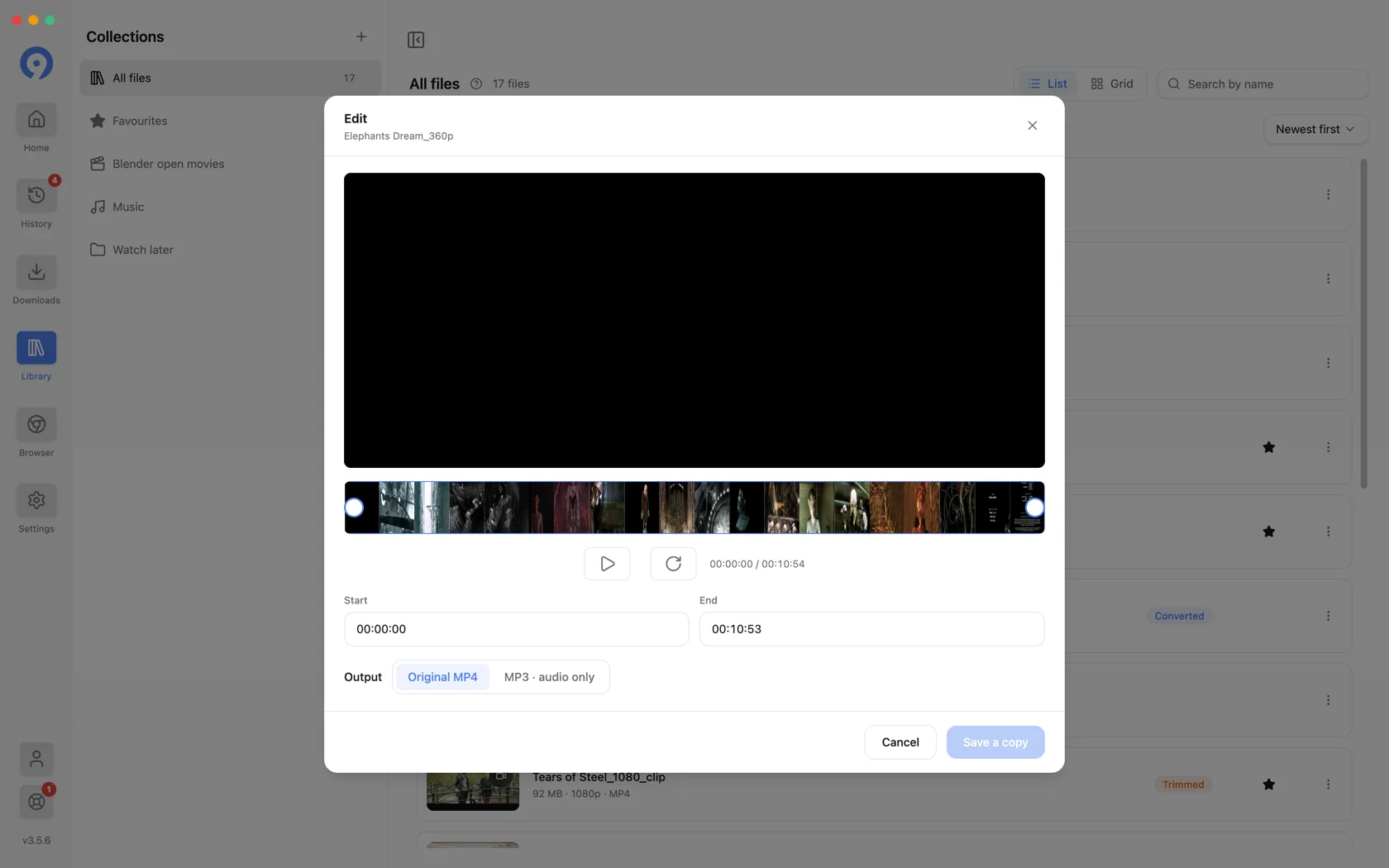
- Set the range with the filmstrip handles or the Start and End fields.
- Output chooses the result: the original format, or MP3 · audio only. Converting a whole video to MP3 is this control with the full range selected.
- Save a copy writes a new file and adds it to the Library. The original is untouched, which is why the button says copy.
The result carries a Trimmed or Converted badge in the Library, and is matched by the Edited filter.
Make audio-only copies as MP3, or keep the original format when trimming. For broader file conversion, explore 9xConvert.
Editing needs an active trial or subscription, and the original local file must still exist. If it was moved or deleted outside 9xbuddy, reveal its folder or download it again first.
History
History is the log of what you have attempted - extractions, downloads and edits alike - each with a status. It is a separate item in the sidebar.
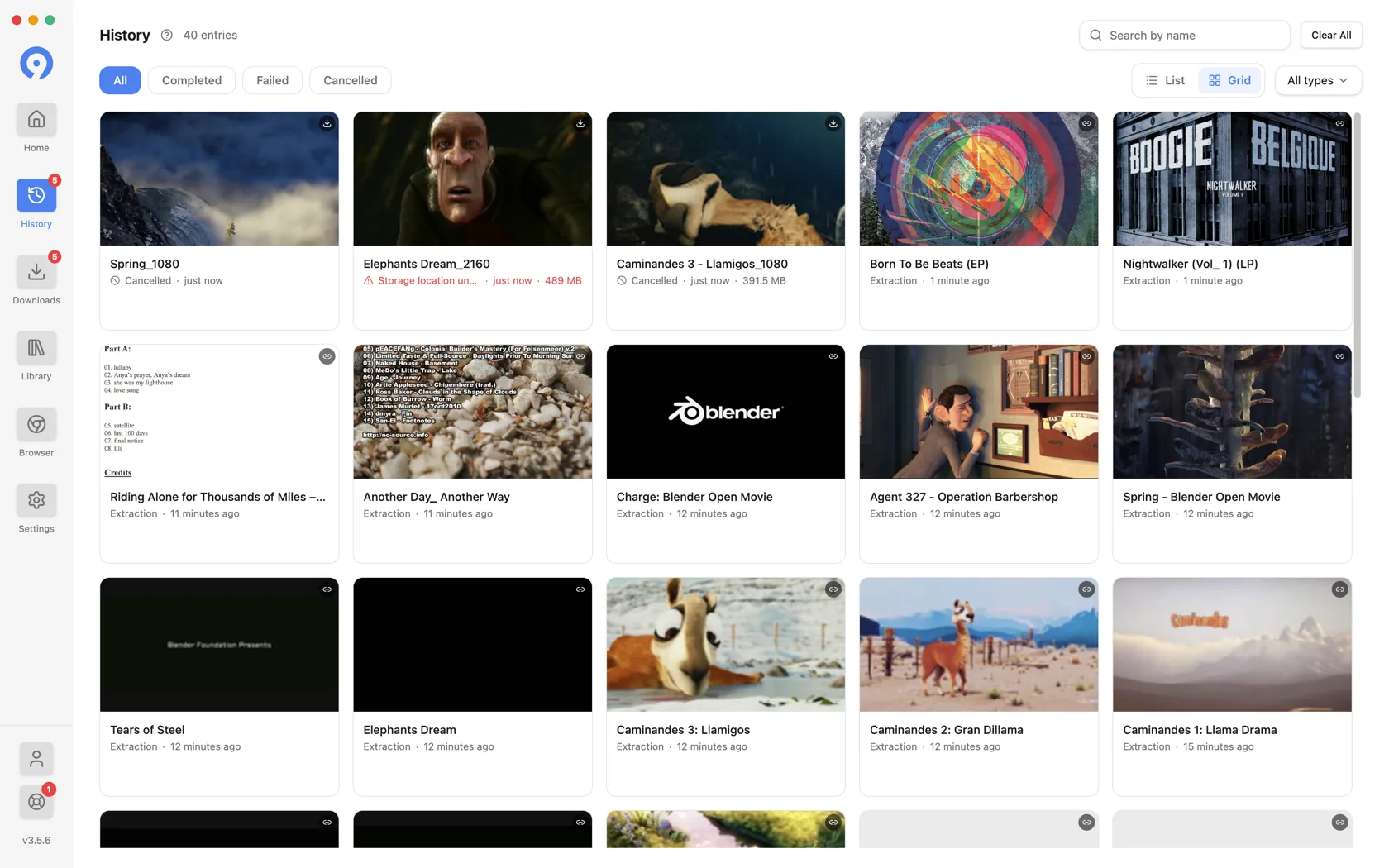
Filter it by status - All, Completed, Failed, Cancelled - and by type, using the All types menu: extractions, downloads or edits. Search by name matches the title and the URL, and the sidebar badge counts failures rather than entries, because a running total of everything you have ever done is not something to act on.
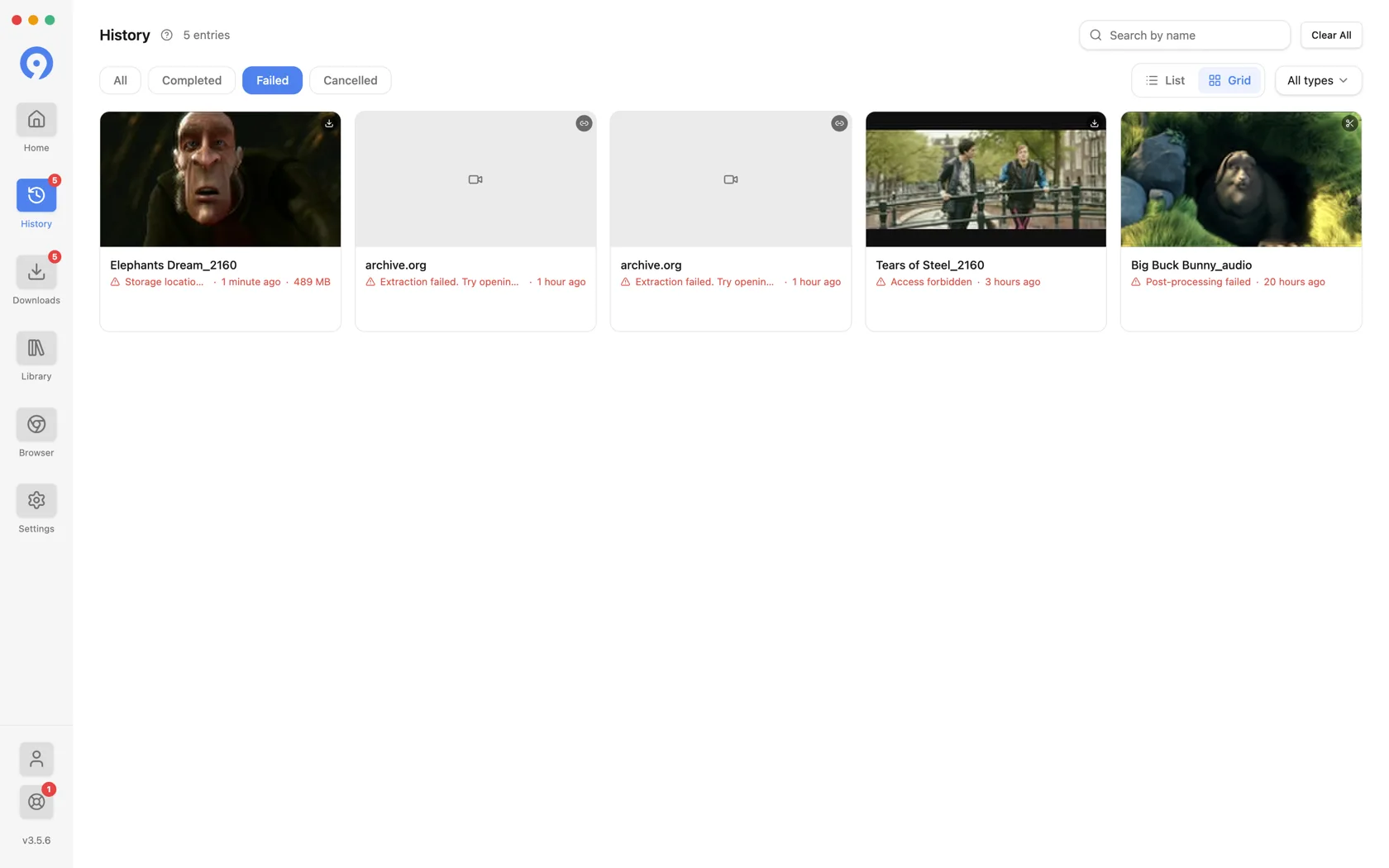
Removing a History row clears the record of the attempt. It does not delete a downloaded file, and it does not remove anything from the Library. Clear All empties the log.
If you would rather not keep one at all, History can be turned off, and its sidebar row disappears with it.