
Troubleshooting
Work through common 9xbuddy install, extraction, queue, and account problems.
Start by installing the latest available release from the download page. Sources change, and a current extractor is often the complete fix.
Reading a failed download
A failed item stays in Downloads and says why it stopped. That message is the useful part: it decides which of the sections below applies, and which action is worth taking.
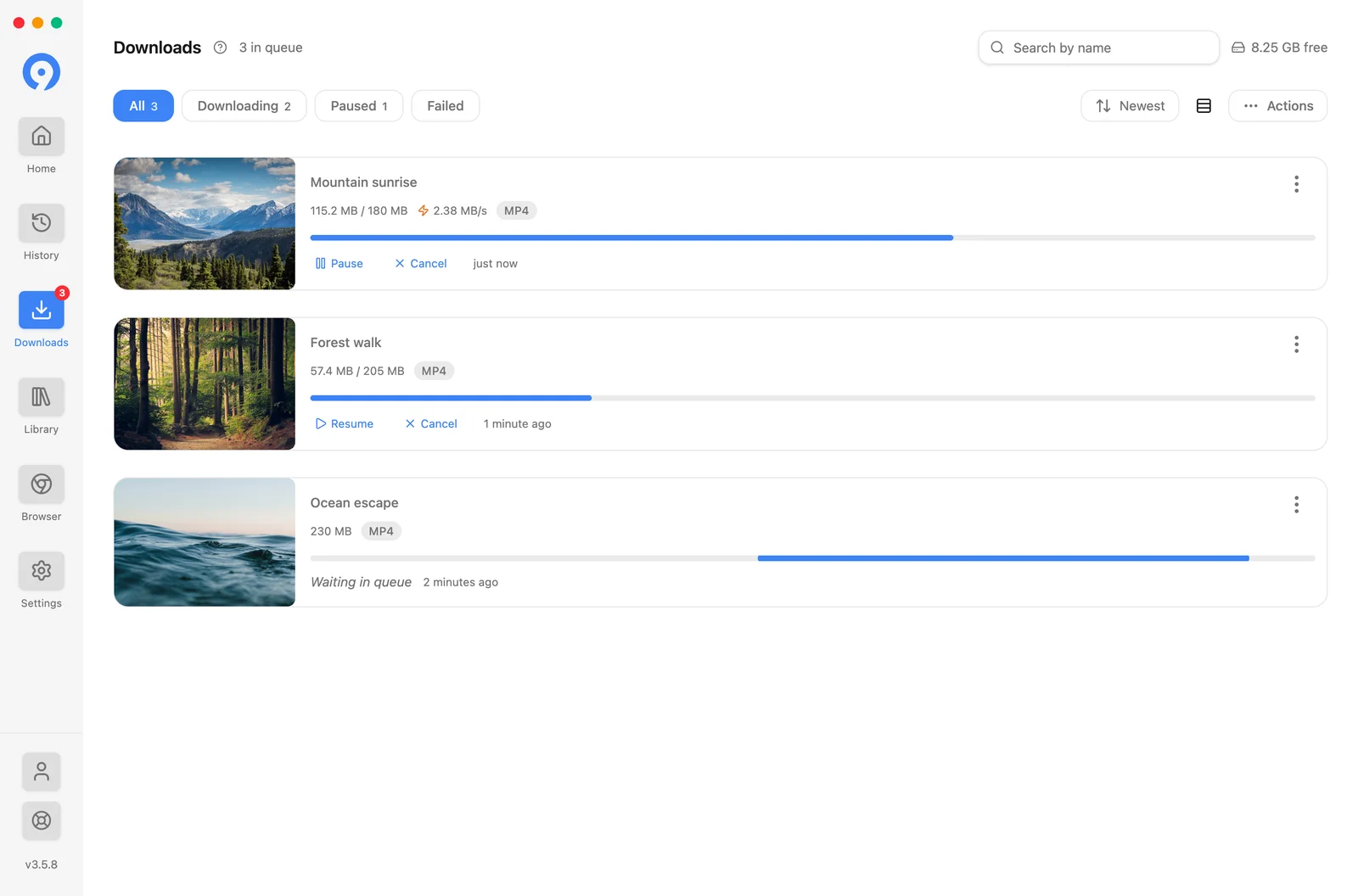
The three actions are not interchangeable:
- Retry resumes the same transfer. Use it for a network drop, a rate limit, or a server error.
- Restart re-extracts the source and starts again with a fresh link. Use it when the message says the link expired or the format is gone.
- Browser opens the source in the built-in browser, so the download can use the session that page establishes. Use it for a sign-in wall or a challenge: see Browser and headers when it keeps coming back.
The app will not install or open
Windows
Try the Microsoft Store build or the current installer from the official download page. If Windows presents a security prompt, verify that the package came from 123sudo before continuing.
macOS
Move 9xbuddy into Applications before opening it. If macOS blocks the first launch, review the message under System Settings → Privacy & Security and allow only the package you downloaded from 123sudo.
Linux
Confirm that the package matches your system and has execute permission when the format requires it. Launch it from a terminal once if you need the platform error text for support.
A URL does not extract
- Open the page in a normal browser and confirm the media still exists.
- Remove tracking parameters or copy the canonical post/video URL again.
- Try Browser or the item's browser fallback action.
- If the page requires an account, sign in once in the built-in Browser and set it as your cookie source: see Browser, cookies and headers.
- Try the URL by itself rather than inside a large batch.
Private, removed, expired, region-restricted, DRM-protected, or login-required media can remain unavailable even when the page itself opens.
A bulk item fails
Keep the successful rows and retry only the failed one. You can also remove the row and continue the batch. For unstable sources, check Settings → Extraction → Bulk → Bulk Retries and Retry Delay (ms). If a long list stops short of what the source holds, raise Hold at most in the same group.
A download is slow or unstable
- Check whether another download or application is using the connection.
- Reduce Parallel Downloads or Connections in Settings → Performance.
- Check whether a Speed Limit is set there. A capped download uses a single connection by construction, so Connections has no effect while one is in force.
- Retry with the proxy disabled unless the source requires it.
- Remember that high-resolution files can be much larger than their preview suggests.
Source-side throttling cannot be removed by increasing connections; doing so can make the transfer less reliable.
A download stops or fails
Check free disk space and write access to the destination folder. Open Downloads to resume or retry the item. If the message names storage, check Settings → Downloads → Temporary storage: an in-progress file is written there before it is published to its final name. If automatic retry is active, the row shows its retry state and can be stopped manually.
New downloads stop starting after a few files
Free includes five downloads per rolling 24 hours. Pro removes the limit.
Completed downloads count for 24 hours after finishing, even if deleted. Unfinished transfers reserve a slot until they finish, fail or are canceled. The remaining Free allowance appears near the download controls.
The link extracts but no formats are listed
The page opened, but 9xbuddy found nothing it can save.
- Confirm the media actually plays on the page in a normal browser.
- Use the canonical post or video URL rather than a share, embed, or search URL.
- Open the source in Browser, let the media start, and use the download control there.
- If the page needs an account, see Browser, cookies and headers.
A page that only embeds media hosted elsewhere can also list nothing: try the URL of the page the media actually lives on.
I cannot find the file I downloaded
Finished files are in Library, not in Downloads: Downloads is the queue and empties as transfers complete. Use Show in folder on the Library row, which reveals the file where it was actually written. The default destination is Settings → Downloads → Location, and it may have been changed since the download ran. Files and folders covers this, and the difference between the Library and History.
The completed file cannot be opened or edited
The file may have been moved or deleted outside 9xbuddy. Use Show in folder on the Library row to check its location. If the original is gone, use Extract again on that row to fetch it from its source before trimming or converting.
The quality I expected is missing
The result list reflects formats exposed by the source. Try the direct media page, inspect the video filter, or use the built-in browser. If the source does not provide a particular resolution or stream, 9xbuddy cannot offer it.
UID validation fails
- Paste the UID again without surrounding spaces. It has the shape
1234-5678-9012, which the app shows under the entry field. - Confirm the device is online.
- Use Recover this device's UID only for the original account stored on that installation.
- If the message mentions the time, check the machine clock: a signed request whose timestamp is far from the server's is rejected, and 9xbuddy explains the correction once when it detects one.
- If a device-limit message appears, the UID is valid and already in use elsewhere: a free account covers one device and Pro covers three. Open Account → Manage license to review what is connected, or see Free and Pro.
Read Your 123sudo UID before switching accounts. Creating a new UID creates a separate account; it does not move the license from the saved UID.
Contact support
Send your operating system, 9xbuddy version, source site, the step that failed, and the exact visible error. Do not send your UID, cookies, custom headers, proxy credentials, or private media URLs.