
Bulk download
Extract and download many URLs at once, with shared or per-item controls.
Bulk is a Pro feature
Every way into bulk needs an active trial or subscription: pasting more than one link, dropping a file of links, importing a CSV or TXT list, and expanding a playlist or channel.
What a free account can do is open a playlist or channel page and download any single entry from it, because each of those is an ordinary single-link extraction. It is taking the whole list at once that is bulk. See Free and Pro.
Add the URLs
On Home, switch from Single link to Bulk list. You can:
- paste one URL per line;
- use
title, URLto supply a custom name; - drop a text file of links onto the window; or
- choose Import a list of links for a CSV or TXT file.
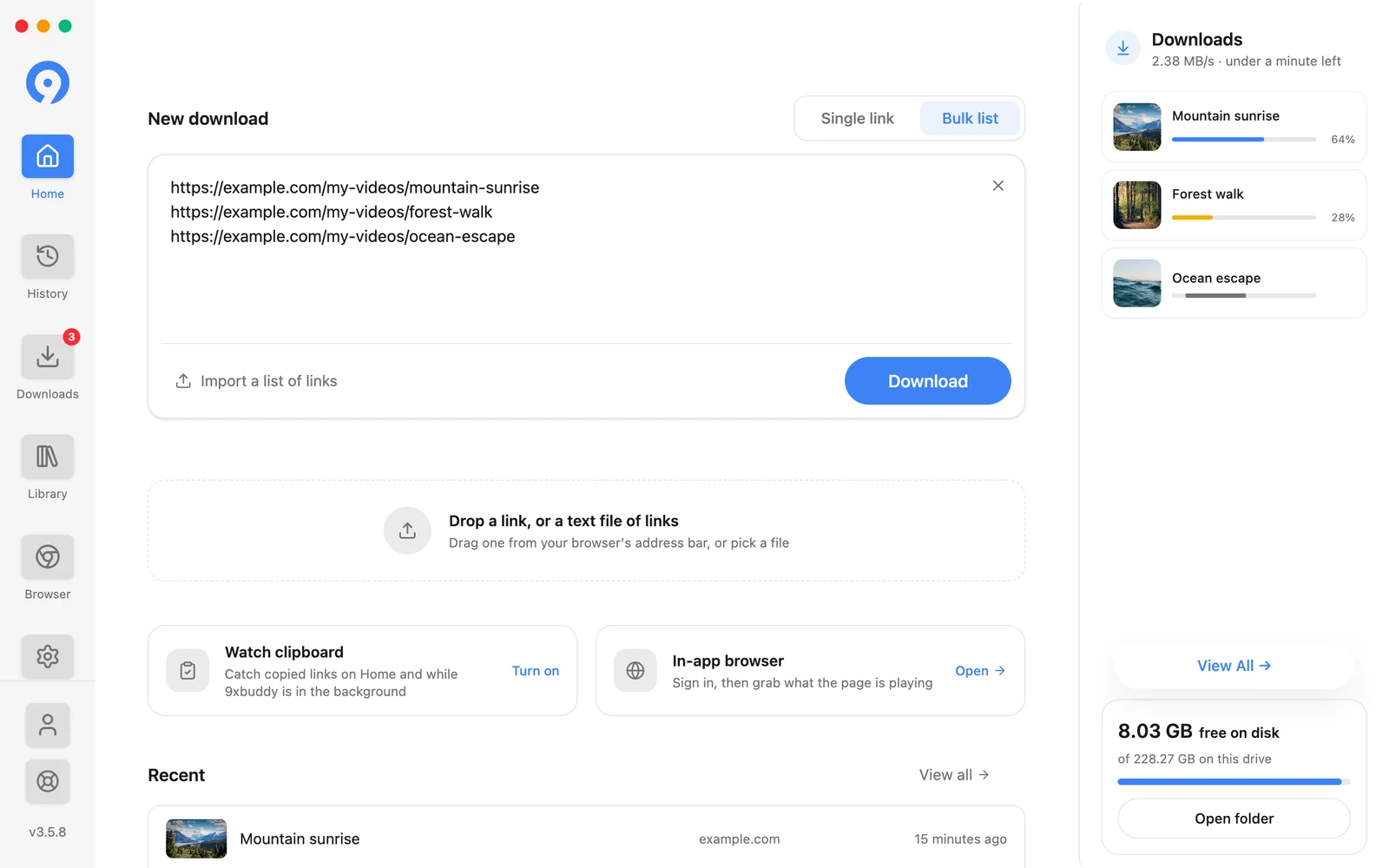
Choose Download to extract the list. A playlist or channel URL can return many items on its own.
Review the batch
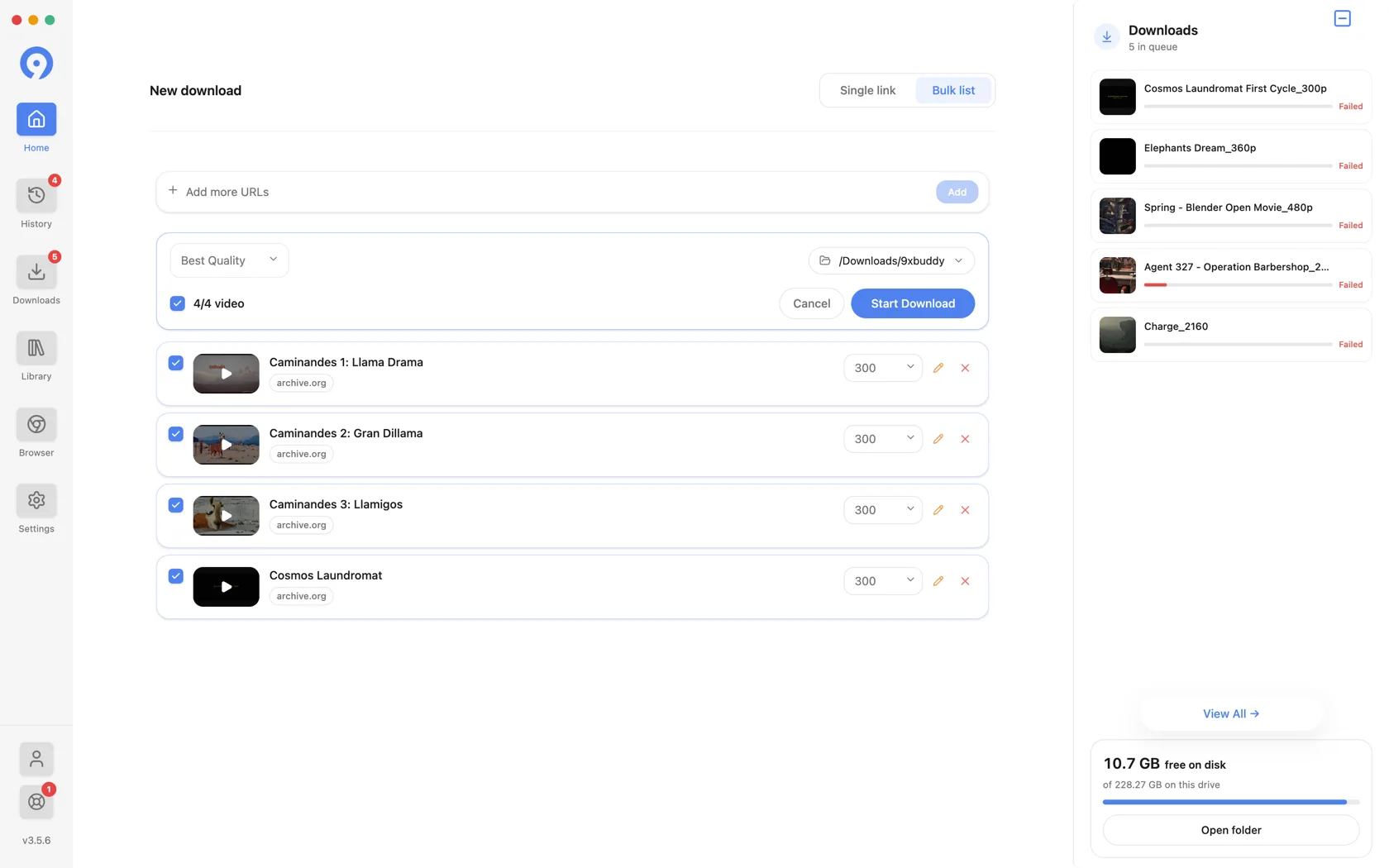
Before starting the transfer, you can:
- select or clear the whole list, or tick rows individually;
- choose one quality for the batch, or override it on a single row;
- rename an item;
- remove an item;
- Add more URLs to the same session; and
- change the destination folder.
Choose Start Download when the selection is correct. Each selected result joins the normal queue, where it can be paused, resumed, canceled or retried on its own.
While a batch extracts
Rows resolve independently. Each shows what it is currently doing and how long it has been doing it, so a slow row is visible rather than mysterious, and it does not hold up the rest.
If a site needs you to sign in or confirm something before it will serve the page, 9xbuddy pauses that row and points you at the built-in Browser for the site in question. The rest of the batch carries on.
Two ceilings worth knowing
Settings → Extraction → Bulk carries two limits that shape a large batch:
- Select the first - how many extracted links arrive already ticked. The rest still extract; they are simply not selected for you.
- Hold at most - how many links one bulk session keeps. Expansion stops when the session is full.
A channel with more videos than Hold at most stops expanding at that number rather than failing. Raise it, or work through the channel in parts.
If an item fails to extract
A failed row does not discard the successful rows. Retry that item or remove it and continue with the rest. For unstable sources, Settings → Extraction → Bulk also carries Bulk Retries and Retry Delay (ms).
If a URL needs a signed-in page, sign in once in the built-in Browser and set it as your cookie source - see Browser, cookies and headers - and only provide credentials for content you are authorized to access.
Free includes five downloads per rolling 24 hours. Pro removes the limit.