
Desktop integration and shortcuts
The tray icon, closing to the tray, the clipboard watcher, notifications, and every keyboard shortcut.
The tray icon, standard clipboard notifications, download notifications and keyboard shortcuts are free. The optional advanced clipboard popup is available with a paid Pro subscription or an active trial.
Tray and menu-bar icon
Settings → Desktop → Show tray or menu-bar icon puts 9xbuddy in the macOS menu bar, or the Windows and Linux system tray. The menu reports what the queue is doing and offers, without opening the window:
- Show or Hide 9xbuddy
- Paste Link from Clipboard
- Home, Downloads, Library, History and Settings
- Open Download Folder
- Pause All, or Resume All when something is paused
- Quit 9xbuddy
Closing to the tray
Keep running when the window closes hides the window instead of quitting, so transfers and scheduled retries carry on. Reopen from the tray icon.
This setting requires the tray icon and is turned off with it. Without an icon there is no dependable way to bring a hidden window back, so a hidden 9xbuddy with no tray entry would be a running app you could not reach.
Watching the clipboard
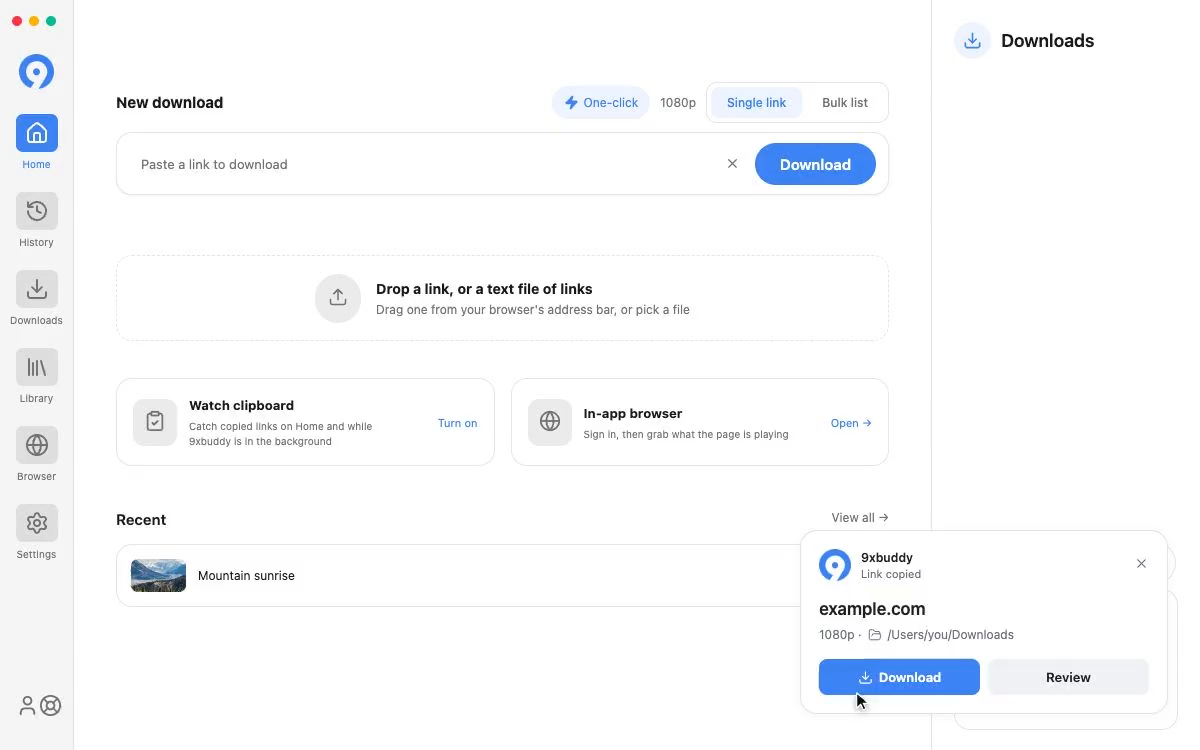
Settings → Desktop → Watch clipboard, or the Watch clipboard card on Home, offers a link the moment you copy it - on Home while you are there, and as a notification when 9xbuddy is in the background. In Bulk list mode a copied link is appended to the list rather than replacing what you are already typing.
Clipboard text is checked locally, and text that is not a link is discarded immediately. A copied link is never queued automatically - it is offered, and starting the download is your decision.
Choose your clipboard prompt
Turn on Watch clipboard, then open Settings → Desktop → Clipboard prompt.
| Option | Availability | Behaviour |
|---|---|---|
| System notification | Free, trial and Pro; selected by default | Offers Review through your operating system's notification. |
| Advanced popup · Pro | Paid Pro or an active trial; opt-in | Shows Download and Review beside the mouse pointer. |
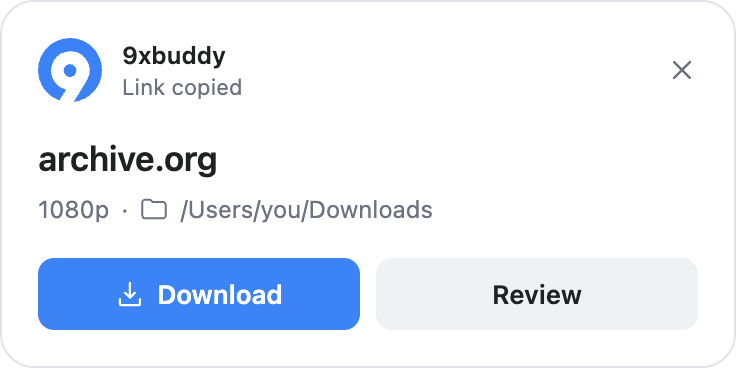
The advanced popup appears just to the right and below the pointer when a link is detected. Near a screen edge, it moves left or above to stay visible. It stays in that spot while you move the mouse onto a button.
- Download uses your preferred quality and the folder used for your last queued download, without opening the main window or asking for another confirmation. Before your first download, it uses the configured download folder. The popup shows the quality and folder before you click.
- Review opens the link in 9xbuddy so you can choose formats and a destination. It does not queue a download, even when One-click download is enabled.
- Dismiss closes the popup without starting anything.
The popup closes as soon as you choose one of them, so it never sits over your work while an extraction runs. A download you started that way keeps going without it, and reports when it settles. An unused offer closes by itself after 15 seconds, with the timer paused while you hover over or focus it.
After you press Download
The outcome arrives as a system notification, which Settings → Notifications → Clipboard downloads can turn off.
- A link that was queued says Added to queue and offers Show in Downloads, which opens your queue at the file. It never extracts the link a second time, so it cannot queue a second copy of what is already downloading.
- A link that was already in the queue says Already in the queue, and lands in the same place.
- Anything that could not be queued - a page with no media, a playlist, a folder that is unavailable, a browser check, or the daily limit on a free account - says what happened and offers Review link, which opens the link in 9xbuddy so you can decide what to do with it.
The advanced popup is included in the 3-day trial as well as paid Pro. When the trial or subscription expires, clipboard watching uses the system notification again. If your desktop cannot display the popup beside the pointer, it also uses the system notification.
Notifications
Settings → Notifications decides which outcomes may raise a system notification while 9xbuddy is in the background: Completed downloads, Failed downloads and Clipboard downloads, separately.
A failed-download notification fires when the item gives up after its retries, not on the first stumble. Notifications from a batch are grouped, and choosing one opens your Library at the finished file.
Your operating system can silence these regardless of what is set here.
Keyboard shortcuts
Every shortcut is re-bindable under Settings → Keyboard Shortcuts, and works while 9xbuddy is the active application.
| Action | Default | What it does |
|---|---|---|
| Open Home | Ctrl/Cmd + 1 | The link extraction workspace |
| Open Downloads | Ctrl/Cmd + 2 | The active download queue |
| Open Library | Ctrl/Cmd + 3 | Your completed files |
| Open History | Ctrl/Cmd + 4 | Extraction and download attempts |
| Open Browser | Ctrl/Cmd + 5 | The built-in browser |
| Open Settings | Ctrl/Cmd + , | Application settings |
| Focus Link Field | Ctrl/Cmd + L | Opens Home and puts the cursor in its field |
| Find on Current Screen | Ctrl/Cmd + F | Focuses the current screen's search box |
| Toggle Sidebar | Ctrl/Cmd + B | Collapses the collections or settings pane |
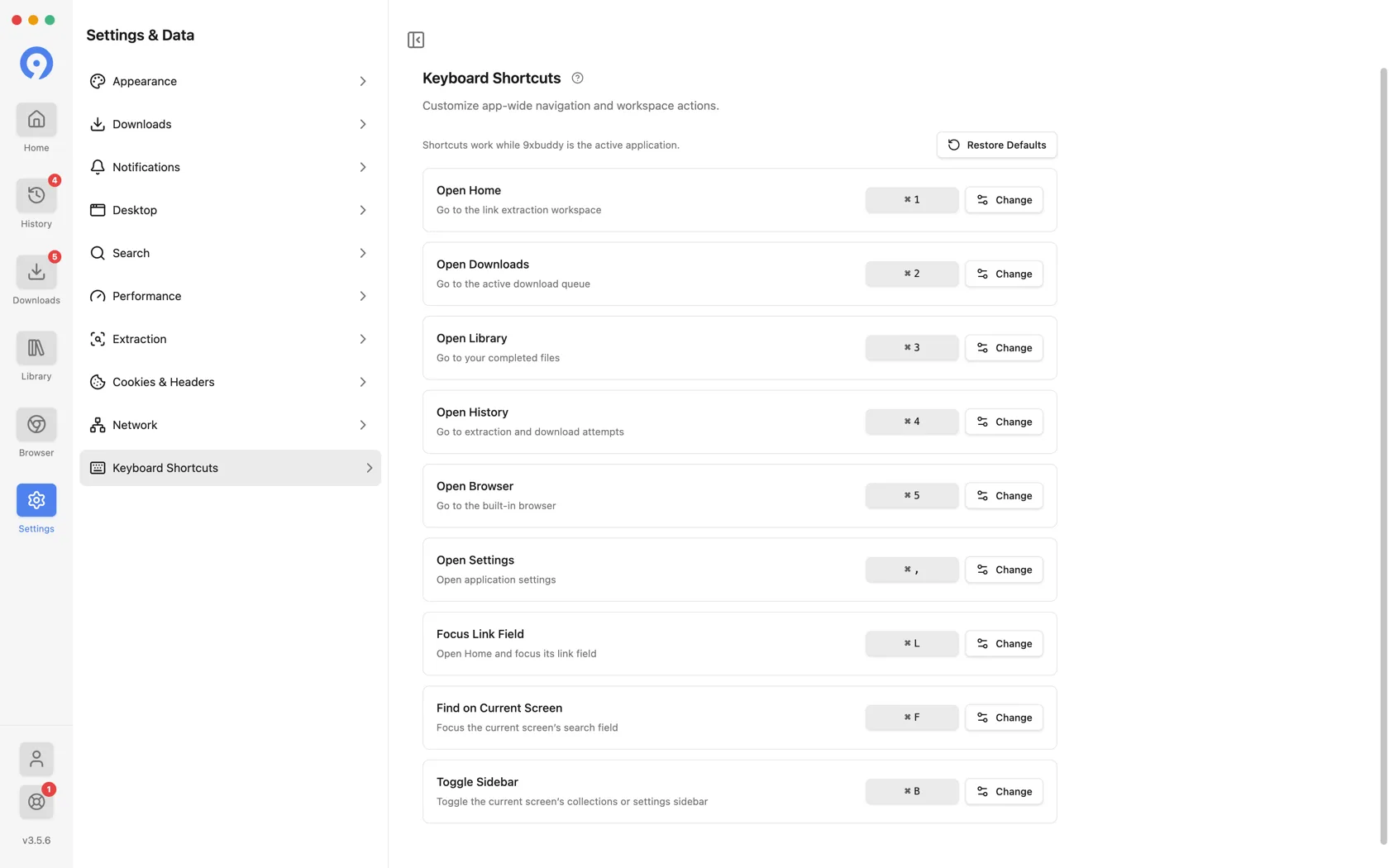
Two rules the recorder enforces: a combination the operating system reserves is refused, and no two actions may share one combination.
The same destinations are in the application menu bar, so they work whether or not you remember the key.