
Shortcuts and the floating button
Every way to start a capture.
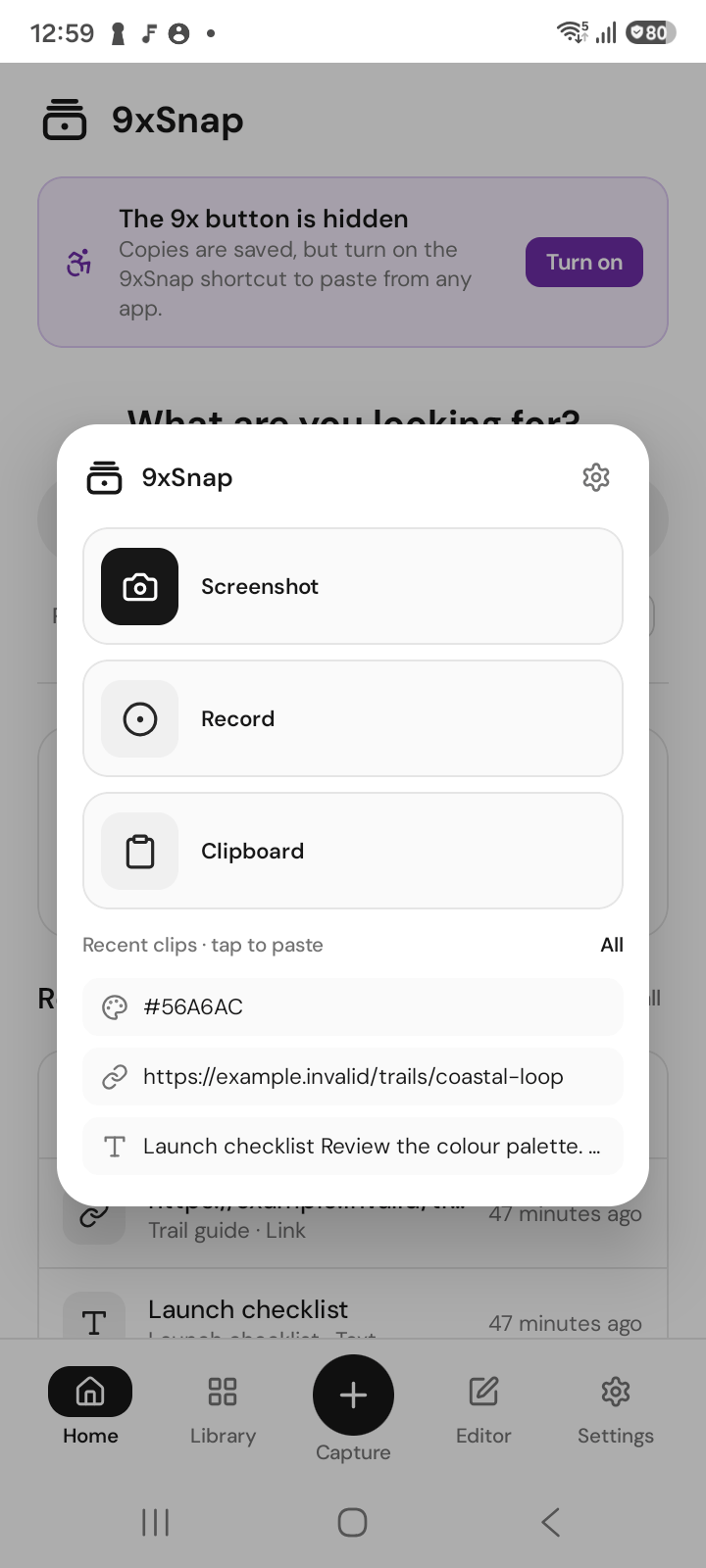
On Android, a Pro-only action shows an on-screen message with an option to activate Pro. This message does not depend on notification permission.
Android
| Way in | Does | Plan |
|---|---|---|
| Floating 9x button and menu | Screenshot, record, clipboard | Pro |
| Quick Settings tiles | Screenshot, record, clipboard | Screenshot free; record Pro |
| App-icon shortcuts | Screenshot, record, paste history | Follows the action |
| Volume-key shortcut | Screenshot or record | Follows the action |
| Home-screen widget | Latest clips and actions | Pro |
| Shortcut notification | Screenshot, record, clipboard | Follows the action |
Set them in Settings › Shortcuts. The action decides the plan, not the way you start it. Volume keys behave normally unless you assign a long press or combo.
Desktop
Global shortcuts and the tray start capture from anywhere. Change them in Settings. Custom shortcuts are part of Pro.
Set up an Android trigger
- Open Settings, Shortcuts and choose the trigger you want.
- Assign its action, such as Screenshot, Record or Paste.
- Return to a harmless app and try the trigger with that action.
Add Quick Settings tiles from the shortcut settings or Android's shade editor. The home-screen widget is added from the launcher's widget picker.
Know what a press does
The Android 9x button reports taps, not long presses. While recording, tapping it stops recording. Volume-key shortcuts work with the screen on and the 9x service enabled; an ordinary short press still changes volume.
A shortcut does not fire
Check Android permissions and the assigned action first. On desktop, check the hotkey settings for conflicts; another app or the system may already use that combination. Try the tray action to separate a key-binding problem from a capture problem.
Free includes basic capture and recent history. Pro adds full history and the Pro actions listed above; changing the entry point does not make a Pro action free.