
Editors and export
Annotate screenshots, trim recordings and edit text. Pro.
The editors and exports are part of Pro.
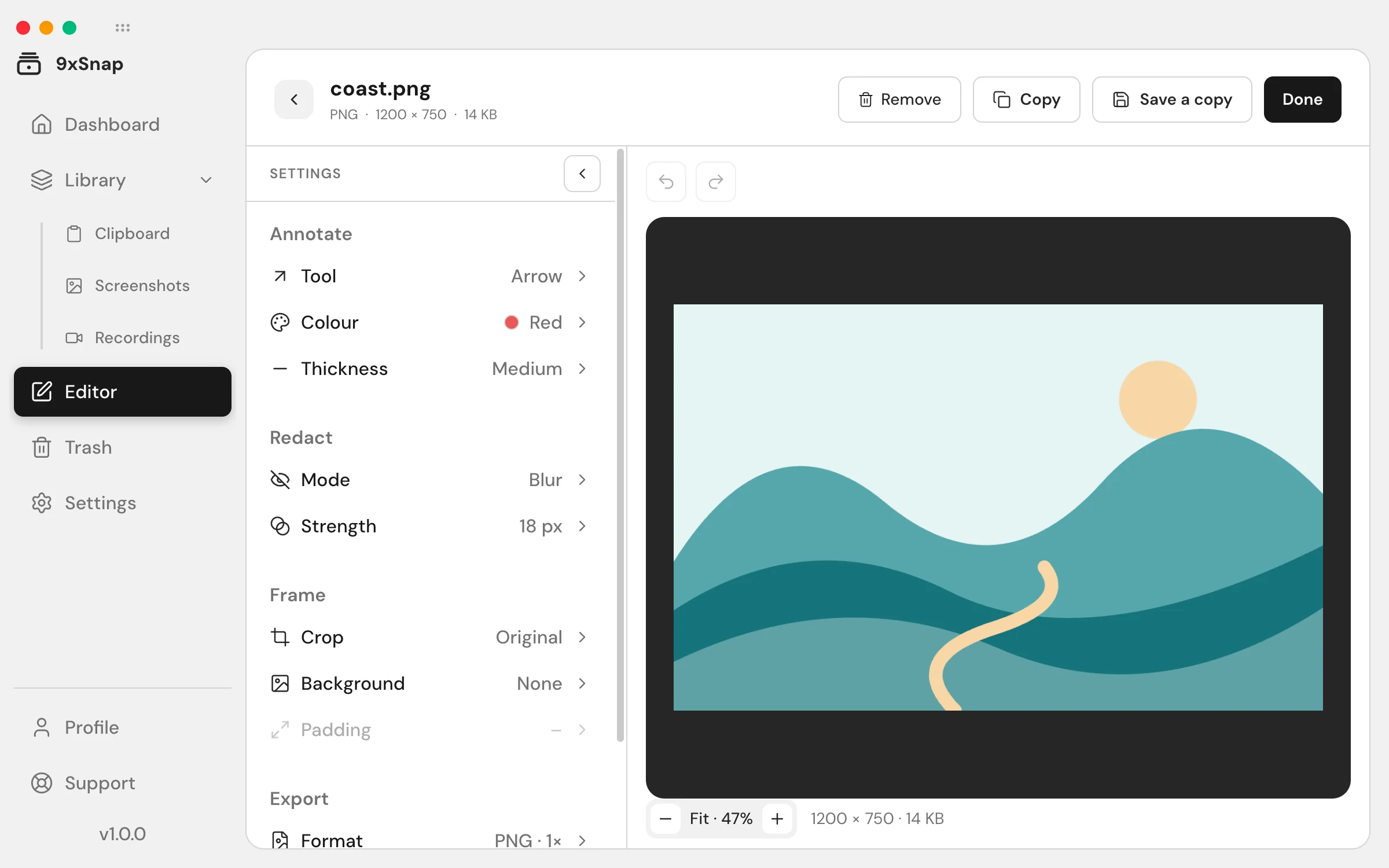
Image editor
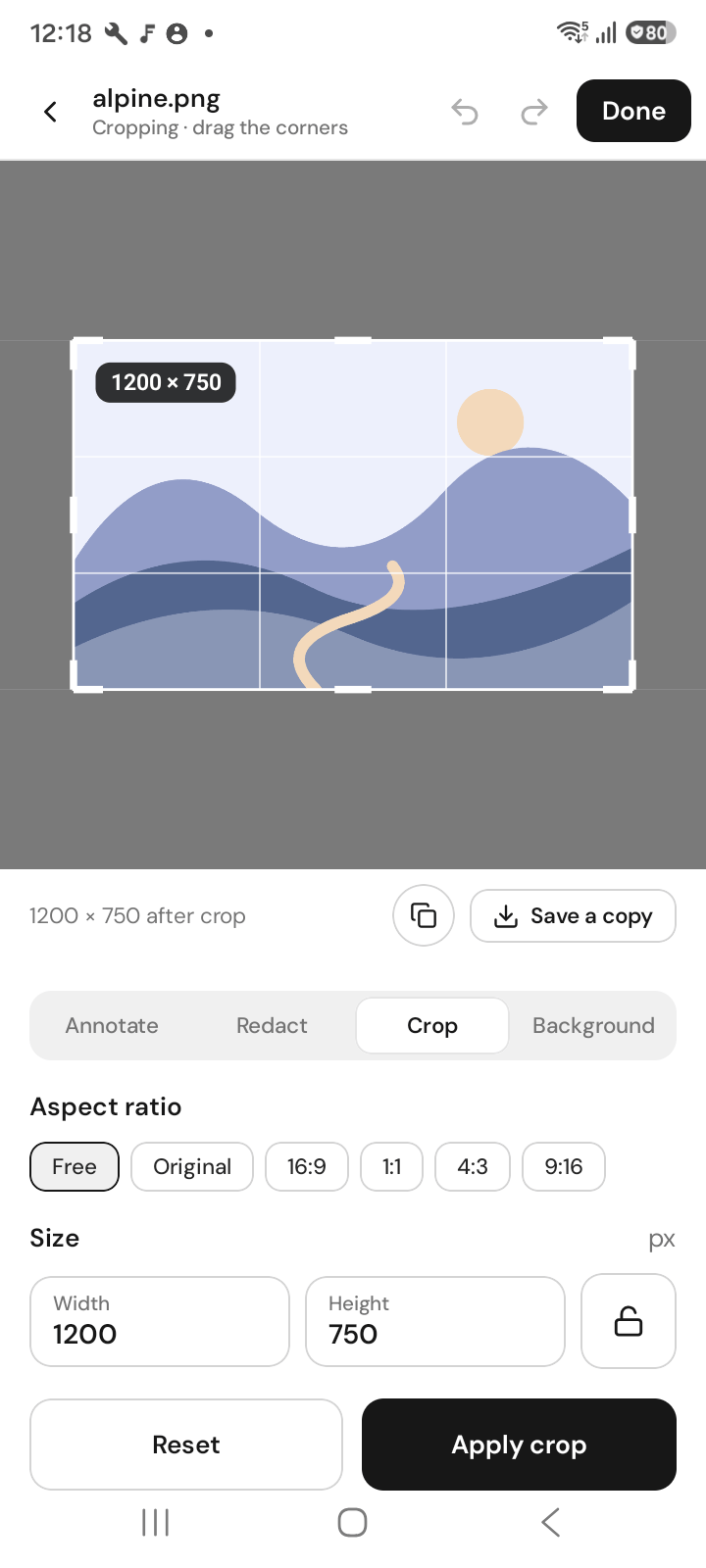
Annotate with arrows, boxes, text and numbered steps, blur or black out private parts, crop, and use Spotlight to dim everything except what matters.
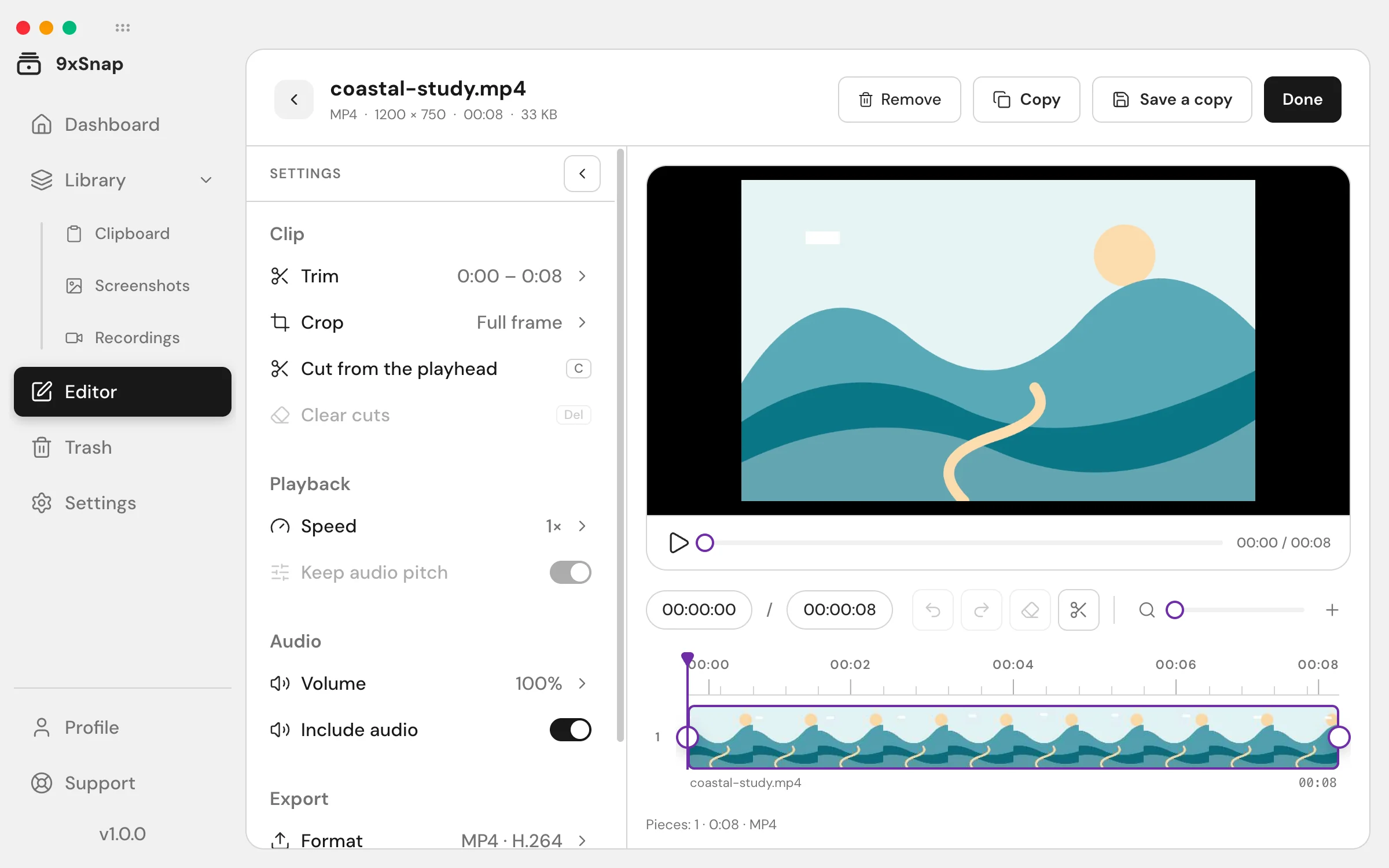
Video editor
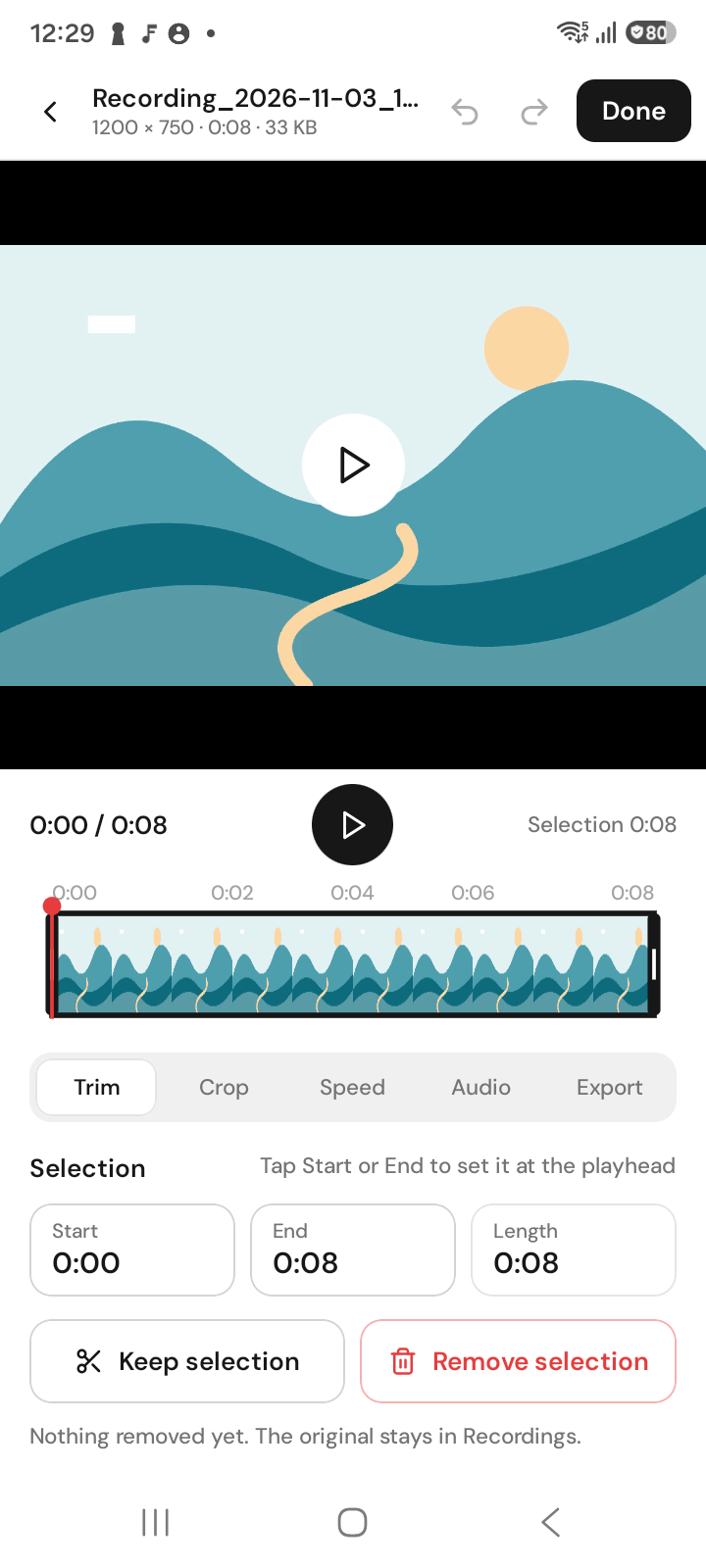
Trim, crop and change the speed of a recording, then export MP4 or GIF.
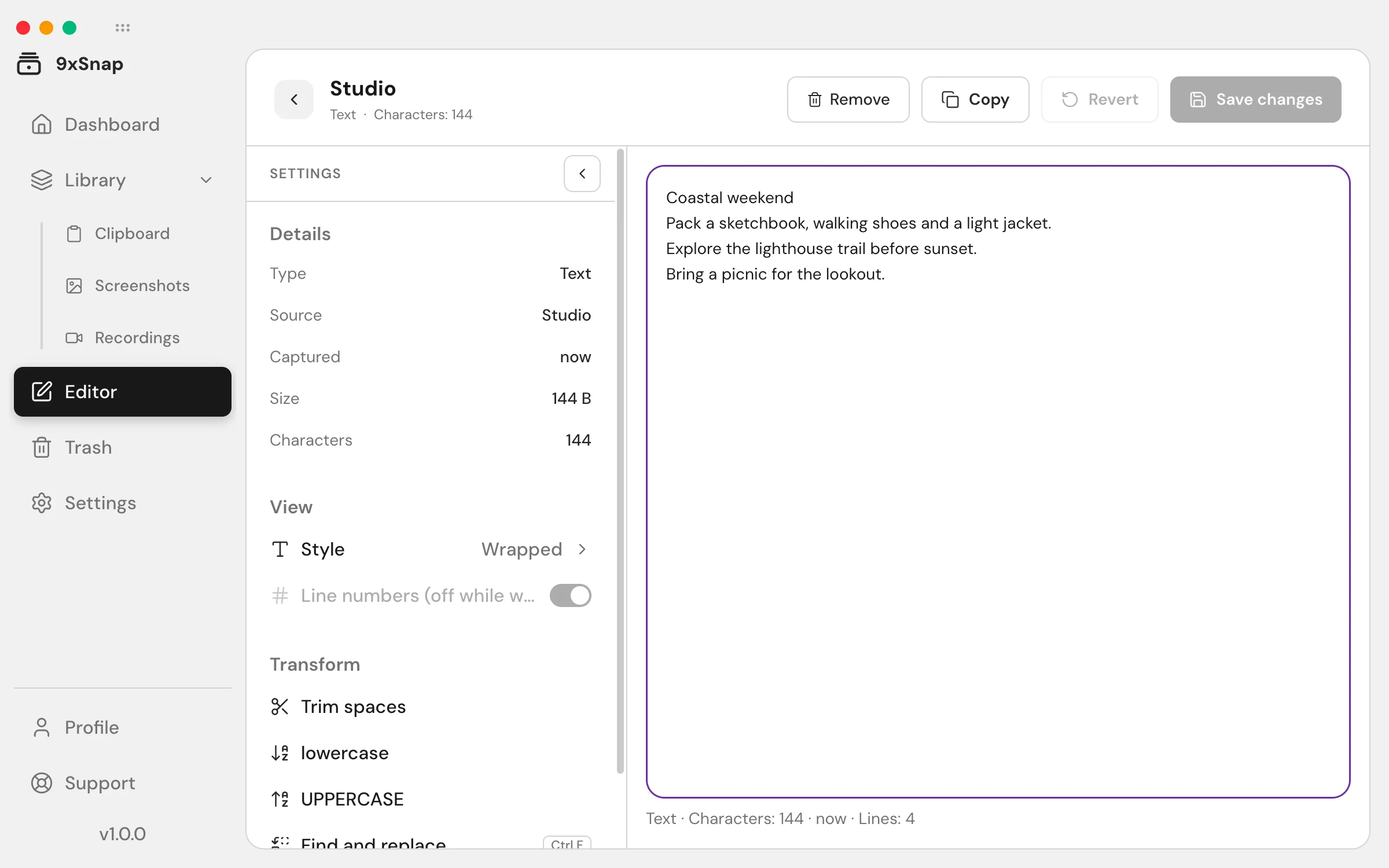
Text editor
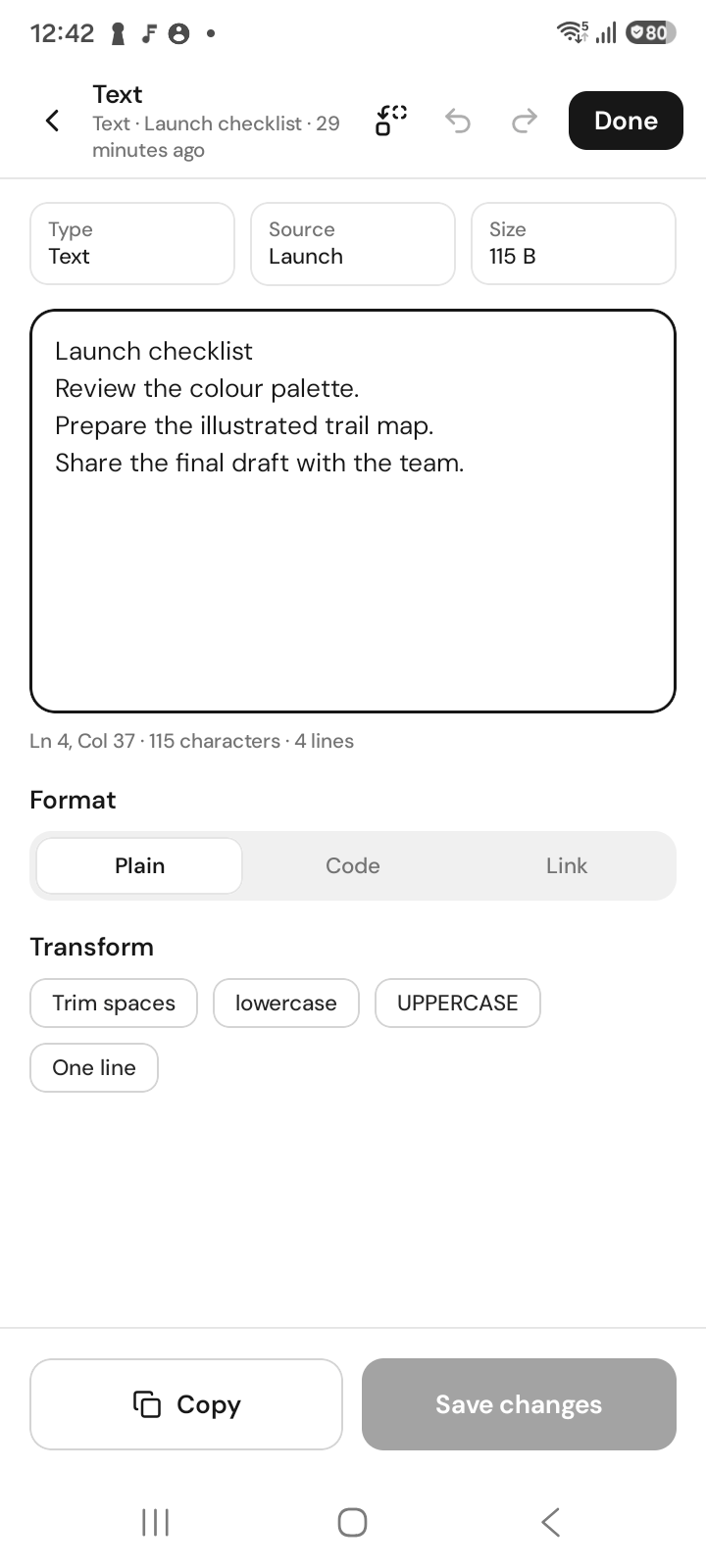
Edit a text clip with find and replace.
Share and export
Share clips and captures or export edited media. Image and video exports leave the original media untouched; text saving behaves differently, as described below.
Make an annotated copy
- Open a screenshot and choose Edit.
- Select a tool, then draw on the image or add text.
- Crop to the useful area; use Undo or Redo to revise annotations.
- Review the image and save or copy the edited result.
For a walkthrough, combine numbered steps with arrows. Spotlight draws attention by dimming the surroundings; blur or blackout is for obscuring a part of the picture. Check the exported image before sharing.
Prepare a short recording
Set the beginning and end, choose the crop and speed, then review the export format. Use MP4 for video or GIF for a short visual loop. Export writes a separate result; the recording in Library keeps its full length.
Correct text before reusing it
Open Find and replace, enter the search text and replacement, then choose Next, Replace or Replace all. Match case narrows matches. Search is literal, not a regular expression.
Saving text changes updates the selected clip, unlike a media export. If the result exactly matches another clip, the editor reports a duplicate rather than saving it. On Android, the unsaved-changes dialog also offers Save a copy. Free basic capture does not require opening an editor; editing and exporting are Pro.
Free includes basic capture and recent history; Pro adds full history on phone and computer.