
Save and paste clips
Every copy is kept, and any clip can be pasted again.
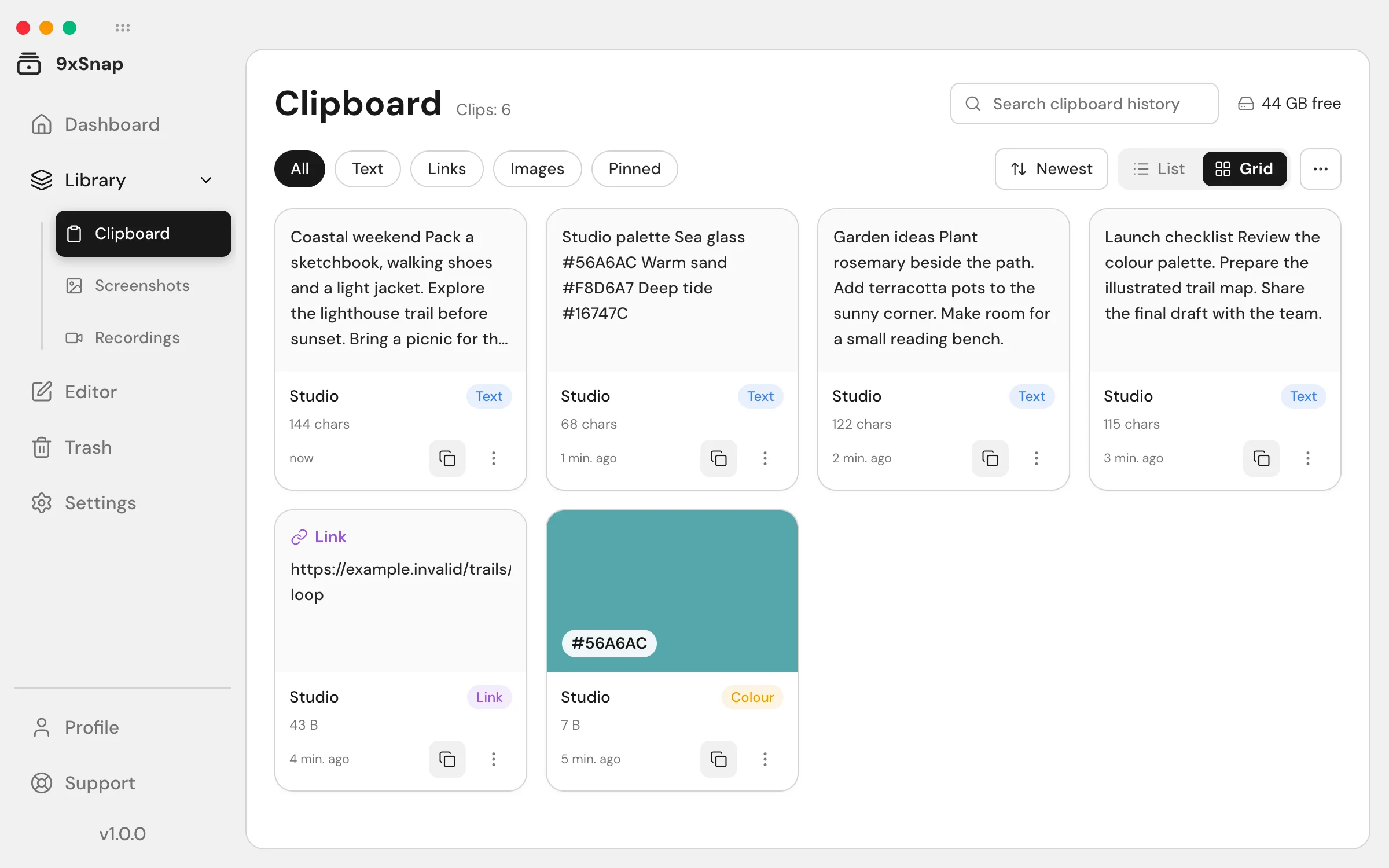
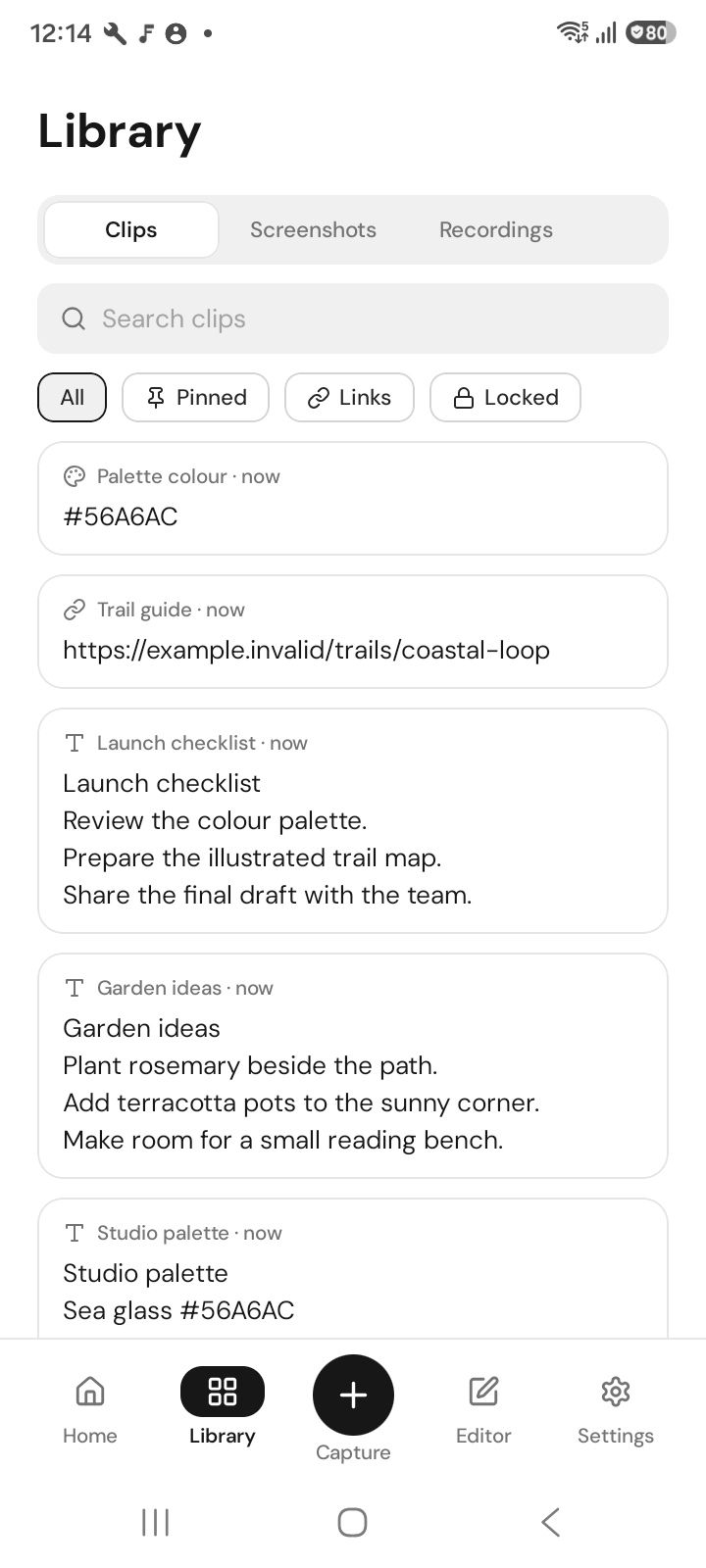
Copy anything in any app and 9xSnap keeps it in your history: text, links, code, images and files on desktop, text and links on Android. Copying the same thing again moves it to the top instead of adding a duplicate.
Find a clip
Home puts search first. Library groups everything into Clipboard, Screenshots and Recordings. Select several items to act on them together.
Paste from history
On Android, open the 9x menu or the shortcut you set and choose Paste. The paste panel sits above the keyboard, and the clip goes into the field you were typing in. On desktop, open a clip and copy it again, or paste from the quick panel.
Pasting existing clips is free. Sharing or exporting clips is a Pro feature.
Keep things out of your history
- Excluded apps: nothing copied in these apps is saved.
- Android: Sensitive mode: previews are blurred until you tap them.
- Trash: deleted items wait here, with preview, until you restore or empty it.
Free: Browse your recent history and paste saved clips into the app you are using. Free opens the 50 most recent history entries. Older entries stay saved but locked; Pro unlocks the full retained history. This limit does not delete entries.
Pro: Full history on your phone and computer.
Reuse a saved passage
- Copy some text while 9xSnap is running, then open Clipboard in Library.
- Search for a word from the passage and open the matching clip.
- Copy it, return to your document and use that app's Paste command.
On Android, focus the destination field before opening the paste panel. If automatic paste cannot reach the field, the text is still on the clipboard: long-press the field and choose Paste.
Find something you deleted
Open Trash and preview the item before choosing Restore. Emptying Trash or deleting an item forever is not the same as moving it out of Library.
A copy is missing
Check excluded apps and privacy settings first. On Android, check the permissions in Settings; password-field copies are deliberately skipped. Search recent history with Free, or full history with Pro.
How the history window and Trash work
The Free window of 50 entries is shared by clips, screenshots and recordings, including entries in Trash. Searching or filtering does not give each result or category its own allowance.
With Free, Empty Trash permanently removes only the trashed entries accessible when that operation starts. Older entries outside this window, and their files, stay saved; the same operation does not keep deleting them as space opens up. Pro can empty all Trash. Review the items before confirming permanent deletion.