
9xSnap
Everything you copy and capture, saved in one private history and one tap away.
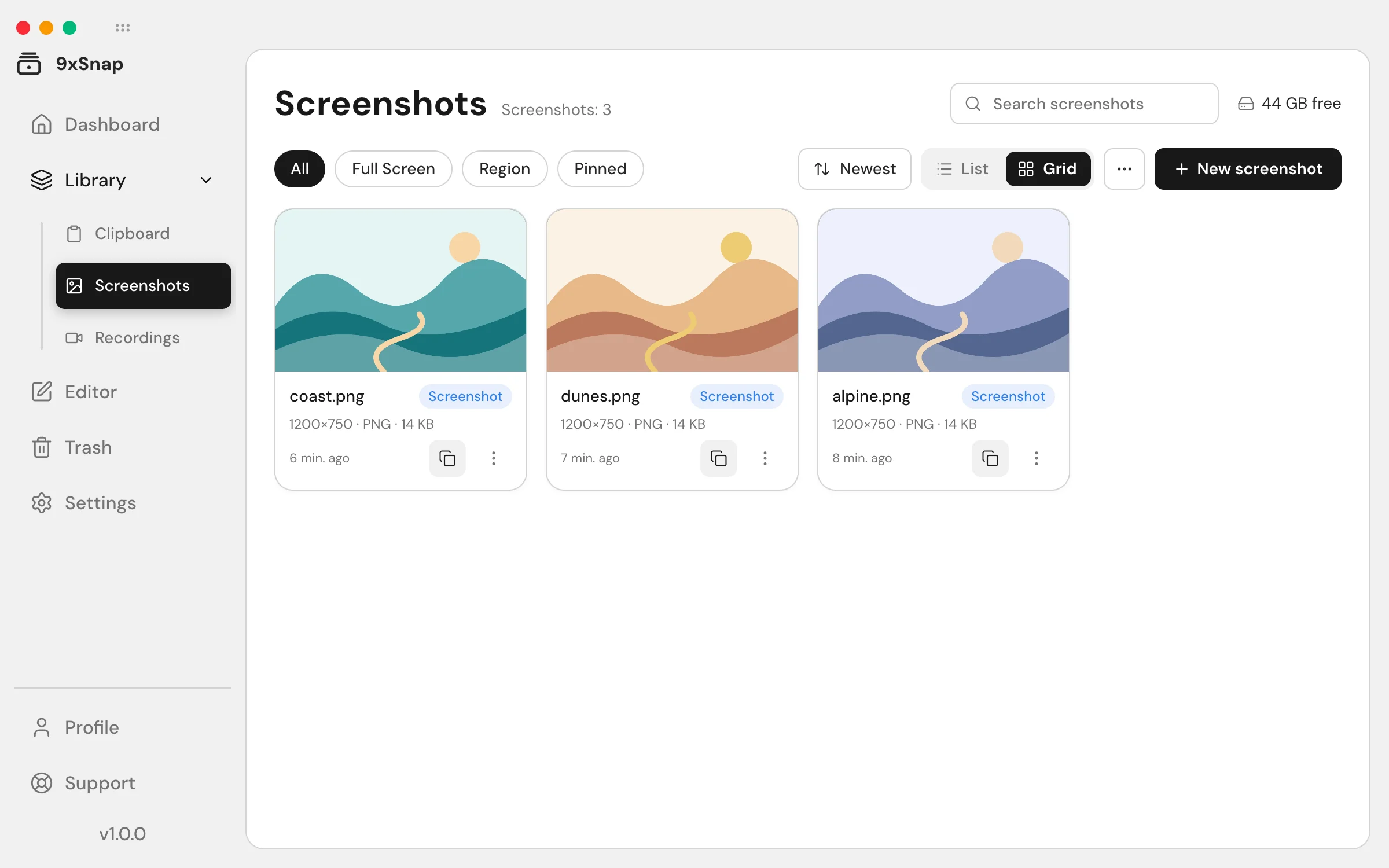
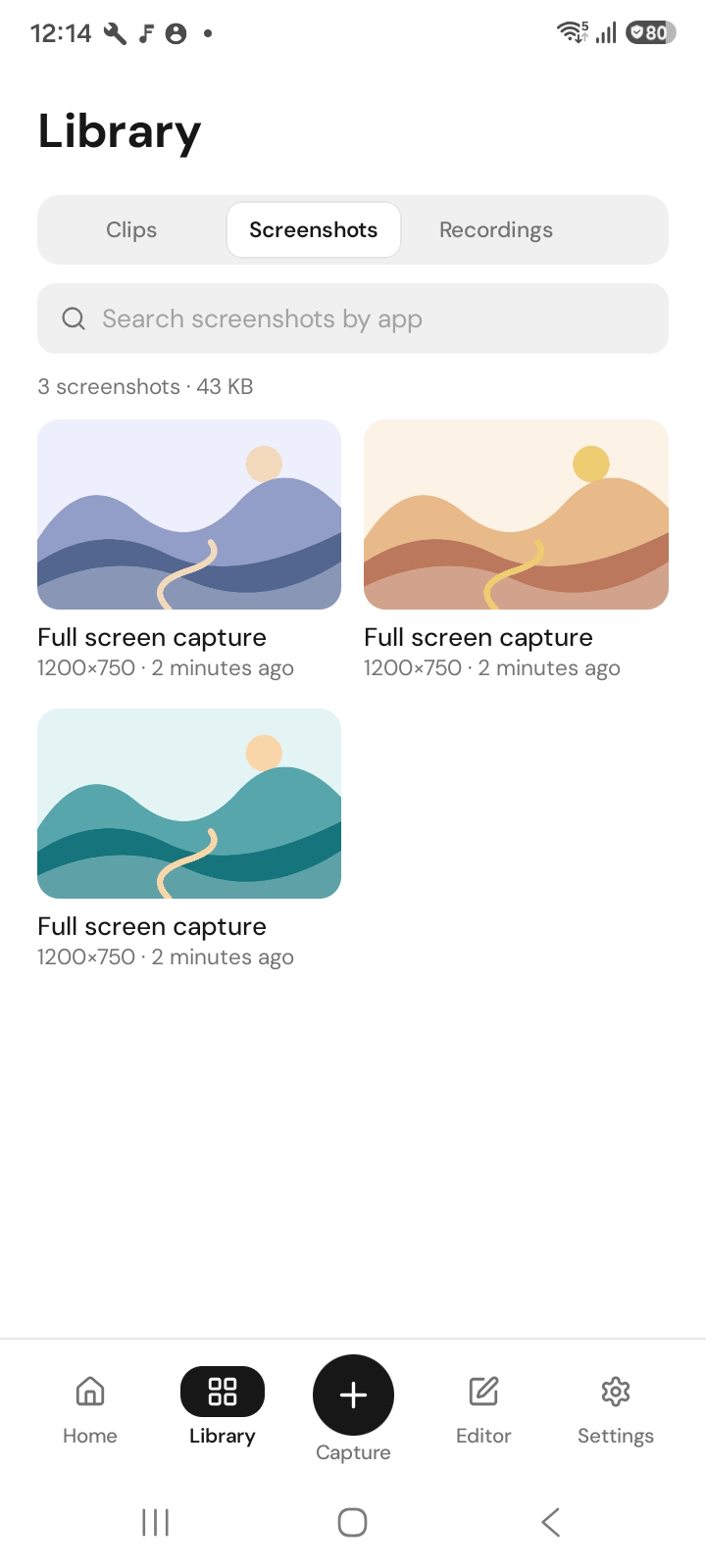
9xSnap keeps a history of what you copy, the screenshots you take and the screen recordings you make, so you can find them again, paste them into any app and mark them up.
What you can do
- Save and paste clips: every copy lands in your history, and any clip can be pasted again into the app you are using.
- Keep private things locked: Hide sensitive previews on desktop; lock sensitive clips on Android.
- Take screenshots: On desktop, full-screen and region screenshots are basic capture. Capturing one window requires Pro. Timer and scrolling screenshots are Android-only. On Android you can choose full screen, a region or one app; scrolling depends on the app being captured.
- Record the screen: Use the microphone on desktop. Android also offers device audio or both sources, when the recorded app allows it.
- Edit and share: annotate, blur, crop, trim and export.
- Start from anywhere: the floating 9x button on Android, global shortcuts and the tray on desktop.
START FREE: Browse your recent history and paste saved clips into the app you are using. Free opens the 50 most recent history entries. Older entries stay saved but locked; Pro unlocks the full retained history. This limit does not delete entries. Pro: Full history on your phone and computer. Free and Pro.
Getting started
- Install it
- First run: create your account number and follow the three setup steps
- Copy something, then open your history
If something does not work, Troubleshooting starts with the permissions that account for most problems.