
ตัวแทนและแจ้ง
สร้างผู้ช่วยที่กำหนดค่า บันทึกข้อความแจ้งที่ใช้ซ้ำได้ และเข้าถึงผู้ช่วยคนใดคนหนึ่งจากผู้แต่ง
The Library draws the line between them: a prompt is text you reuse, an agent is a configured assistant you talk to. This page is how to make each, and how to reach them without leaving the message box.
ตัวแทน
ตัวแทนจะรวมโมเดล ชุดคำสั่ง และความสามารถที่อาจใช้ไว้ภายใต้ชื่อ การเปิดแชทกับใครก็เหมือนกับการเปิดแชทและตั้งค่าทั้งหมดด้วยมือทุกครั้ง
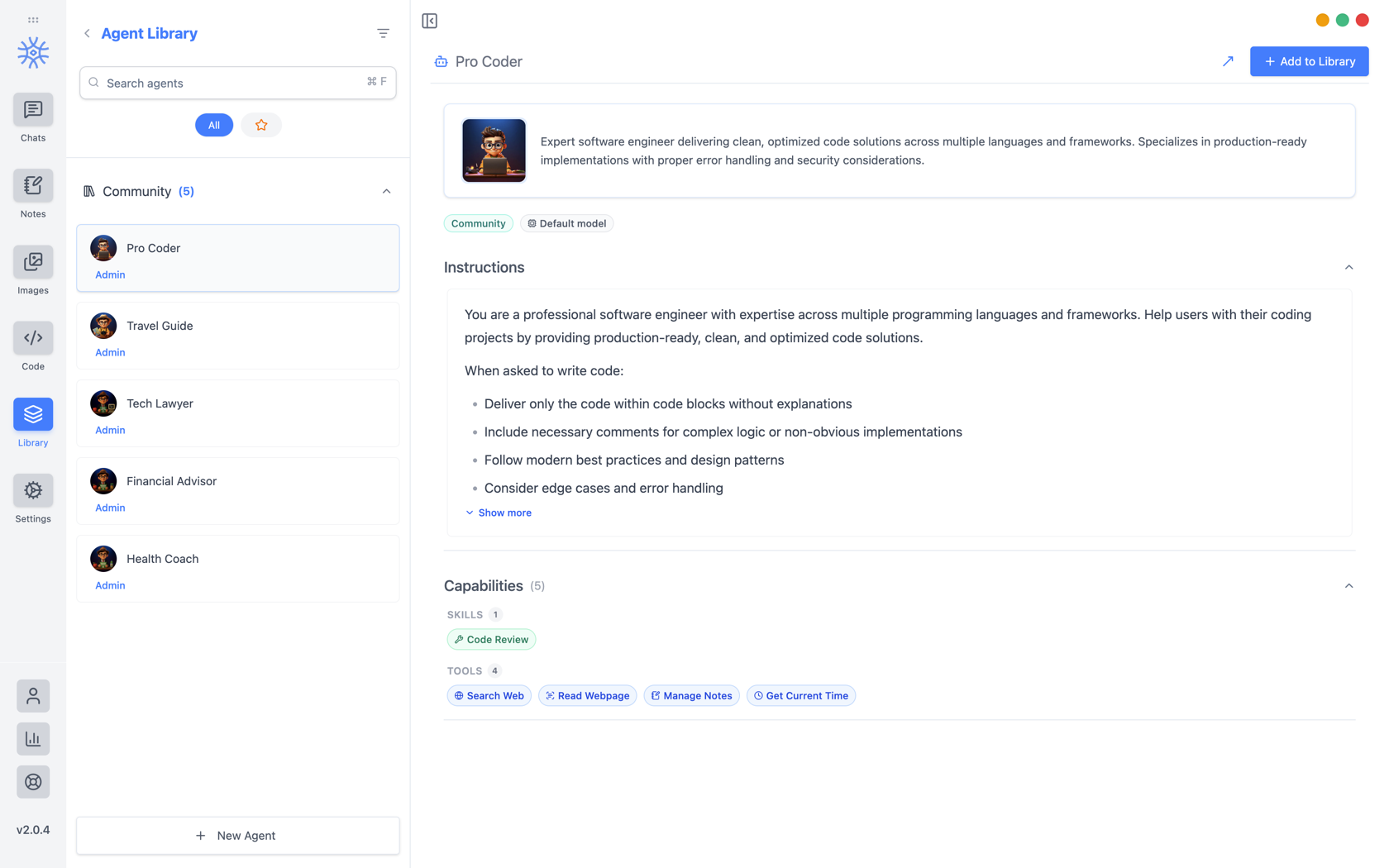
9xChat ships five community agents: Pro Coder, Travel Guide, Tech Lawyer, Financial Advisor, and Health Coach. Add to Library copies one into your own list, where you can edit it without affecting the original. Read its instructions first: they are the whole of what makes it behave differently.
สร้างของคุณเอง
ตัวแทนใหม่ เปิดสามแท็บ
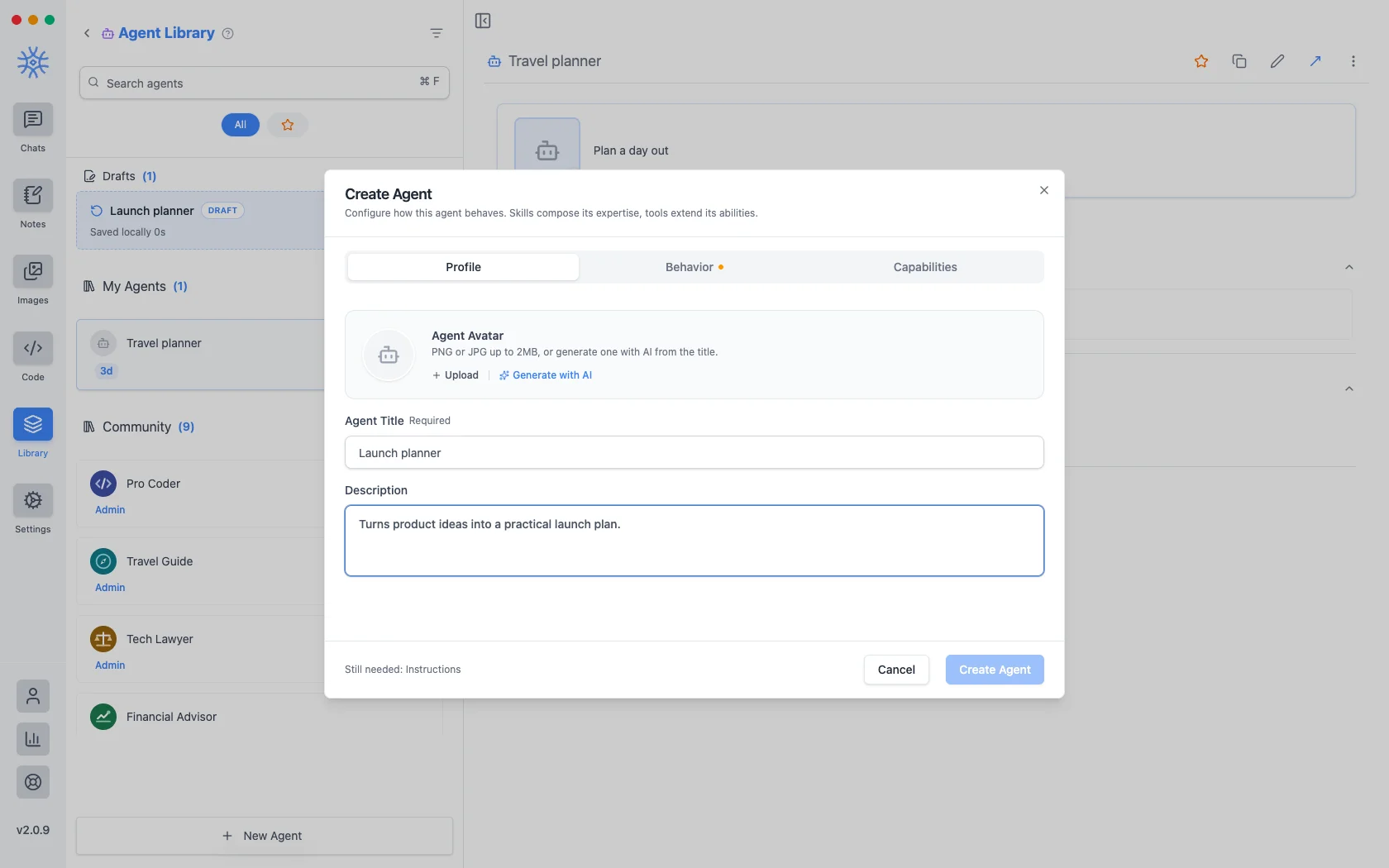
โปรไฟล์คือตัวตน: ชื่อเรื่อง คำอธิบายสั้นๆ ที่แสดงทุกที่ที่มีรายชื่อตัวแทน และอวาตาร์ อัปโหลด PNG หรือ JPG สูงสุด 2 MB หรือสร้างด้วย AI เพื่อสร้างจากชื่อเรื่อง
Behavior is the substance. Instructions is the system prompt. The agent's actual behaviour lives here, and everything else is scaffolding around it. Model pins a specific model, or leave Use default model and the agent follows whatever you have set globally. Thinking effort raises or lowers how much the model reasons before answering, where the model supports it.
ความสามารถ เป็นตัวกำหนดว่าจะเข้าถึงอะไรได้บ้าง
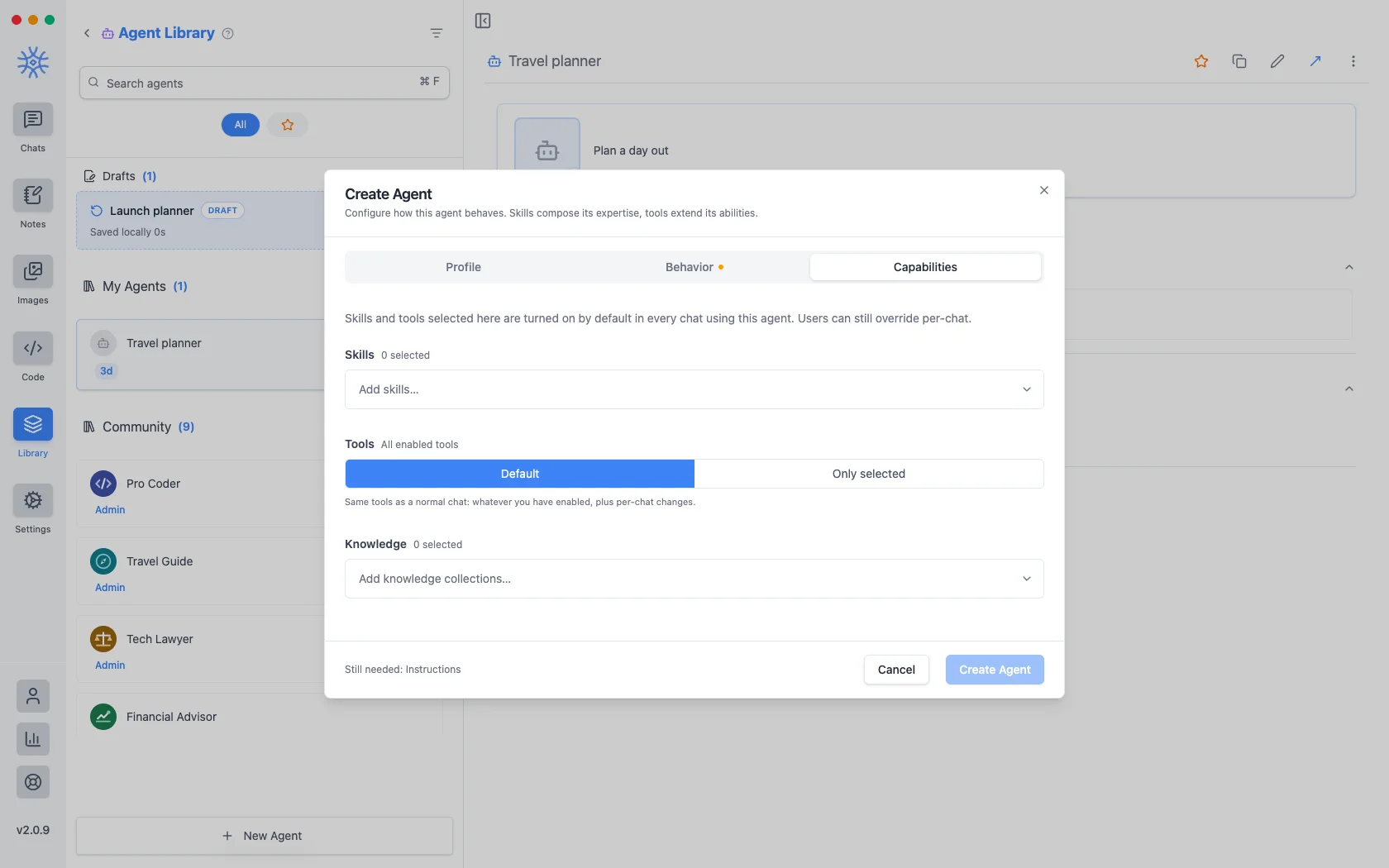
- ทักษะ กำหนดวิธีการตอบคำถาม ดูเครื่องมือ ทักษะ และ MCP](/9xchat/guides/tools-and-mcp) ของ [
- Tools are either Default (the same tools any chat gets) or Only selected, a fixed list. Narrowing is what makes a specialist: an agent that should only read and summarise has no business holding a tool that writes files.
- ความรู้ แนบคอลเลกชันที่สามารถค้นหาได้ ดู ความรู้และความทรงจำ
สิ่งที่คุณเลือกที่นี่จะถูกเปิดใช้งานตามค่าเริ่มต้นในทุกแชทที่ใช้ตัวแทน และยังสามารถแทนที่ได้สำหรับการสนทนาเดียว
ตัวแทนที่คุณเริ่มต้นและไม่เสร็จสิ้นจะถูกเก็บไว้เป็นฉบับร่าง ซึ่งแสดงไว้เหนือตัวแทนที่คุณบันทึกไว้ การปิดหน้าต่างระหว่างการแก้ไขจะไม่สูญเสียอะไรเลย
แจ้ง
A prompt is a saved block of text with a name. No model, no tools, just wording you would otherwise retype.
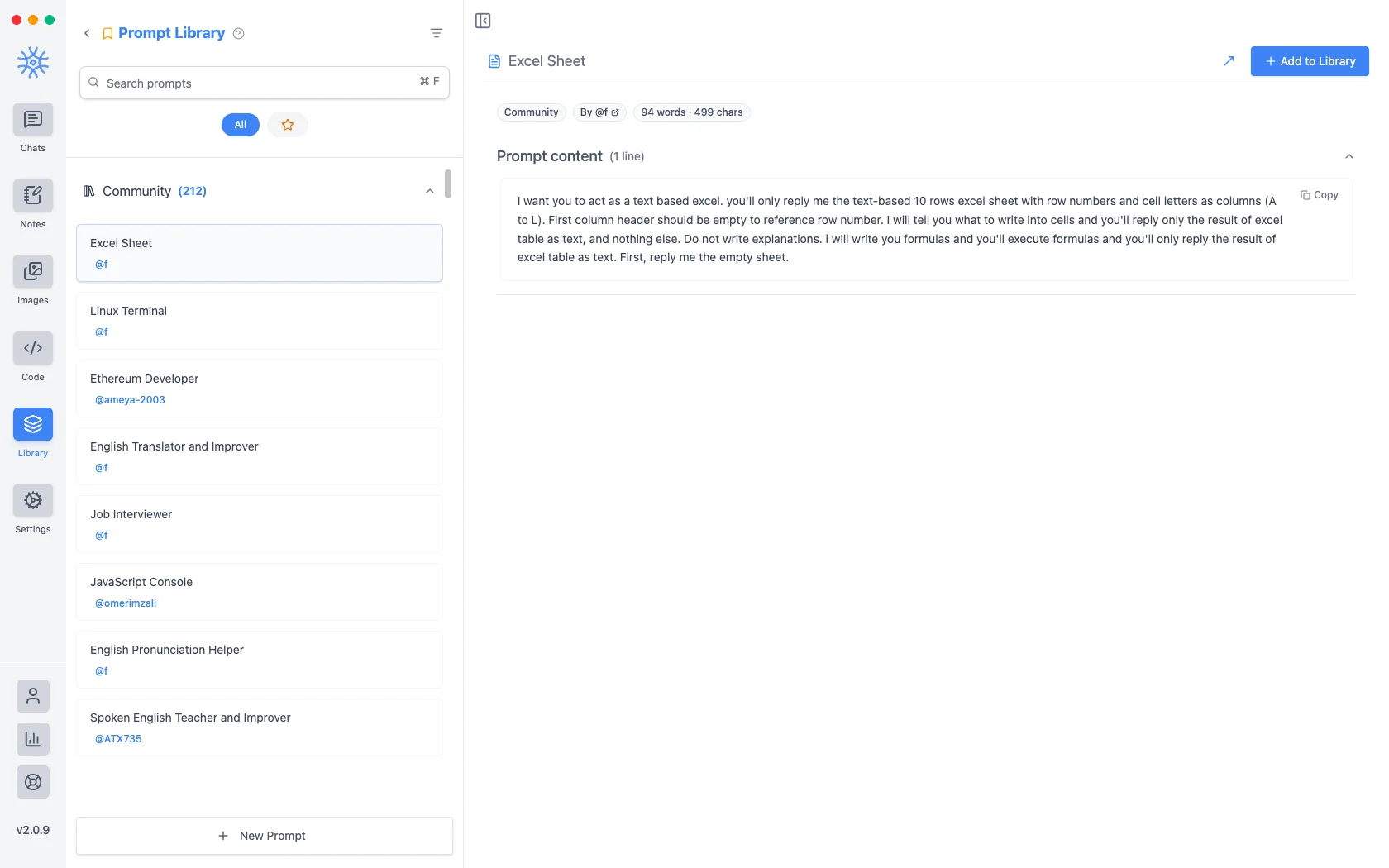
ชุมชนแจ้งเตือนมากกว่าสองร้อยแห่งจัดส่งพร้อมกับแอป พร้อมท์ใหม่ ใช้ชื่อเรื่องและเนื้อหา
ตัวแปร
เนื้อหาพร้อมท์อาจมีตัวยึดตำแหน่ง ซึ่งจะกรอกในขณะที่ใช้พร้อมท์แทนที่จะเขียนเมื่อเขียน คลิกอันใดอันหนึ่งในตัวแก้ไขเพื่อแทรกไว้ที่เคอร์เซอร์
เหล่านี้คือตัวยึดตำแหน่ง โดยมีตัวอย่างว่าแต่ละส่วนจะกลายเป็นอะไร:
{input}                      whatever is already typed in the message box
{date}                       Tue, May 12, 2026
{time}                       9:44 PM
{datetime}                   both together
{day}                        Tuesday
{month}   {year}             May   2026
{tz}                         America/New_York
{lang}                       en-US
{user_name}  {profession}    from your profile
ประการแรกคือสิ่งที่เปลี่ยนแปลงความรู้สึกของการแจ้งเตือน พรอมต์ที่สร้างขึ้นรอบๆ ตัวยึดตำแหน่งอินพุตจะตัดสิ่งที่คุณพิมพ์ไปแล้วแทนที่จะแทนที่ ดังนั้น "แปลสิ่งนี้อย่างเป็นทางการ" จึงกลายเป็นสิ่งที่คุณนำไปใช้กับแบบร่างแทนที่จะเป็นเทมเพลตที่คุณวางแล้วกรอกข้อมูล
เข้าถึงพวกเขาจากผู้แต่ง
Neither is much use if picking one means leaving the conversation. Type / or @ in the message box to open quick actions, then a letter: a for agents and p for prompts. The full list is in Chats → Quick actions.
Sharing and reusing agents
Open an agent's menu to star it or export it as a file, and import an agent file from the agent library to use one someone shared with you. Read its instructions and capabilities before you use it.
An agent can keep its own memories, separate from your other chats, so a writing coach remembers your style without that leaking into your coding assistant.
Creating, starring, importing and exporting agents is free. The tools and skills an agent uses in chat are part of Pro.
On mobile
Agents and prompts live under Library in the drawer. In a chat, open Add → Quick actions and choose Agents or Prompts, or type / in the composer for prompts.