
First run
Create your account number, answer three questions, and see the first lyric.
Two screens stand between opening 9xLyrics and reading a lyric. Neither takes long, and the first one matters more than it looks.
1. Your account number
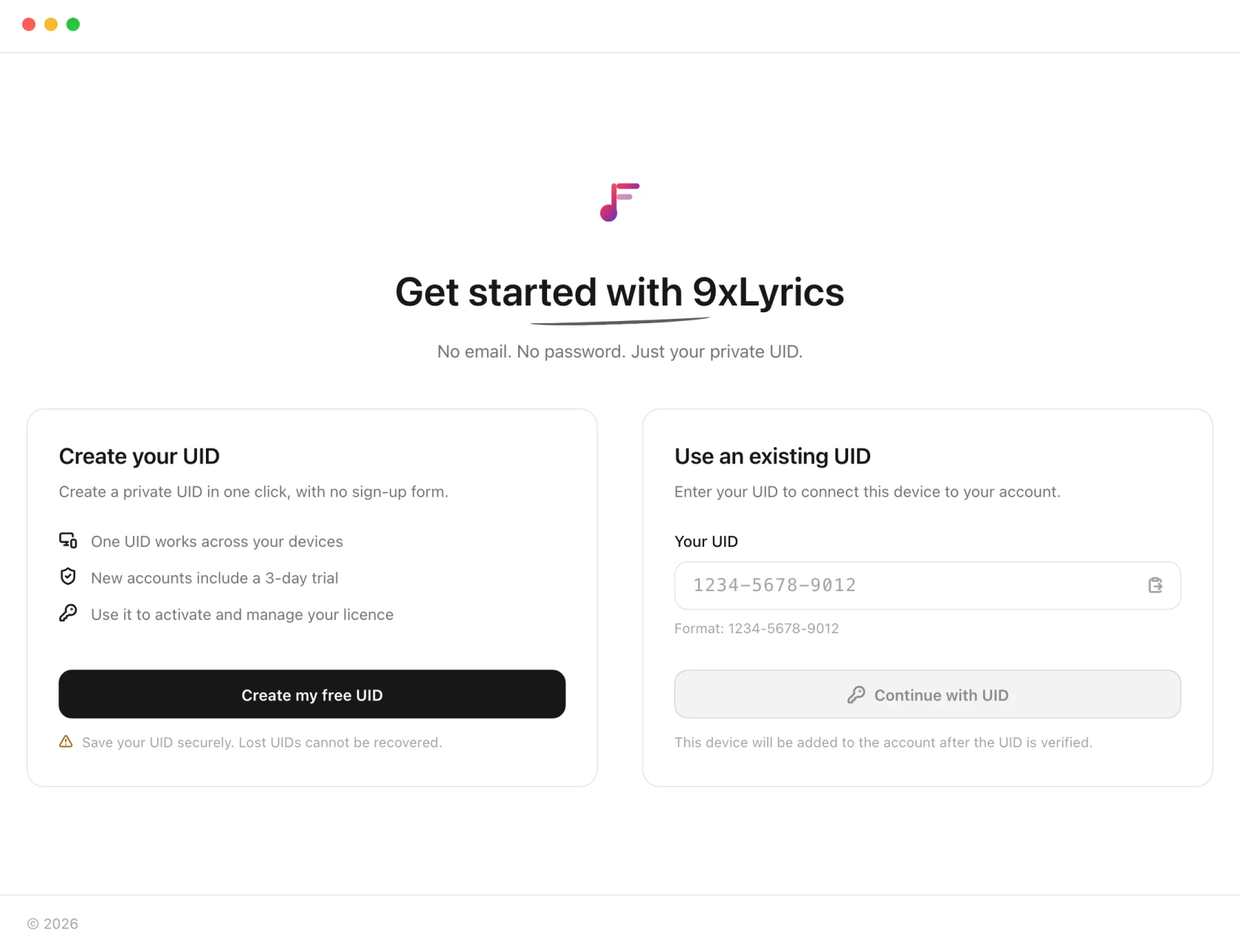
Create my free UID mints a twelve-digit number and starts a 3-day trial with everything unlocked. Use an existing UID signs this machine into a 9xLyrics account you already have.
The number is then shown once, and the app waits.
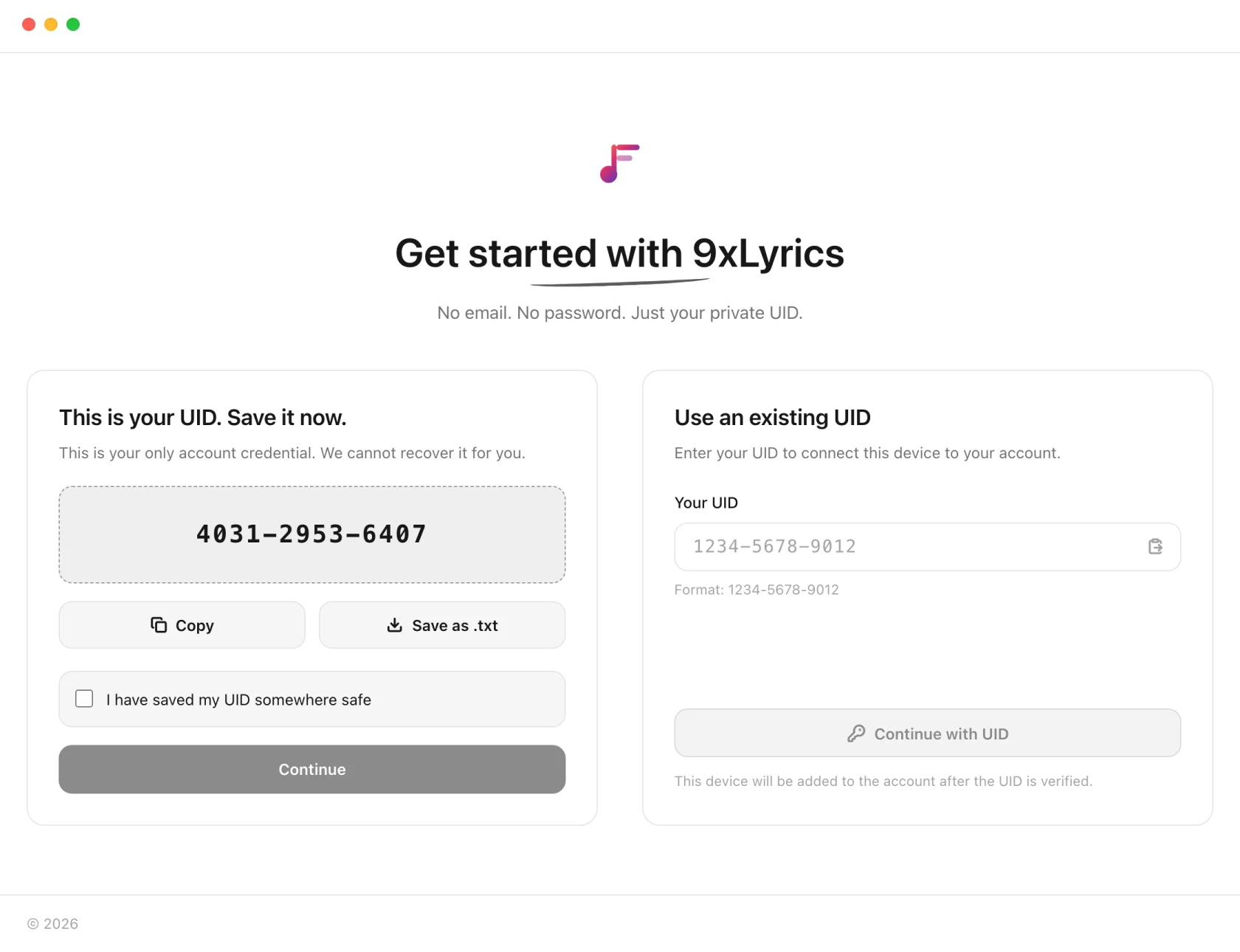
Save as .txt writes it to a file with a line explaining what it is. Do that, and put the file somewhere that is not only this computer. There is no password reset, because there is no password. See Your UID and devices.
2. Three questions
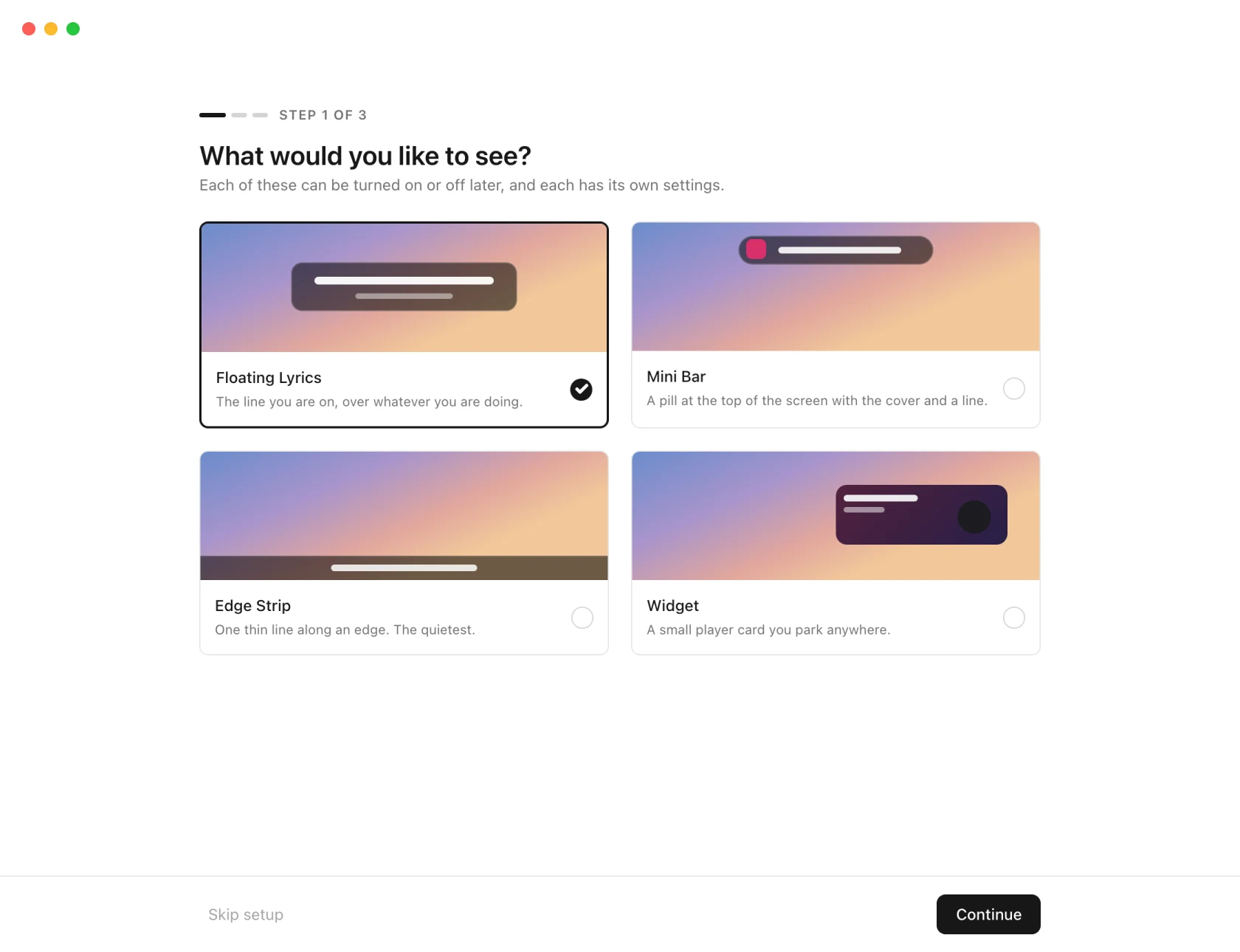
- What would you like to see? Pick a surface. Floating Lyrics is the default during the trial or with Pro, and all four overlays are yours to pick. On a free account the overlay cards carry a Pro label: choosing one shows what it adds and the plans, and the standard Lyrics Window is always ready.
- How should it look? Theme, and the background behind the words.
- Where is your music? Which player to follow, or Automatic, which follows whatever is playing now.
The app language starts on System, so it follows your computer's language (English when that language is not one of the 19). Floating Lyrics starts click-through, with hide-on-hover off. Follow music player, automatic recognition and launch at login start off. The Lyrics Window leaves other lines unblurred.
The last step lists only the overlays that are actually on. On a free account it points you to the Lyrics Window shortcut and the tray instead.
Skip setup goes straight to Settings with the defaults. The guide is not gone: Settings › General › Setup guide › Show again brings it back.
3. Play something
That is the whole setup. Start a song in Spotify, Apple Music, a browser tab or anything else your system knows about, and the words should appear within a few seconds.
If they do not, it is almost always one of two things: the player is not being detected, or that song has no synced lyrics anywhere. Troubleshooting starts with both.
Where the app lives
In the tray, or the menu bar on macOS. Closing the Settings window does not quit 9xLyrics: it goes on following your music in the background, ready the moment a song starts.
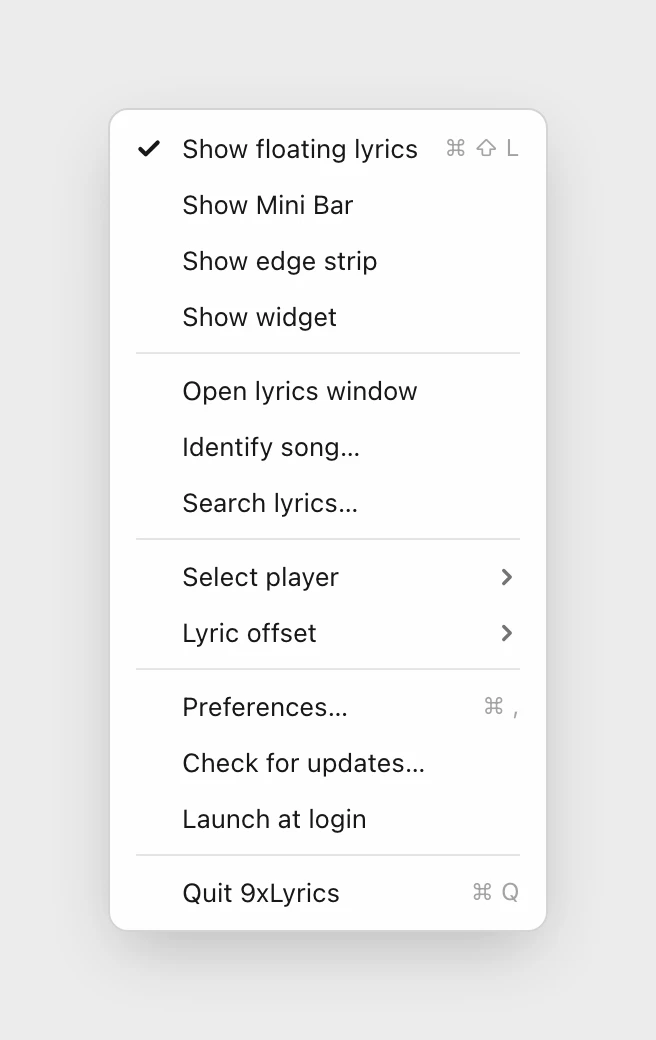
Show overlays restores overlays closed for this session, without enabling ones turned off in Settings. Their normal playback and licence requirements still apply.
Recently played, under Open lyrics window, opens the Lyrics Window on the Library: the songs you played and the lines you saved.
To quit properly, use Quit 9xLyrics in that menu.
On Android
The phone app starts the same way: Create my free UID for a new account with the 3-day trial, or sign in with the UID you already use on your computer. The reveal screen lets you Copy the number or Save as .txt through the share sheet, and waits until you tick that you saved it.
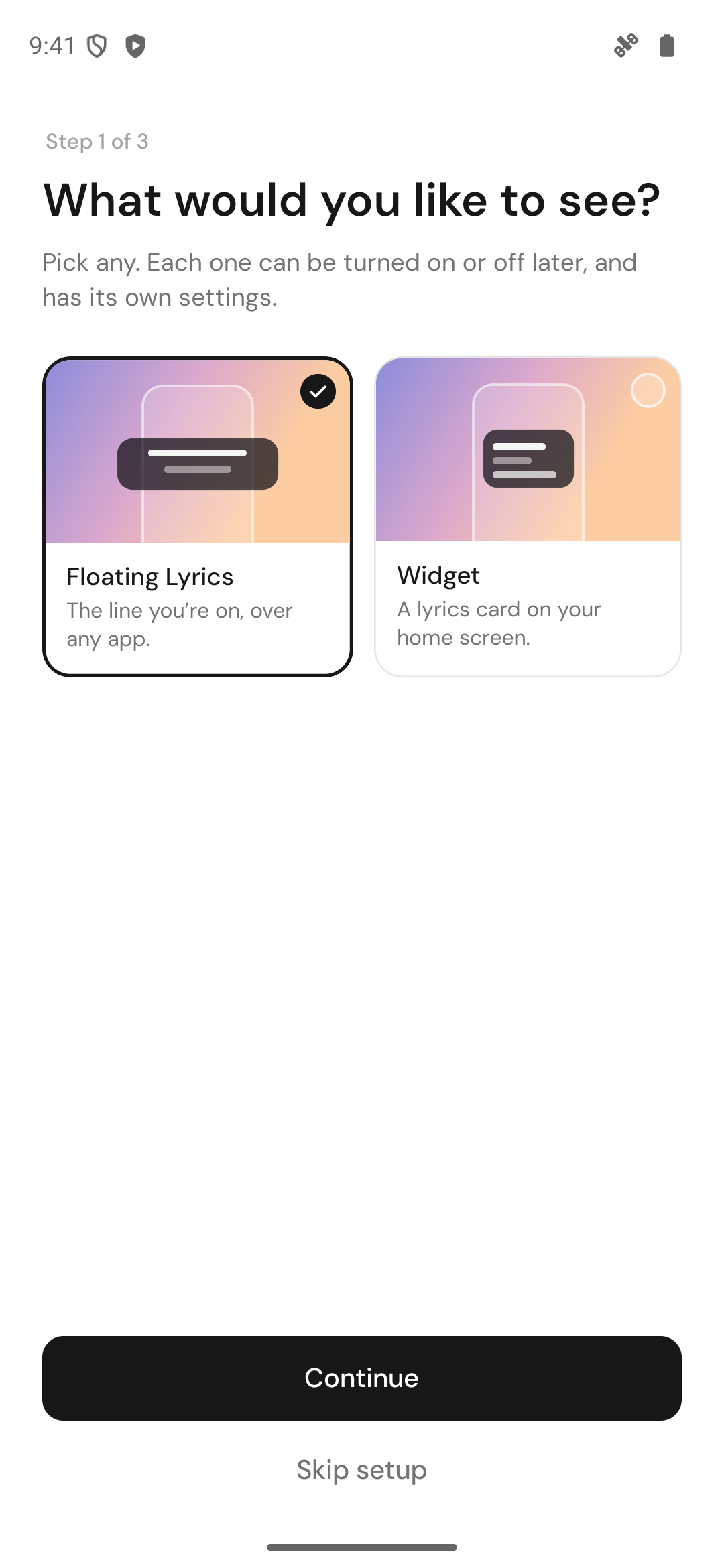
Then four quick steps:
- What would you like to see? Floating Lyrics over any app, or the Widget on your home screen (both Pro).
- Give 9xLyrics access. Each permission shows whether it is on, and one tap takes you to the right Android screen. Overlay access is asked for only when Floating Lyrics is on and you have Pro or the trial.
- Now play something. Start a song in your music app and watch it appear.
- You're set.
Settings › General › Setup guide › Show again brings the guide back on the phone too. More in 9xLyrics on Android.