
Install 9xLyrics
Download and open the current 9xLyrics build for Windows, macOS or Linux.
Use the official 9xLyrics download page to see the builds currently available for your device.
9xLyrics runs on Windows, macOS, Linux and Android. Install it on every device you listen on and sign in with the same UID. The Android steps are below.
System requirements
- Windows
- Windows 10 or 11 (64-bit), x64 or arm64.
- macOS
- macOS 12 Monterey or later, Apple Silicon (arm64) or Intel (x64).
- Linux
- 64-bit Linux (x64), available as AppImage and Debian (.deb) packages.
Windows
Download the installer from the download page and run it. 9xLyrics is added to the Start menu and to the notification area.
Nothing else needs installing. Detection uses the same Windows media controls that the keyboard's play/pause key uses, so any player that lights up the volume overlay already works.
macOS
Open the downloaded disk image, drag 9xLyrics into Applications, then launch it from Applications or Spotlight.
The first time it needs to read what is playing, macOS asks for Automation permission for the player you are using, Music or Spotify. Allow it, or detection sees nothing. If you dismissed the prompt, System Settings › Privacy & Security › Automation has the switch.
Two extras are made for macOS: the lyric on the lock screen, and text in the menu bar. Their pages explain how to set them up.
Linux
Download either the AppImage or the .deb from the download page.
- AppImage: mark it executable and open it. Nothing is installed.
- .deb: install it with your package manager.
Detection uses MPRIS, the standard every mainstream Linux player speaks. Spotify, VLC, Rhythmbox, Lollypop and the browsers all report through it.
Android
Download the Android APK from the 9xLyrics mobile page. Sign in with the same UID to use your plan on your phone. Install updates from inside the app when you are ready.
The setup guide then asks for a few permissions, each with a reason:
- Notification access, so 9xLyrics can see the song your music app is playing.
- Show over other apps, for Floating Lyrics over whatever app you are in.
- Run in the background, so your phone keeps the lyrics in time with the screen off.
- Show a notification, for the current line, the controls and the timing nudges.
The microphone is asked for only when you first use Identify song. Android asks for each permission on its own screen and brings you straight back.
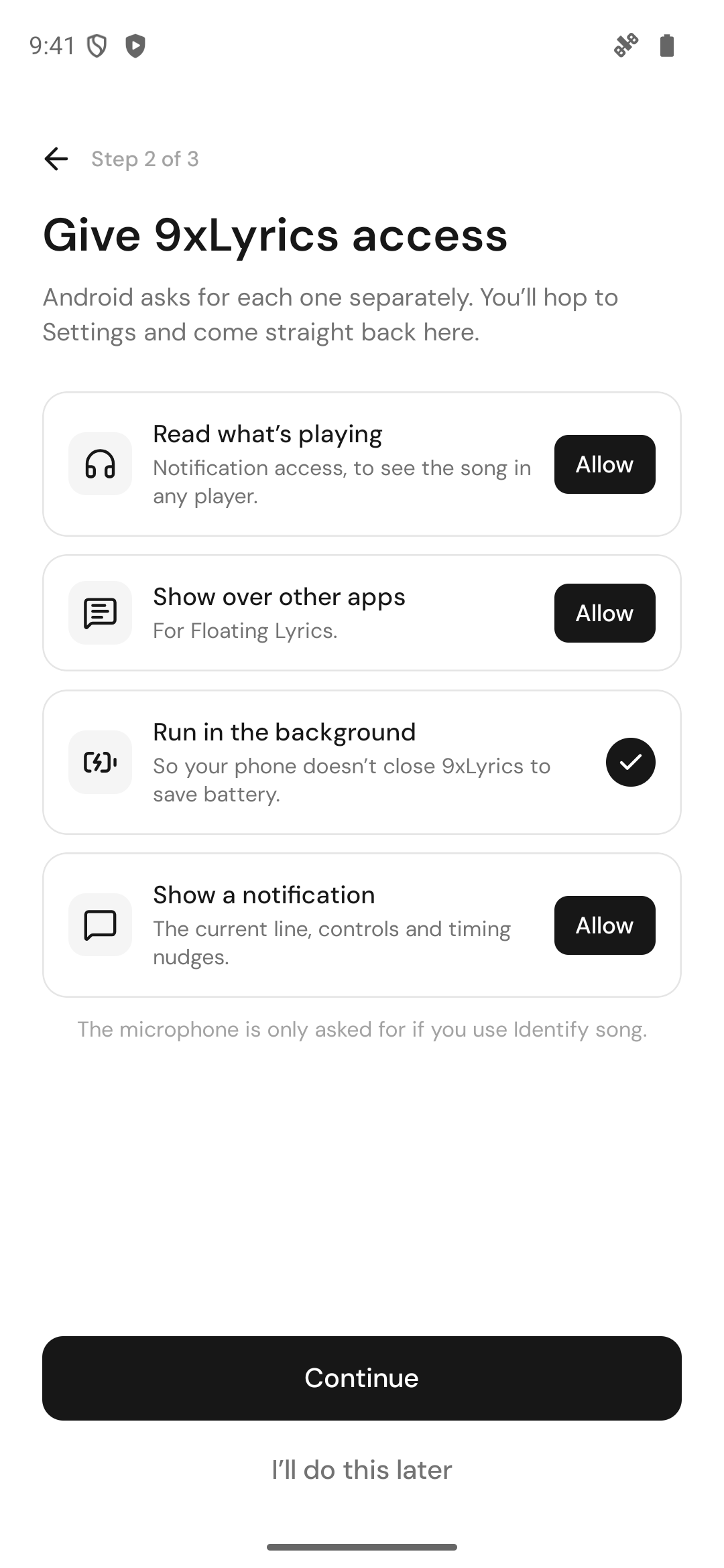
The phone app at a glance: 9xLyrics on Android.
First launch
9xLyrics starts in the tray rather than in a window, because that is where it lives. The first screen asks for an account number and then three short questions. First run walks through both.
Updates
The app checks for updates on its own and installs them when you agree. See Updates.