
Flows and presets
Reuse built-in steps, make your own flows, review one-click choices and move flows between devices.
A flow is a named set of conversion steps and output settings. The current interface calls these flows. The format picker's quality presets are a separate kind of preset.
Find built-in flows and My flows in Explore, or search on Home. Flows choose how work runs; they do not copy your media or create an account-synchronized workspace.
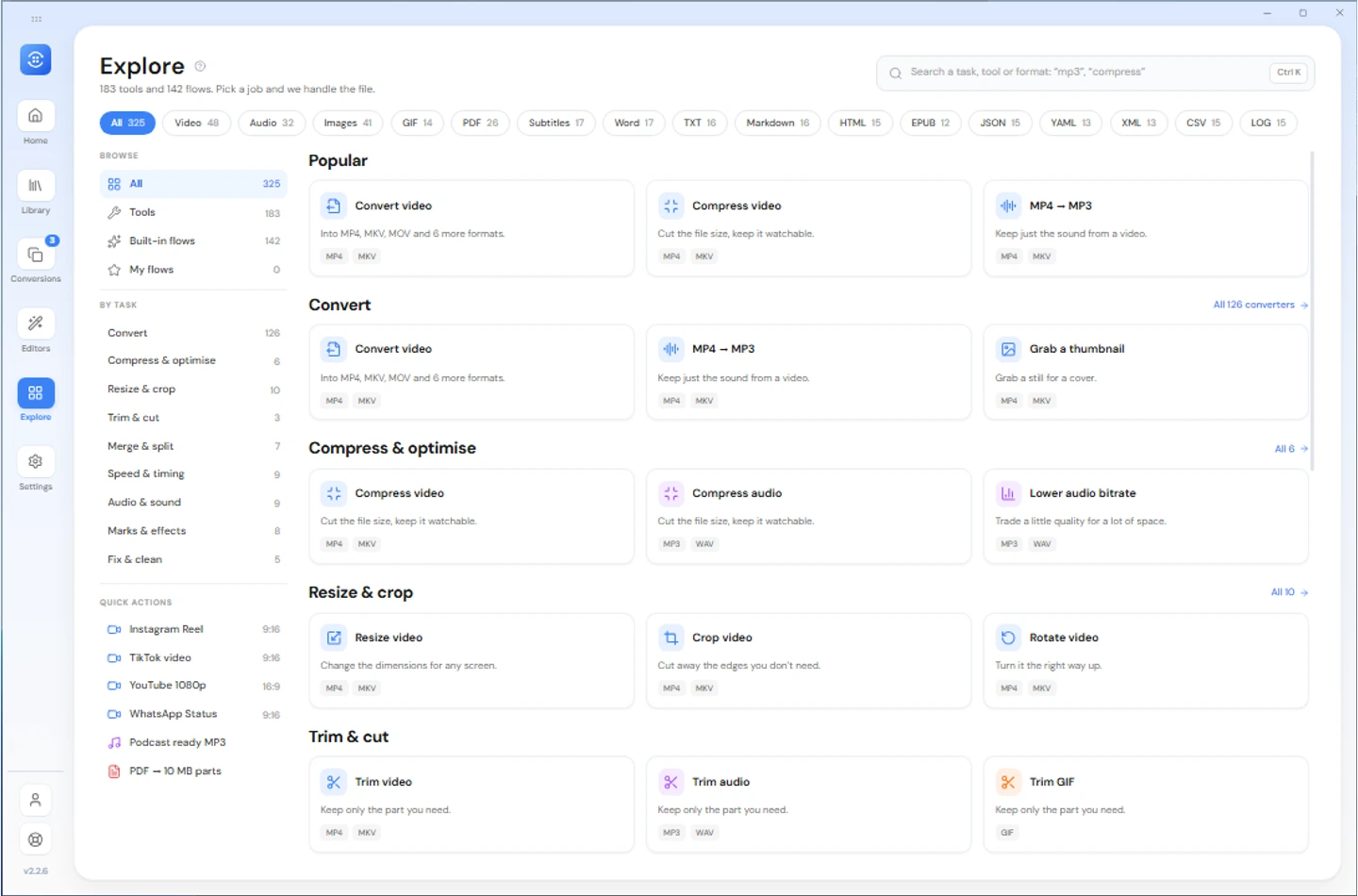
Built-in flows and one click
A built-in flow can prepare a common output, such as compressed video or MP3 audio. A flow needing file-specific trim points or a crop has to ask you for those choices.
One click narrows eligible flow choices. It does not mean every file you paste or drop anywhere converts without review. On a staged row, inspect the flow's Ready or Review sheet before applying it. Starting an eligible instant flow with chosen files can queue work directly and offer a short Undo.
Guided flows lead through their settings and Review. Some video flows offer Guided and Advanced views. Check what will be replaced if the file already has tool settings. Tools can stack; a file has one applied flow at a time.
Create and manage your own
Use New flow from My flows or the flow search. The builder guides you through a name, input types, tools and output rules. Available steps differ by platform; do not expect an imported desktop flow to expose every desktop setting on Android.
Use the flow menu to edit, rename, duplicate, export or delete where offered. Desktop also lets you start from a copy of a built-in flow.
Free can create three own flows. Extra flows saved while Pro remain usable, but only the oldest three are editable on Free. Deleting or duplicating a flow changes your local collection; it does not create extra Free quota. Running any local flow still uses the conversion allowance.
Output rules
New desktop and Android flows start with Use the default (from Settings), inheriting Settings → File naming. Keep name, Add suffix and Custom pattern remain explicit overrides; existing flows retain their saved choice. The flow summary identifies the selected rule. See Output file naming for the Settings default, placeholders, presets, safe names and Rename, Overwrite or Skip policies. Destination choices and Android folder permissions remain platform-specific.
Move flows between devices
Flows are local to the device, not to the UID. Export and import a .9xpreset file to move them. The export contains steps and settings, not input files.
Desktop Settings → Flows offers import and export-all controls. Android has its own flow import/export controls. Review incoming names, conflicts, supported operations and Free limits before confirming an import.
OS actions and drafts
Own flows in the desktop right-click menu or Android share sheet need Pro. Built-in local quick-conversion actions stay Free within limits. URL actions are Pro regardless of how the link arrived.
Drafts save unfinished work using actual files. A reusable flow and a draft are not the same thing. Read plans for entitlement details.