
Chat
The composer, the model picker, message actions, tabs, folders, search, private chat and export.
Chats is where most of the work happens. Every message can go to a different model, every reply can be copied, regenerated, split or saved, and folders keep long-running projects together.
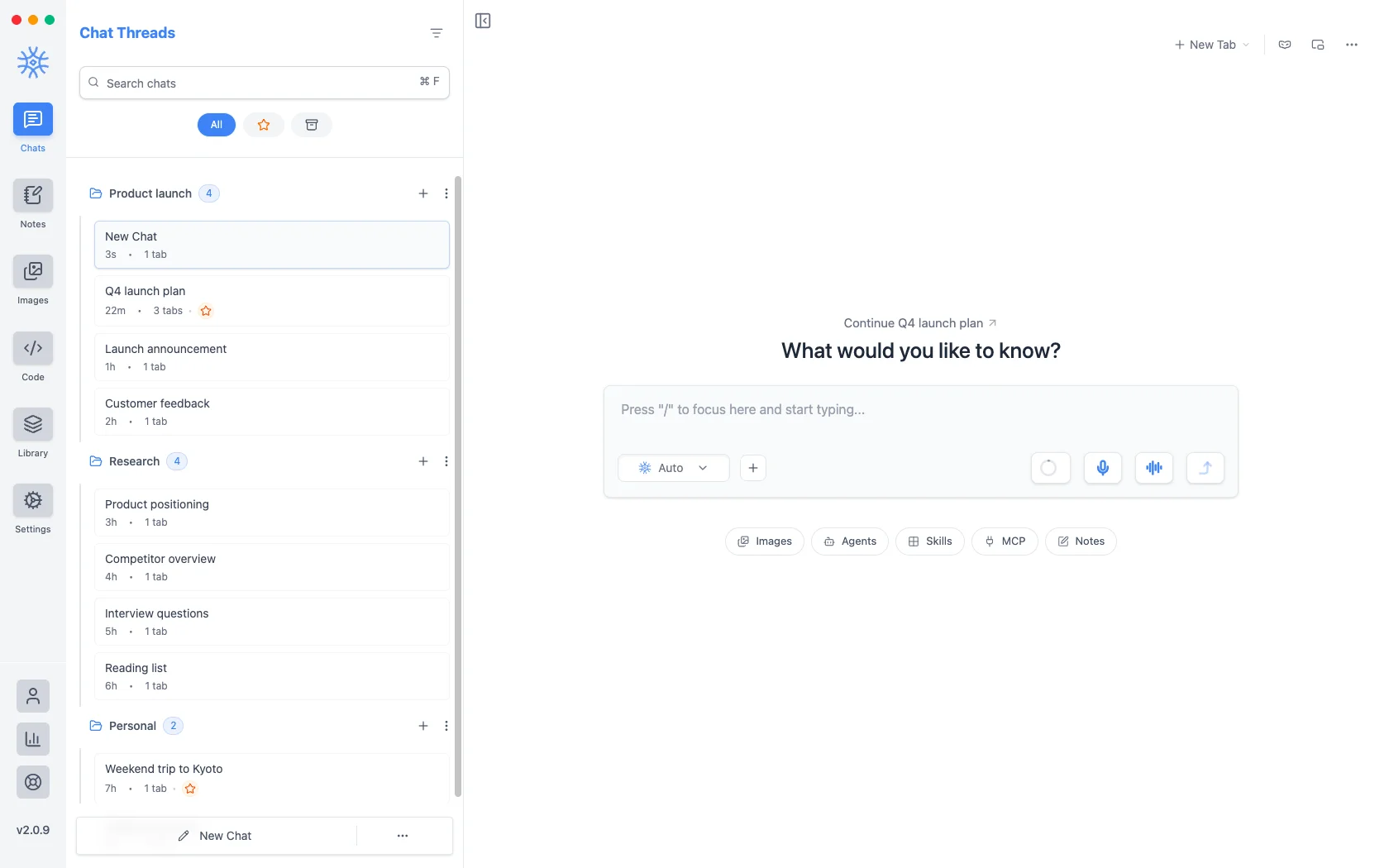
The composer
-
Model picker: the model for the next message. Change it at any point in a chat; each reply records which model wrote it.
-
Add (+): Attach files, Paste from clipboard, Take a screenshot (pick a screen or window), Quick actions and Model settings. On mobile it also offers Camera and Image.
-
Enhance Input Pro: rewrites your draft into a clearer prompt. Revert to original puts your wording back.
-
Dictate Pro and Voice chat Pro: see Voice and read aloud.
-
Send, or Stop while a reply is being written.
While a reply is still arriving you can keep typing: Queue message holds your next message and sends it when the reply finishes. Queued messages can be sent now, edited or removed.
Free accounts attach up to 3 files per message. Pro removes the limit.
Quick actions
Type @ or / at the start of a line to open the quick actions menu, or add a letter to jump straight to one list:
| Tipo | Si apre |
|---|---|
| "@a" o "/a". | Agenti |
| "@p" o "/p". | Richiede |
| "@n" o "/n". | Note |
| "@k" o "/k". | Conoscenza |
| "@m" o "/m". | server MCP |
| "@t" o "/t". | Tools Pro |
| "@s" o "/s". | Skills Pro |
| "@e" o "/e". | Extensions Pro |
On mobile, open Add → Quick actions; there, / opens prompts and @ opens attachments.
Choosing a model
The picker groups models by provider, with your Ollama models under Local Models. Search it by name. Each model carries a cost badge so you can weigh quality against price at a glance:
| Badge | Significato |
|---|---|
| Premium ($$$) | Frontier models for the hardest work |
| Standard ($$) | Strong everyday models |
| Eco ($) | Fast, low-cost models for quick questions |
A red dot means the provider has no API key yet. On a free account, models billed to your 9xChat credits are limited to a set of fast, capable models; Pro unlocks every model. Models on your own API key or running locally are never locked.
Model settings
Add → Model settings tunes the current chat: Temperature, Max Tokens, Max Completion Tokens, Top P, Frequency Penalty, Presence Penalty, Stop Words, Stream Response and Reasoning Effort, plus an Instructions tab for chat-specific instructions. Reset to Defaults undoes your changes.
What you can do with a message
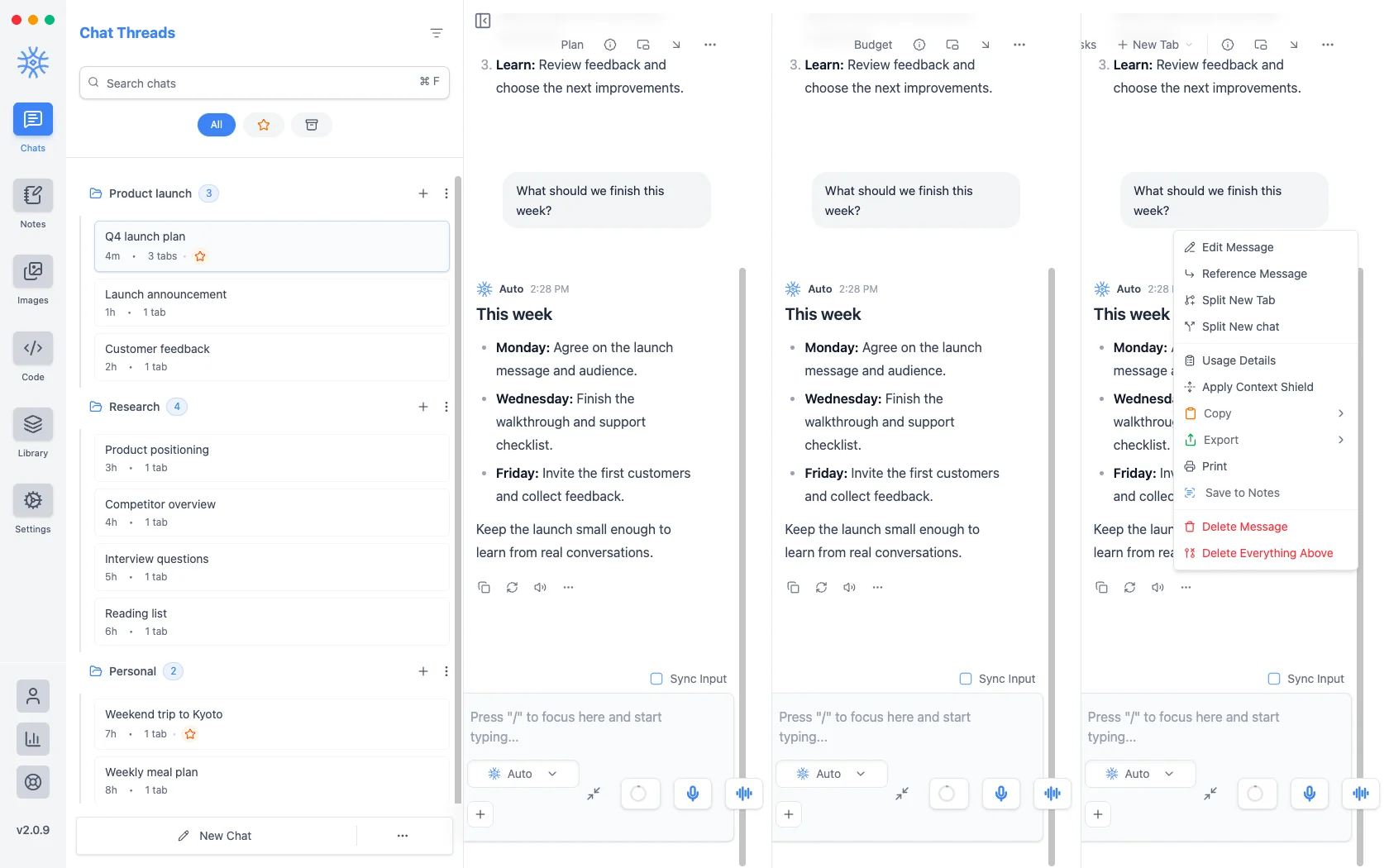
Hover a reply (or tap it on mobile) for Copy Message, Regenerate Message and Read Out Loud. More actions holds the rest:
-
Edit Message and Reference Message (quote it in your next message).
-
Split New Tab Pro and Split New chat: continue from this reply in a new tab or a new chat, so you can explore a different direction and keep the original.
-
Usage Details: tokens, cost and time for this reply.
-
Apply Context Shield Pro: send only the messages from this point on with your next request. It keeps long chats focused and cheaper.
-
Copy and Export: as Text, JSON, Markdown, PDF or HTML, and on desktop as an Image.
-
Print (desktop) and Save to Notes.
-
Delete Message and Delete Everything Above.
On mobile the same sheet also has Select Text, Share, Branch and Report.
Regenerate and versions
Regenerate Message on a reply opens a model picker, so you can ask the same question to another model and compare. Each attempt is kept as a version: use Previous version and Next version to flip between them.
On a free account you can resend your last message as often as you like. Regenerating a reply with another model is part of Pro.
Share as image
On desktop, Export → Image on a reply opens Share as image: choose a light or dark Theme, a Background (None, Soft or Accent), a Width (Narrow or Wide), and whether to include the question and the model name. Then Copy image or Save image. It is free and perfect for posting a great answer.
Tabs
A chat can hold several tabs Pro, each its own line of conversation. Use New Tab for a fresh tab or New Browser Tab Pro to open the browser beside your chat. Reopen Closed Tab brings back the tab you just closed, on every plan.
A tab's More actions menu has Chat memory, Multiple Select, Compact now, Export, Copy, Extract to New Chat Pro, Save to Notes, Print, Rename Tab (or double-click the tab), Move Left, Move Right, Clear Tab and Close Tab.
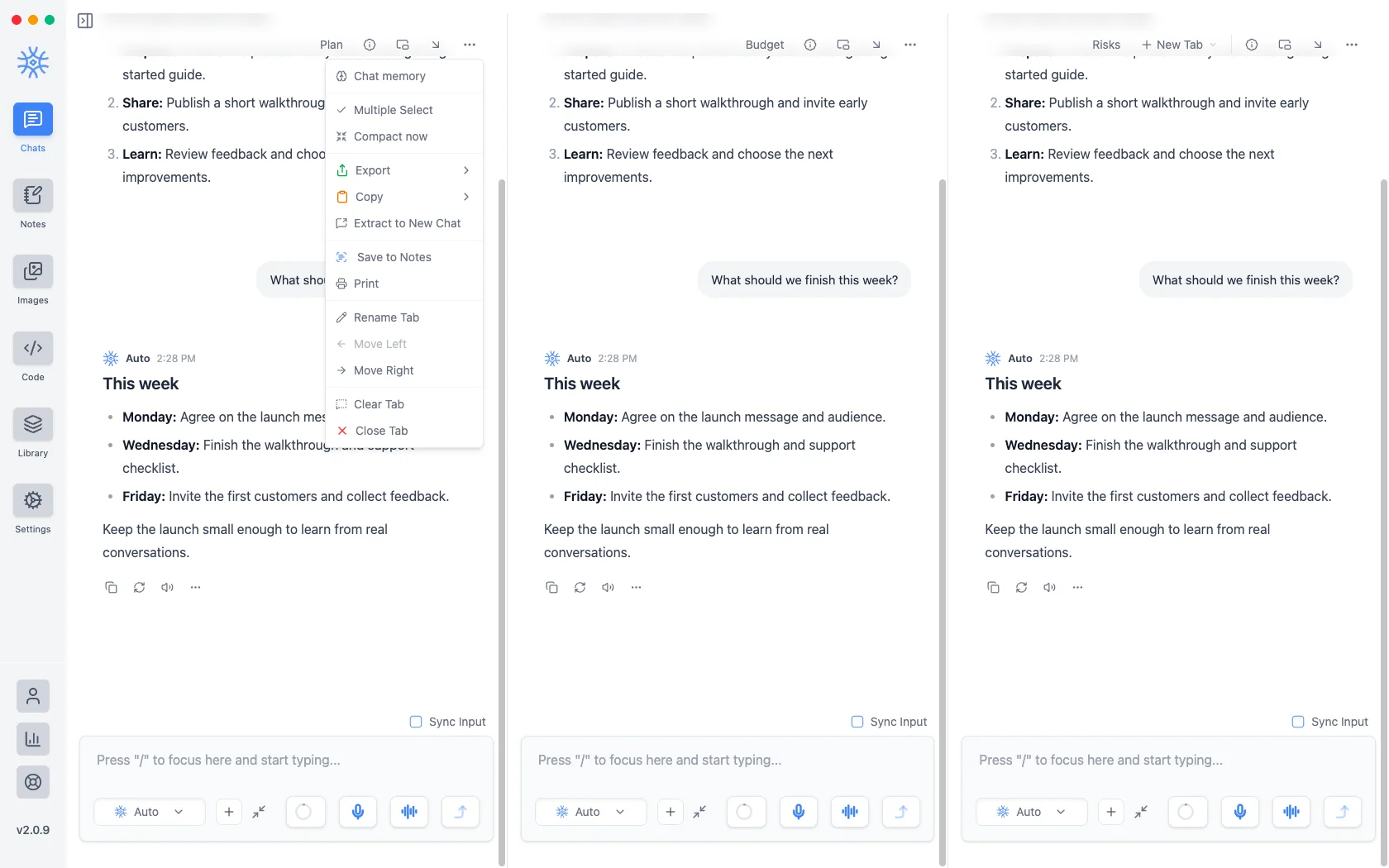
Multiple Select picks several messages at once to copy, save or delete them together.
Folders, stars and archive
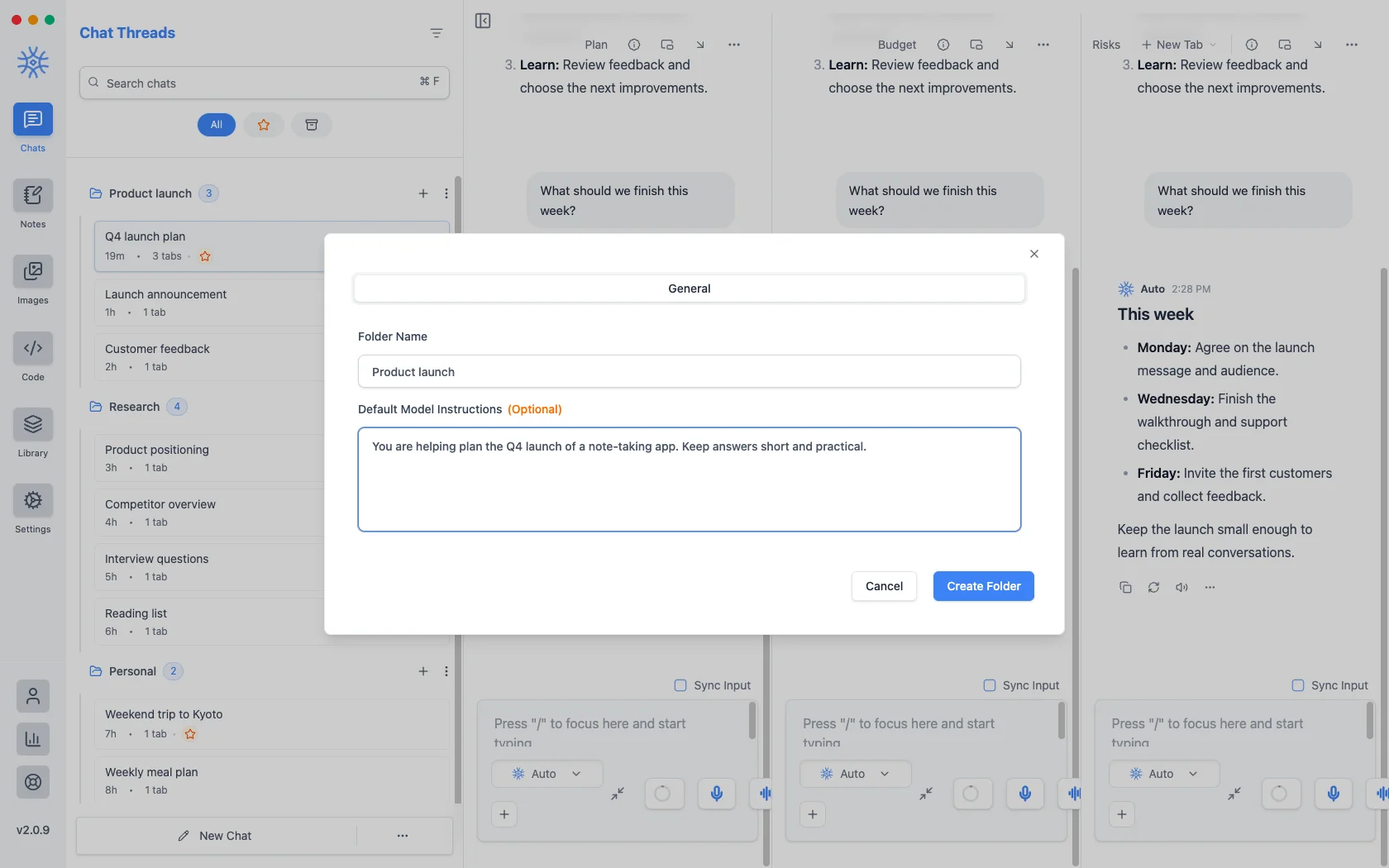
Folders keep related chats together and can shape every chat inside them. Choose New Folder from More chat options, then set:
- Folder Name.
- Default Model Instructions: instructions every chat in the folder starts with, such as a project brief or a tone of voice.
- Memory: things the assistant remembers for this folder only.
Each chat's menu offers Archive, Star, Auto Rename Pro, Edit Name, Move Chat, Clone Chat, Send Chat… Pro, Export, Copy, Print, Clear Chat and Delete Chat. Filter the list by All, starred or archived. Chats with no new messages for a set number of days can archive themselves; see Settings → General.
Search and switch
- Quick Switch (Ctrl+P, or ⌘P on macOS) jumps to a recent chat by name.
- Global Search (Ctrl+F, or ⌘F) searches every chat and note, or only This chat.
Private chat
Turn on Private chat from the chat header, More chat options, the tray menu or Ctrl+Shift+N. A private chat:
- never appears in the chat list, search or the assistant's own chat search,
- uses no memory, gets no automatic title and sends no notifications,
- is deleted, with its attachments, the next time the app starts.
Private chat keeps your device clean. The messages still go to the model you chose; pick a local model if nothing may leave your computer.
Long chats and the context window
The context indicator shows how much of the model's context window the chat uses. When a chat gets long, 9xChat summarises earlier messages automatically, or you can choose Compact now. A line marks where the summary starts: the model sees the summary in place of the earlier messages, so long projects keep going without hitting the limit.
Export, print and save
Export a chat, a tab or a single message as Text, Markdown, HTML, JSON or PDF (desktop also offers Image for a single message). Print works from a chat, a tab or a message on desktop. Save to Notes turns a conversation into a note you can edit.