
9xChat on Android and iOS
Your AI workspace on your phone - every cloud model, voice chat, web search, notes and images, plus sharing from any app.
Install 9xChat on Google Play or the App Store. Paste the UID you use on desktop to bring your plan and credits with you.
The mobile app carries the same workspace as desktop: chats with every cloud model, notes, the image playground, agents, prompts, knowledge and memories. Your UID, plan and credits are the same on every device.
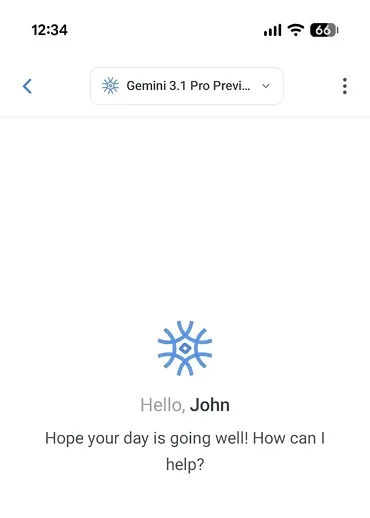
Berkeliling di aplikasi
Open the drawer from the left edge (the right edge in right-to-left languages):
- Start a new chat at the top.
- Chats, Notes, Images, Library and Settings.
- At the bottom: Profile (your UID, plan and credits), Usage Stats, Support, and Version, which opens the changelog. When an update is waiting, Version becomes Update Available.
Chatting on the phone
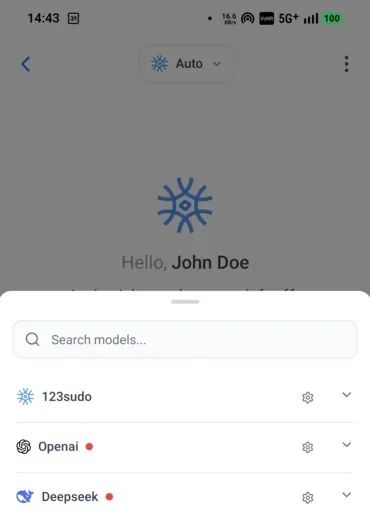
The composer has Add (+), Dictate, Voice chat and Send. Add opens a sheet with Camera, Image and Attach files, plus Paste from clipboard, Quick actions, Model settings and a Private chat switch on a new chat.
Type / for prompts and @ for attachments, exactly as the hint in Quick actions says. Tabs work on mobile too: long press a tab for its actions. Chats covers message actions, folders and export on both platforms.
Share into 9xChat
From any app, choose Share and 9xChat. Shared text, links and files land in the current chat, ready for you to add a question and send.
- Android accepts text, images, PDFs, JSON, XML, YAML, Word documents and other files.
- iOS accepts text, one web link, up to 10 images and up to 10 files at a time.
Free accounts attach up to 3 files per message; Pro removes the cap.
Voice chat and dictation
Voice chat opens a full-screen conversation: just start talking, interrupt whenever you like, and pause or end it from the buttons at the bottom. Dictate turns speech into editable text in the composer. Both are part of Pro. Voice and read aloud
Agents, tools and web search
Agents, tools, skills and live web search work on the phone just as on desktop. Tools and web search are part of Pro.
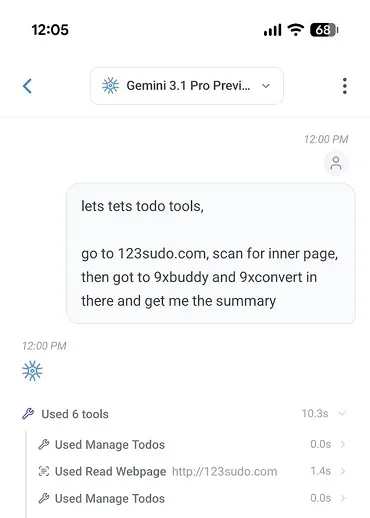
MCP servers on mobile connect over the network (remote servers). Local command-line MCP servers run on desktop only.
Images
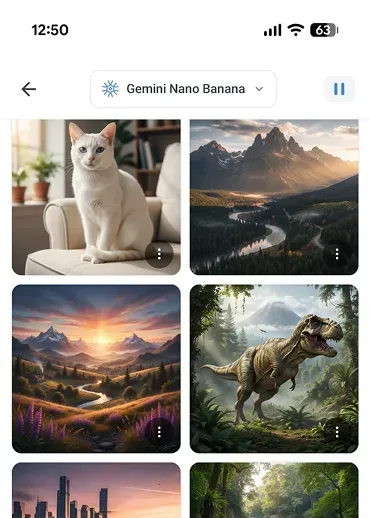
The image playground is on the phone too, with Save to Photos and Share Image on every result. Images
Knowledge on the phone
Create a collection, add files and let the assistant search them in any chat.
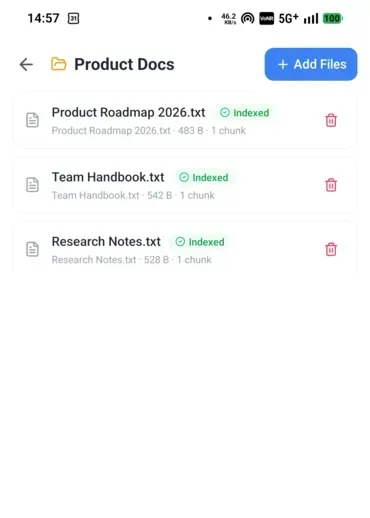
Buying Pro and credits
On the Google Play and App Store builds, Profile → Upgrade now (or Add more time, Renew now, Purchase Credits) opens the in-app pricing screen:
- Lifetime (best value), 12 Months or Monthly. Every plan is a one-time purchase and nothing renews automatically.
- Buy AI credits switches to credit packs of 5, 10, 50 or 100 credits. Credits never expire.
- Restore Purchases brings back a plan bought earlier with the same store account.
Prices are shown by Google Play or the App Store in your currency.
Android and iOS
The apps are the same on both platforms, with a few differences:
| Android | iOS | |
|---|---|---|
| Where to install | Google Play, or the APK from the download page | App Store |
| Paying | Google Play billing; the APK pays on the 123sudo website | App Store in-app purchase |
| Pembaruan | Google Play; the APK downloads and installs updates itself | App Store |
| Share into 9xChat | Text, images and most file types | Text, 1 link, up to 10 images and 10 files |
| Managing devices | Manage Devices in the device limit dialog | Remove devices from the licence page in a browser |
| Managing a lifetime licence | Manage license in Profile | From the licence page in a browser |
With the APK, a purchase opens the payment page in your browser. Come back and choose Confirm Payment once you have paid. If it shows Payment Not Detected, wait a moment and choose Try Again.
Desktop and mobile
| Desktop | Seluler | |
|---|---|---|
| Cloud models, credits and your own keys | Ya | Ya |
| Local models through Ollama | Ya | Tidak |
| Tabs, folders, search and private chat | Ya | Ya |
| Web search, tools, skills and agents | Ya | Ya |
| server MCP | Local and remote | Remote |
| Voice chat | A dock above the chat | Full screen |
| Export a message as an image, and Share as image | Ya | Tidak |
| Code workspace, browser pane, Quick Assistant, tray | Ya | Tidak |
| Settings: startup, tray, notifications, tool diagnostics | Ya | Tidak |
| Pencadangan otomatis | Pro | Every plan |
Your chats and notes are stored on each device. To move one conversation, use Handoff. To move everything, export a backup from Settings → Data & exports and import it on the other device.