
Your first conversion
Set up the app, add a local file, choose an output and find the finished result.
After signing in, save your UID somewhere private. The setup guide lets you choose appearance, where files go, and how you like to work. You can skip it and change those settings later.
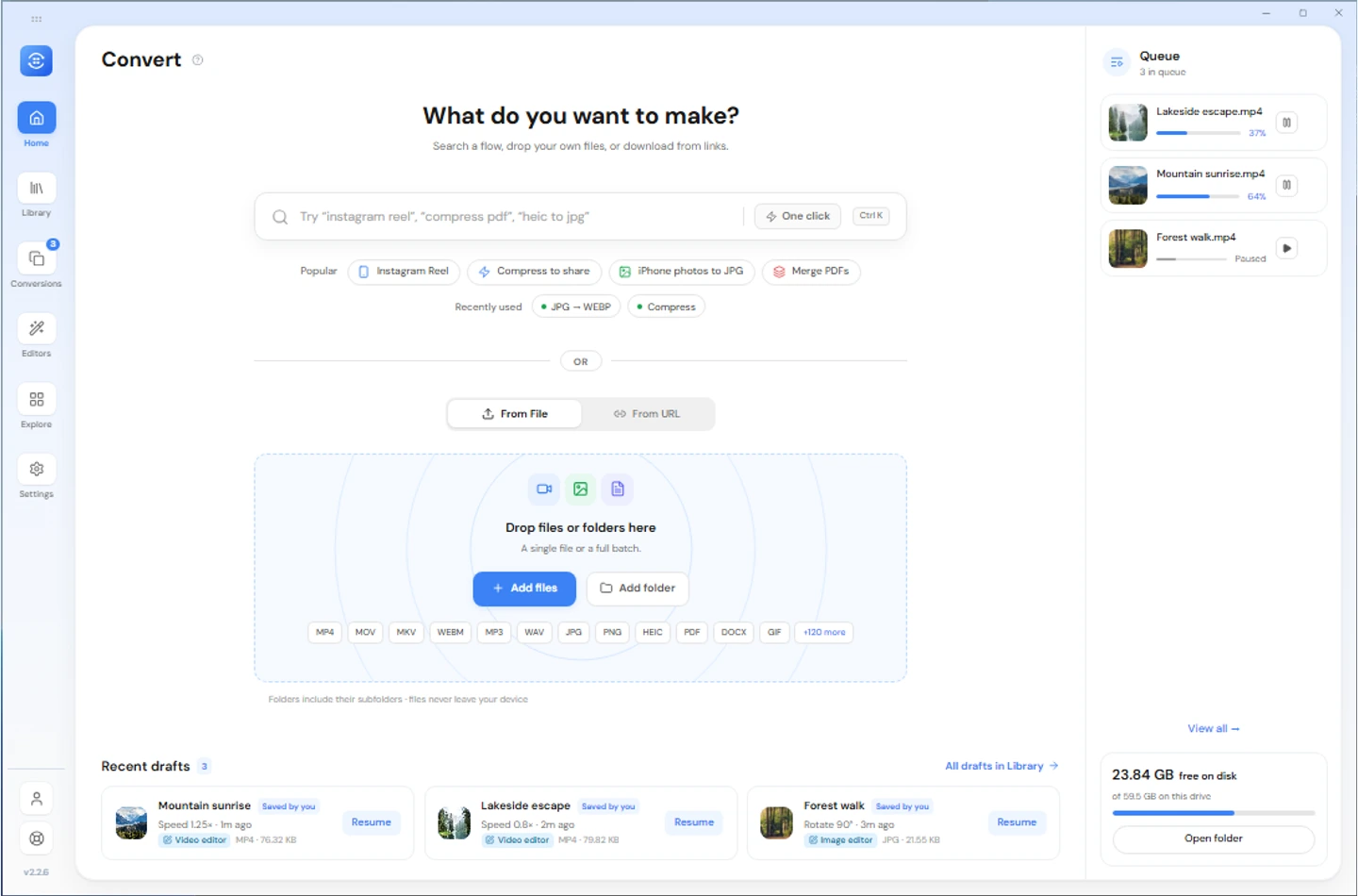
1. Add a file
On desktop Home, drop a local file or use the file picker. On Android, use From File and choose a file with the system picker. Files shared from another Android app can also arrive here.
From URL downloads media from supported links first. Single links and bulk link lists both need Pro or an active trial. Start with a local file for a conversion that does not need the network.
2. Review what is staged
The file list shows the input, output format and available tools for each row. Select the files you want to run. Choose one output format for a group, or change a single row without changing the others.
Free allows a normal batch of up to five files, provided enough of the rolling allowance remains. Adding files and starting a batch are separate steps. The current Free limit applies at conversion start, not to the number of files you can import.
On desktop and Android, active conversions reserve Free slots. Failed or canceled conversions release their slots. Completed conversions still count within the rolling 24-hour window even after their history records or output files are deleted. Pro and active trials have no conversion cap.
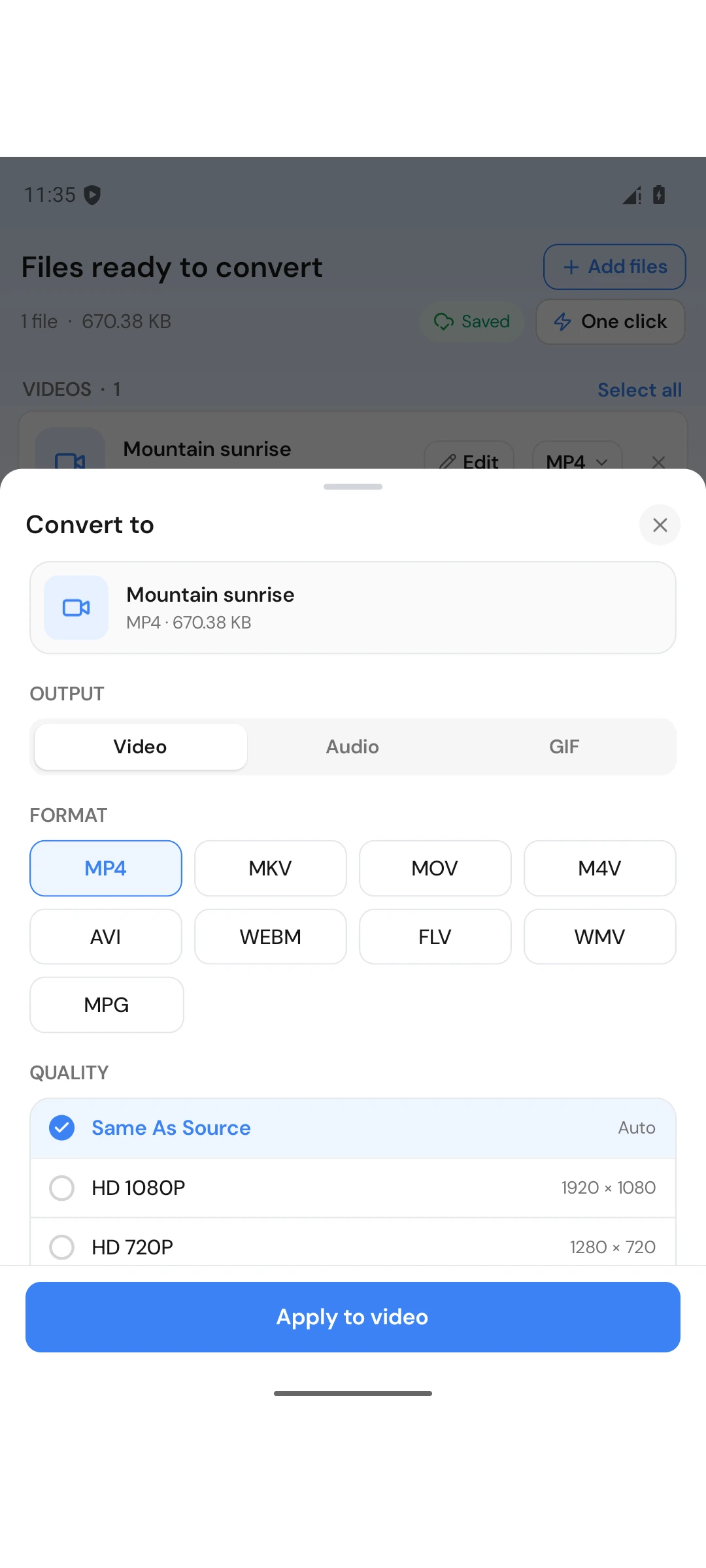
3. Pick the output format
Open the row's format picker, choose an output supported for that input, and review its quality settings. For example, choose MP3 audio for a video when you only want the sound. Formats offered vary by input and platform.
Apply the row settings, then choose the conversion button.
Work appears in Conversions. An ordinary conversion writes a new output rather than replacing the source.
Find the result
Open Library, or use the Completed filter in Conversions. Open or preview the result. The desktop folder action reveals the actual saved file. On Android, Saved to identifies its public destination or says Only in the app.
Converting a folder
Desktop can add files from a dropped folder. Review the list before running it and split large selections into batches on Free. Android uses system file and folder permissions; do not assume the desktop folder-drop workflow is available on your phone.