
Guides
On Android
Choose a workflow, then open its step-by-step guide.
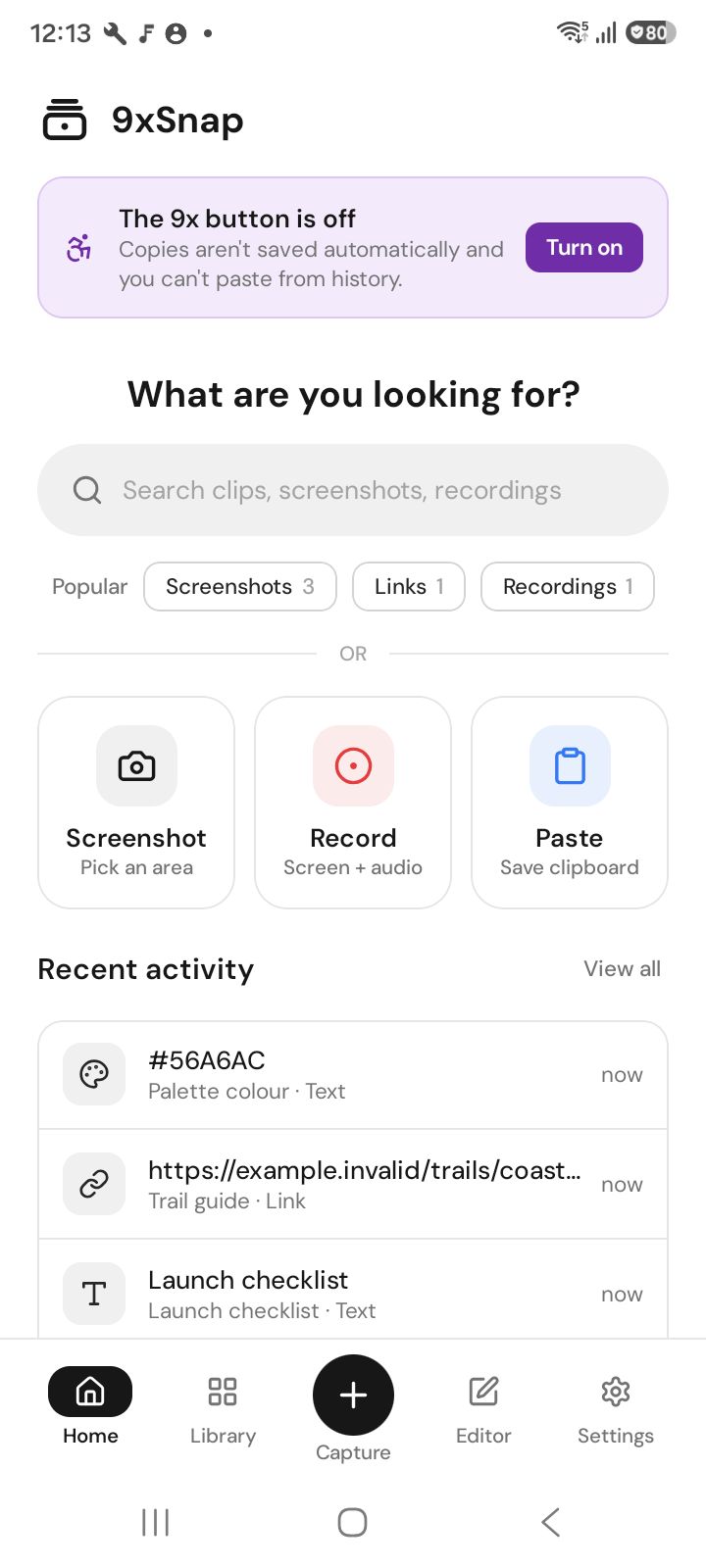
Permissions and capture
Copy a short text, open your recent history and paste it into a test field. Then take a screenshot from the app and find the saved image in Library. For recording or editing, use Pro.
START FREE
- Take screenshots from the app, a Quick Settings tile, a shortcut or your volume keys.
- Browse your recent history and paste saved clips into the app you are using. Free opens the 50 most recent history entries. Older entries stay saved but locked; Pro unlocks the full retained history. This limit does not delete entries.
GO PRO
- Full history on your phone and computer.
- A floating 9x button over every app, with a quick capture menu.
- Record your screen with the microphone, phone audio or both. Pause, show taps and record a region.
- Annotate screenshots with arrows, boxes, text, blur, crop and Spotlight.
- Trim, crop and speed up recordings, then export MP4 or GIF.
- Edit text clips with find and replace, and share or export what you save.
- A home-screen widget for your latest clips.
Settings
On Android, check Permissions before using capture, Shortcuts for tiles and volume-key actions, and App lock before sharing the device. Excluded apps prevents saving copies from selected apps. Sensitive mode hides previews; it is not the same as excluding an app.