
Your first chat
Create your UID, run the short setup, connect a model, and send your first message.
In short: Create my free UID → save it → set up in four quick steps → ask something. Your first answer is about a minute away, and the trial means you can try every Pro feature straight away.
1. Create your UID
On the first screen, choose Create my free UID. There is no sign-up form, no email and no password. A new UID includes:
- a 3-day trial with every Pro feature unlocked,
- $1.00 of AI credit to try cloud models without an API key,
- one UID that works across your devices.
9xChat then shows your UID once. Choose Copy (or Save as .txt on desktop, Share on mobile), store it somewhere private such as a password manager, tick I have saved my UID somewhere safe, and choose Continue.
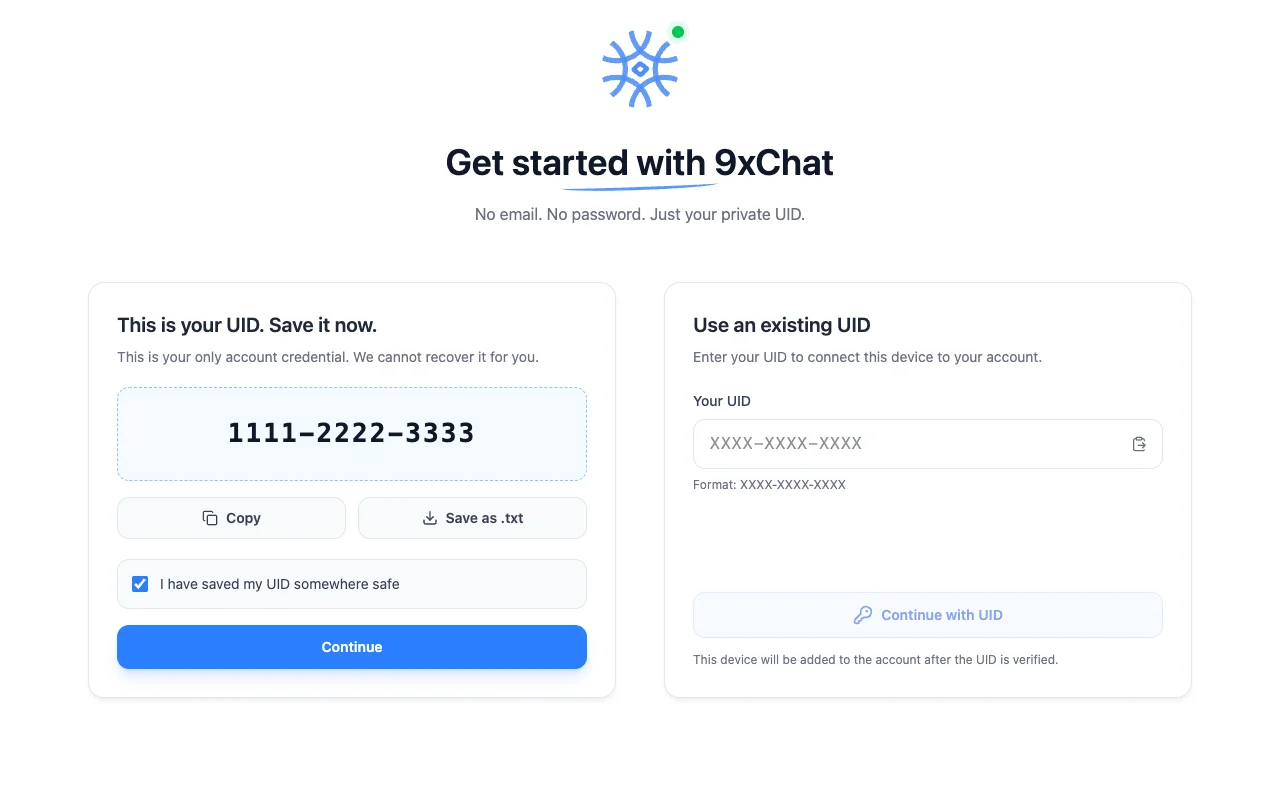
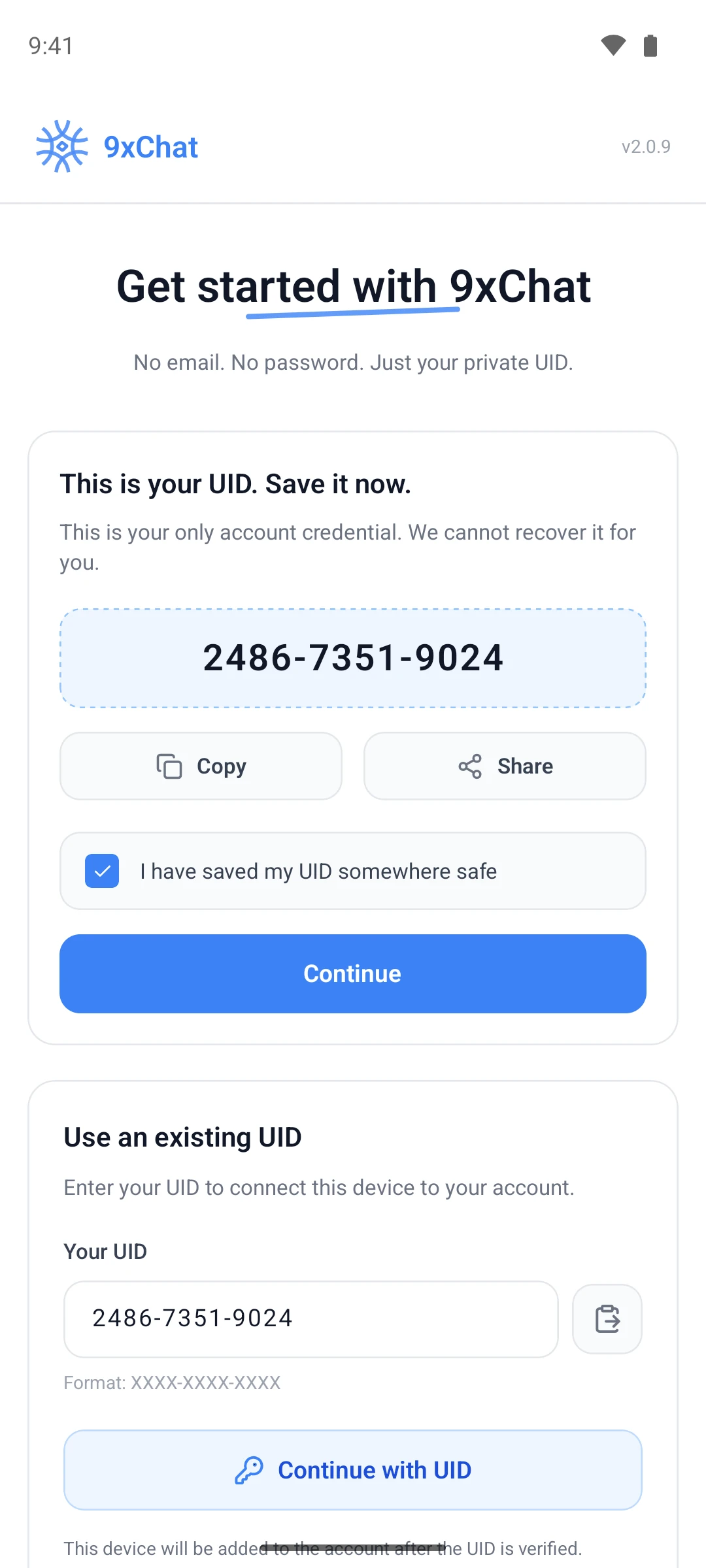
Already have a UID from another device? Use Use an existing UID, paste it, and choose Continue with UID instead. See Your UID and devices.
2. Make it yours
A short setup guide follows. Skip setup is always at the bottom, and every answer can be changed later in Settings.
- Make it yours: theme, language and, on desktop, an accent color.
- Who is the assistant talking to?: what the assistant should call you, your profession and the traits you want it to have. Each trait adds one line to its instructions, so answers fit you from the first message.
- Connect a model: choose how the assistant reaches a model (step 3 below).
- Reach it from anywhere (desktop only): the Quick Assistant shortcut, the menu bar or tray icon, and a test notification.
3. Connect a model
| Choice | Best for |
|---|---|
| 9xchat credits | Starting straight away. Your $1.00 welcome credit is already on the account |
| Your own API key | Using an OpenAI, Anthropic, Gemini, DeepSeek, Mistral, Grok or OpenRouter account you already pay for |
| A local model (desktop) | Running models on your own computer through Ollama, at no cost |
You can mix all three later. Models and API keys covers each route.
4. Ask it something
The last step is a composer: You're set. Ask it something. Whatever you send there opens as your first chat. Choose Open 9xchat to go to the full app.
What to try next
- Search the live web. Ask about today's news and watch the answer arrive with citations. Web search
- Pick another model. Compare answers with Regenerate Message and another model. Chats
- Talk to it. Start a voice chat from the composer. Voice and read aloud
- Make an agent. Save a model, instructions and tools under a name. Agents and prompts
Want to run the setup again? Open Settings → Appearance → Setup guide and choose Show again.