
Explore and tools
Find conversion, compression and editing tools by input type, or reuse a flow for a common task.
The current catalog is called Explore, not All Tools. Search for a task or browse by the input you have. Built-in flows, your own flows and tools are different ways to start.
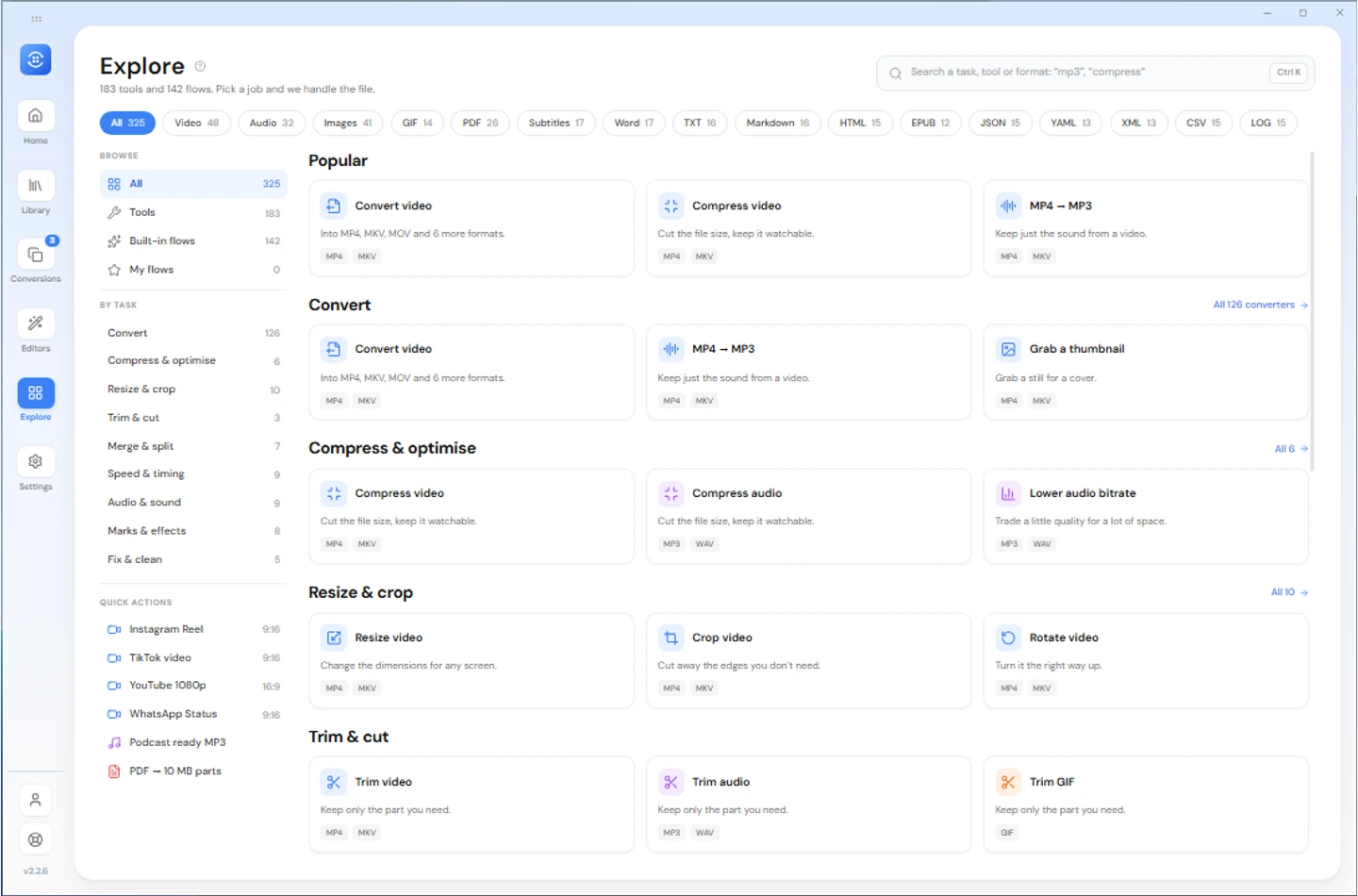
What is in each category
| Input | Examples of tools |
|---|---|
| Video | Convert, trim, compress, resize, crop, rotate, extract audio, thumbnails, split and merge |
| Audio | Convert, trim, compress, bitrate, volume, speed, fades, split and merge |
| Image | Convert, compress, resize, crop, rotate, watermark and combine images |
| GIF | Convert, trim, compress, resize, speed and frame extraction |
| Subtitles | Supported format changes, timing shifts, frame-rate timing and text cleanup |
| Page operations, merge, split, compression and supported exports | |
| Documents and books | Supported DOCX, Markdown, HTML, text and EPUB conversions |
| Data | Supported JSON, YAML, XML, CSV and log conversions on desktop; check Android's offered tools |
These are examples, not a fixed count or a guarantee that every input/output pair works. Desktop and Android catalogs differ, including image codecs and document export paths.
Finding the right one
Search a task such as compress or watermark. Filter by the input file, not just the result you want. For a PDF export, start with PDF and inspect the output choices offered.
A tool opens its file and settings workflow. Joining tools such as merge or images to PDF need several inputs; other tools generally start with one. Review the output before starting.
Tools from the staging list
A Home row offers compatible tools without a trip to Explore. Tools add settings to the row; a flow applies a named set. A flow overlapping earlier choices asks you to review what it will replace.
Local tool jobs and editor changes to a new file use the Free conversion allowance. Reworking finished outputs, URL downloads and larger batches have separate Pro gates. See plans, editors and flows.
Local processing does not upload the input for conversion. Large jobs still need memory, storage and a supported format.
Export text subtitles from video
Add a video, open its subtitle-export tool, select a text track and choose SRT, VTT, ASS or the source format. Save the settings, then start conversion from the file list.
Only embedded text tracks can be exported. Burned-in captions and bitmap subtitles are not recognized as text. Changing subtitle format can lose styling or positioning; source-format copying is offered only for compatible tracks.
PDF finishing on desktop
On desktop, add page numbers or crop PDF margins from the PDF editor or the matching tool in Explore. Review the preview and save a new PDF. Margin cropping changes the visible page area; it does not securely remove hidden content.