
Your UID and devices
Save your 9xChat UID, use it on up to three devices, recover or switch the account on a device, and fix a device limit.
Your UID is your 9xChat account: one private code, with no email and no password. Use the same UID on every device and your plan and credits follow you.
A free account, or a trial, works on 1 device. Pro works on up to 3 devices, so your computer, laptop and phone can all share one plan.
Save the UID before leaving this screen
Your UID is your only account credential. It cannot be recovered if it is lost, and creating another UID does not move credits, Pro time or devices.
Save a newly created UID
After Create my free UID, 9xChat shows the UID once:
- Choose Copy or Save as .txt (on mobile, Copy or Share).
- Store the UID privately, ideally in a password manager.
- Tick I have saved my UID somewhere safe.
- Choose Continue.
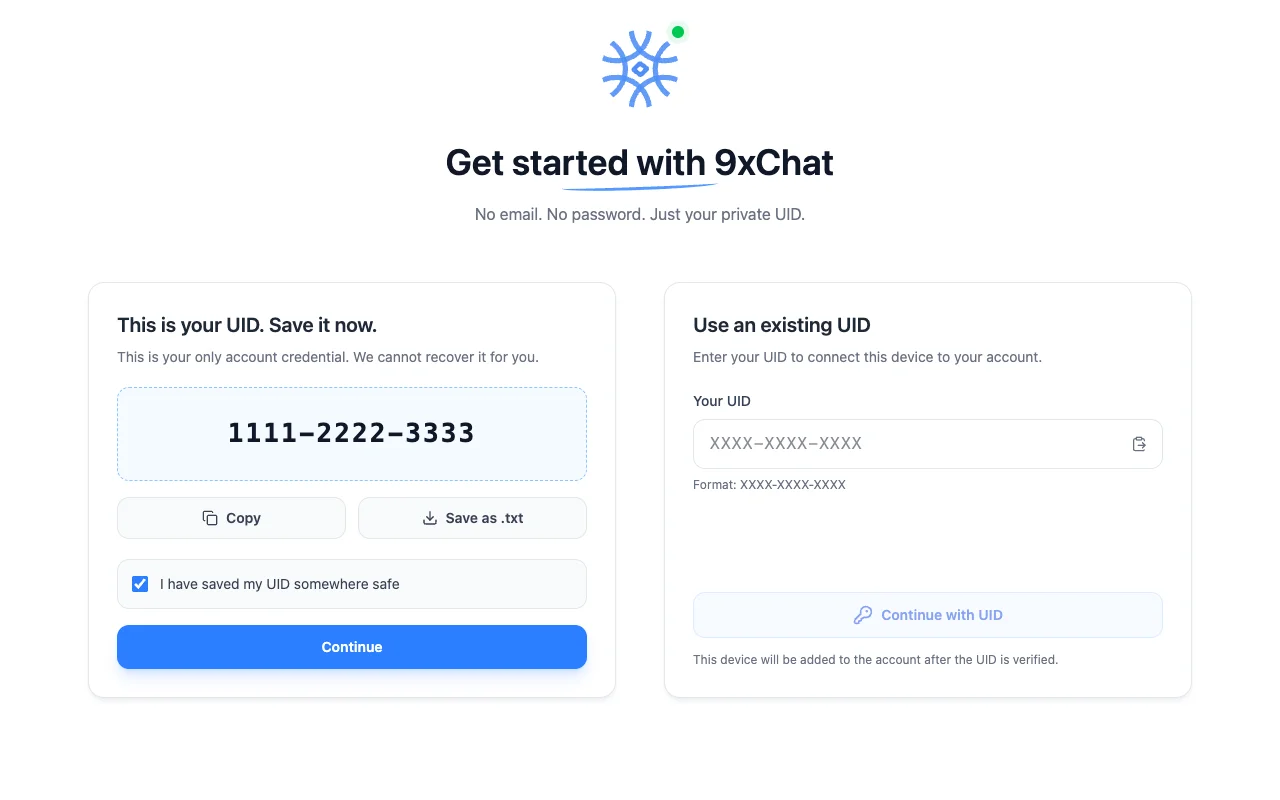
Never include the UID in a support message or an ordinary screenshot.
Find the UID later
- Desktop: choose the Profile icon at the bottom of the sidebar. The General tab shows your plan, the days left, your Account UID with Copy and Save as .txt, and your Credits Balance.
- Mobile: open the drawer and choose Profile. Tap the UID chip to copy it.
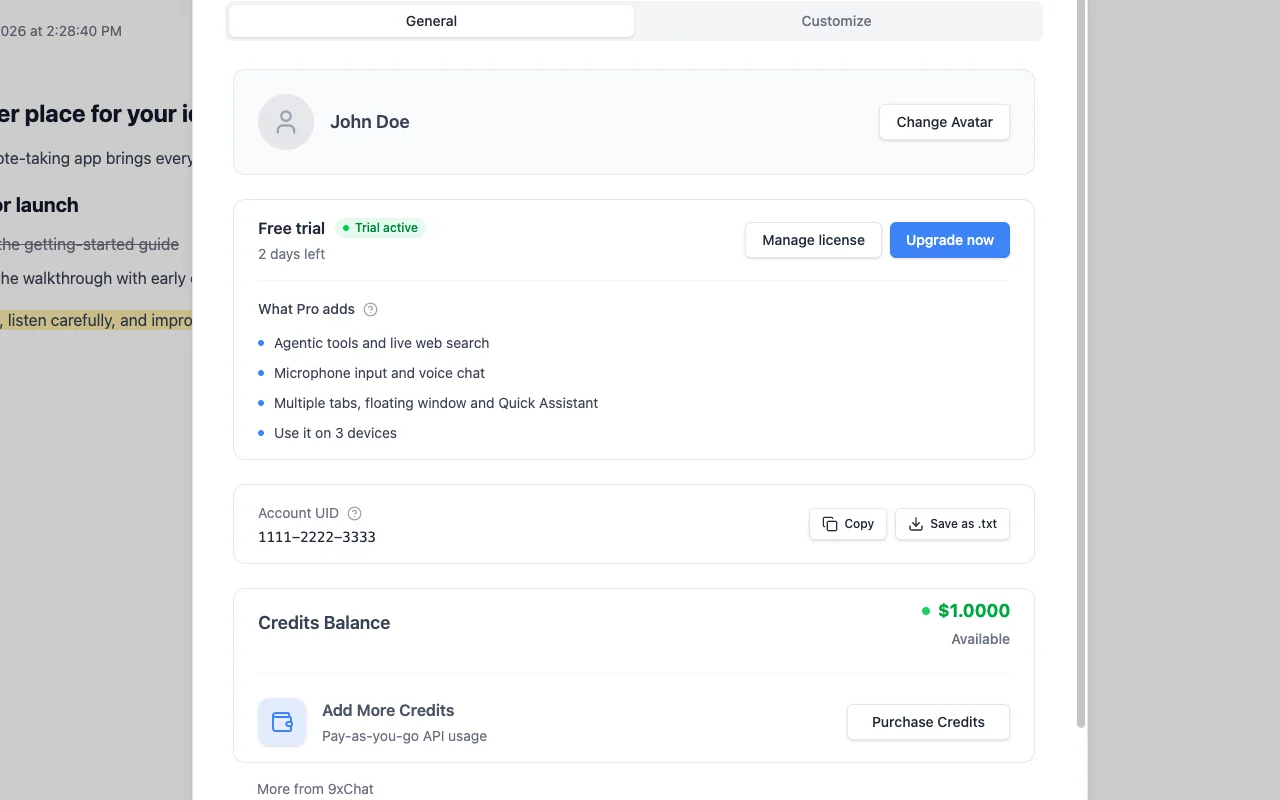
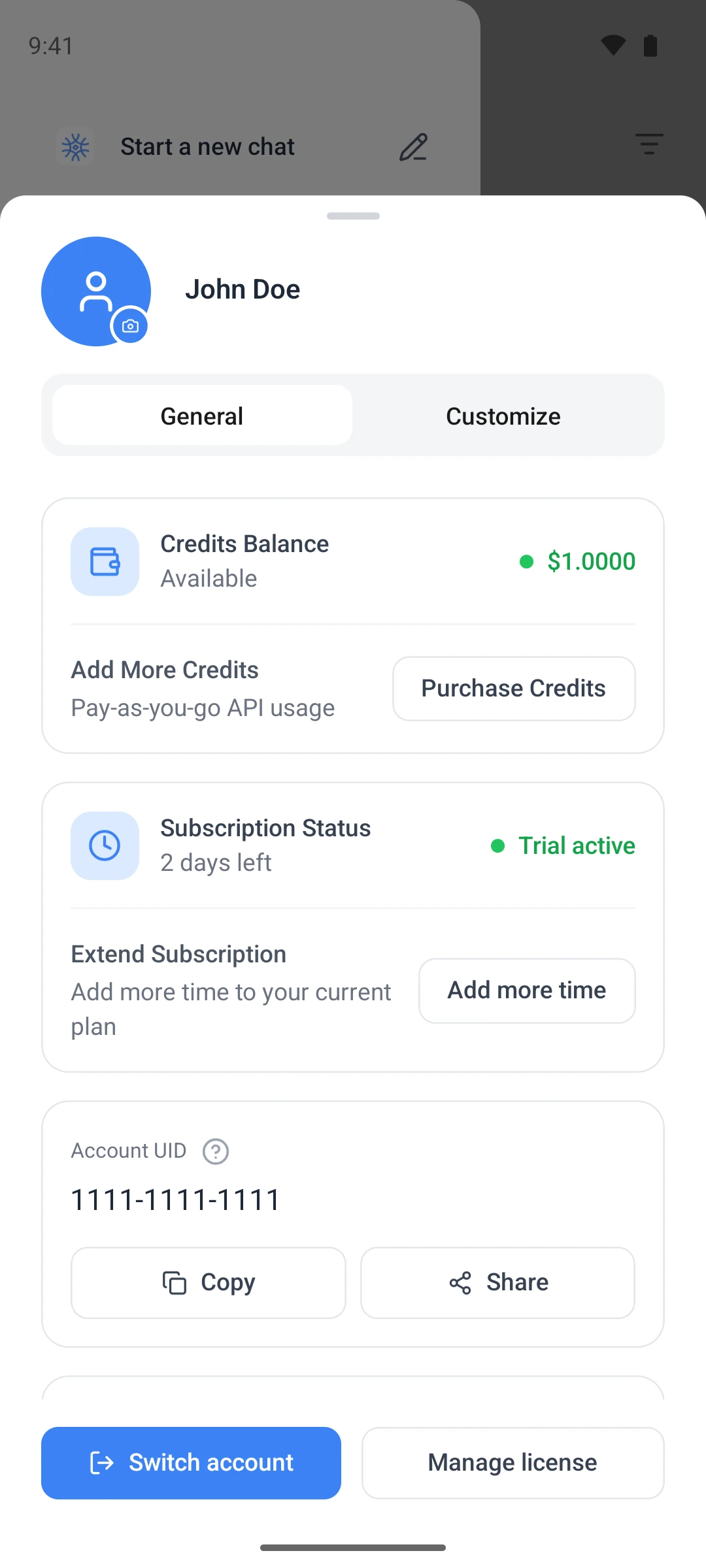
The Customize tab holds what the assistant knows about you: what it should call you, your profession, the traits you want, and anything else it should know.
Connect devices two and three
On each additional device:
- Install and open 9xChat.
- Under Use an existing UID, paste the UID from your first device.
- Choose Continue with UID and wait for verification.
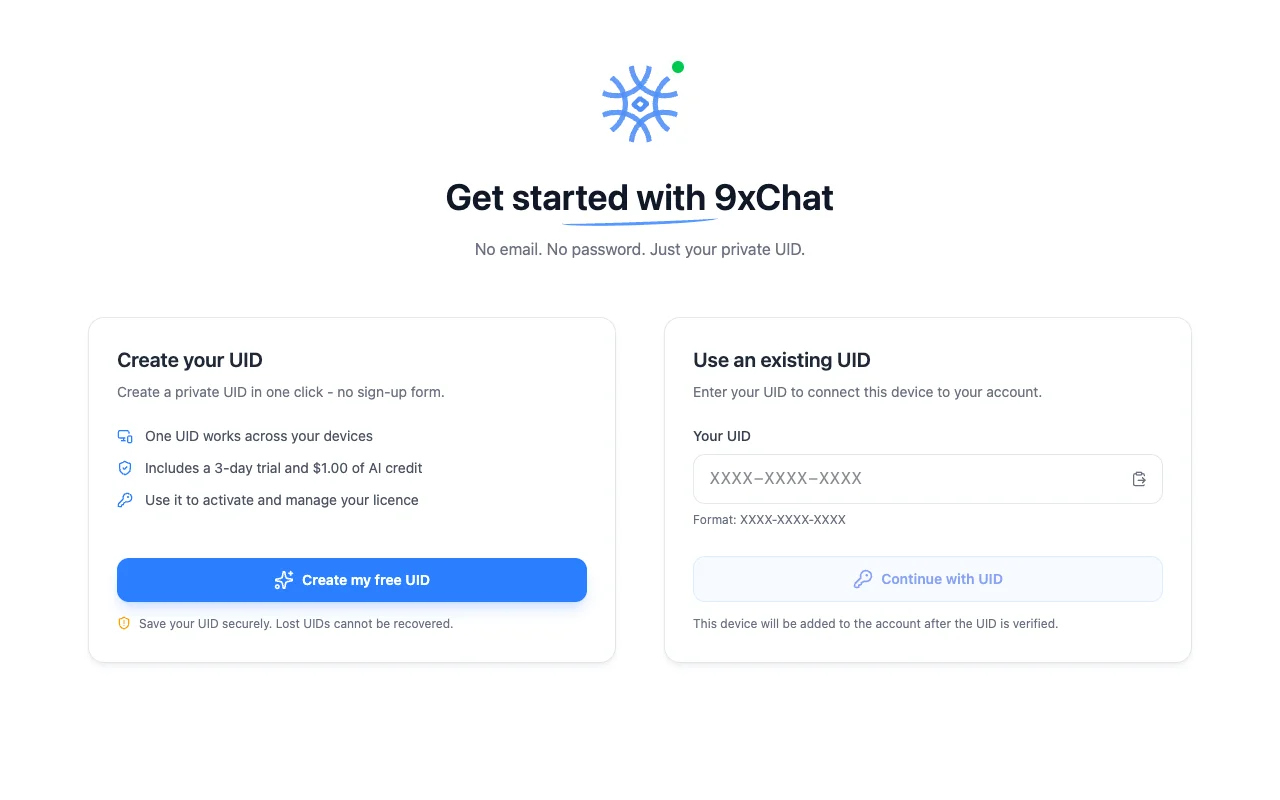
Verification needs an internet connection. Afterwards, local models keep working offline; cloud models, credits and updates need the network.
Recover this device's UID
If this device was set up with a UID before, the first screen says Welcome back and offers Recover this device's UID. It returns the device to the account first created on it, without creating another account or trial.
Switch the UID on this device
- Open Profile → General and save the UID currently shown.
- Choose Switch Account and confirm.
- On the welcome screen, use Use an existing UID with the other UID.
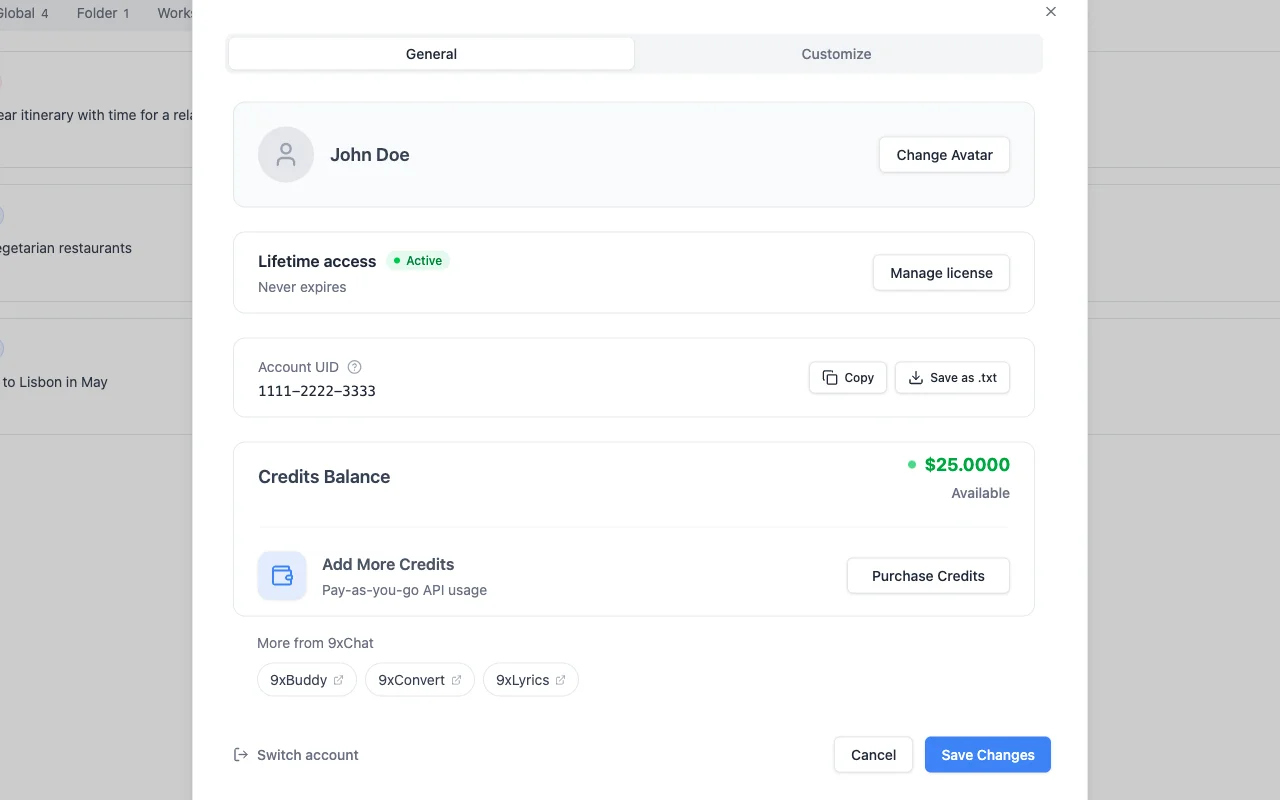
Switching changes the account this installation uses. It does not combine accounts or move credits, Pro time or devices between them.
If the device limit is reached
When every device slot is taken, 9xChat shows Device limit reached: "You have reached the maximum number of devices. Remove a device to continue."
- Desktop and Android: choose Manage Devices, remove a device you no longer use, then verify the new one again.
- iOS: open the license page in a browser, enter your UID, and remove a device under Devices.
A free account has one device. To use 9xChat on your computer and your phone at the same time, upgrade to Pro for three.
Other 123sudo apps
Each 123sudo app has its own UID and license. A 9xChat UID and plan work in 9xChat only. For more about UIDs, see Your 123sudo UID.
Settings
Every settings section - general, startup and tray, appearance, language, notifications, default models, keyboard shortcuts, data and exports, and tool diagnostics.
Usage and support
See what each model, image and voice reply costs with Usage Stats, open a priority support ticket, and read what changed in each release.