
Images
The image playground - generate with any image model, vary, upscale and extend results, compare two images, and edit a region.
Images is a studio for image models such as Seedream, Gemini, Flux and DALL-E. Describe a scene, pick a model and the settings, and keep every result in one gallery where you can compare, vary and reuse them.
The playground is free on every plan; images are paid with your credits or your own API key. Editing a region of an image, regenerating, and image tools inside a chat are part of Pro.
Looking for dictation, voice chat or read aloud? They are in Voice and read aloud.
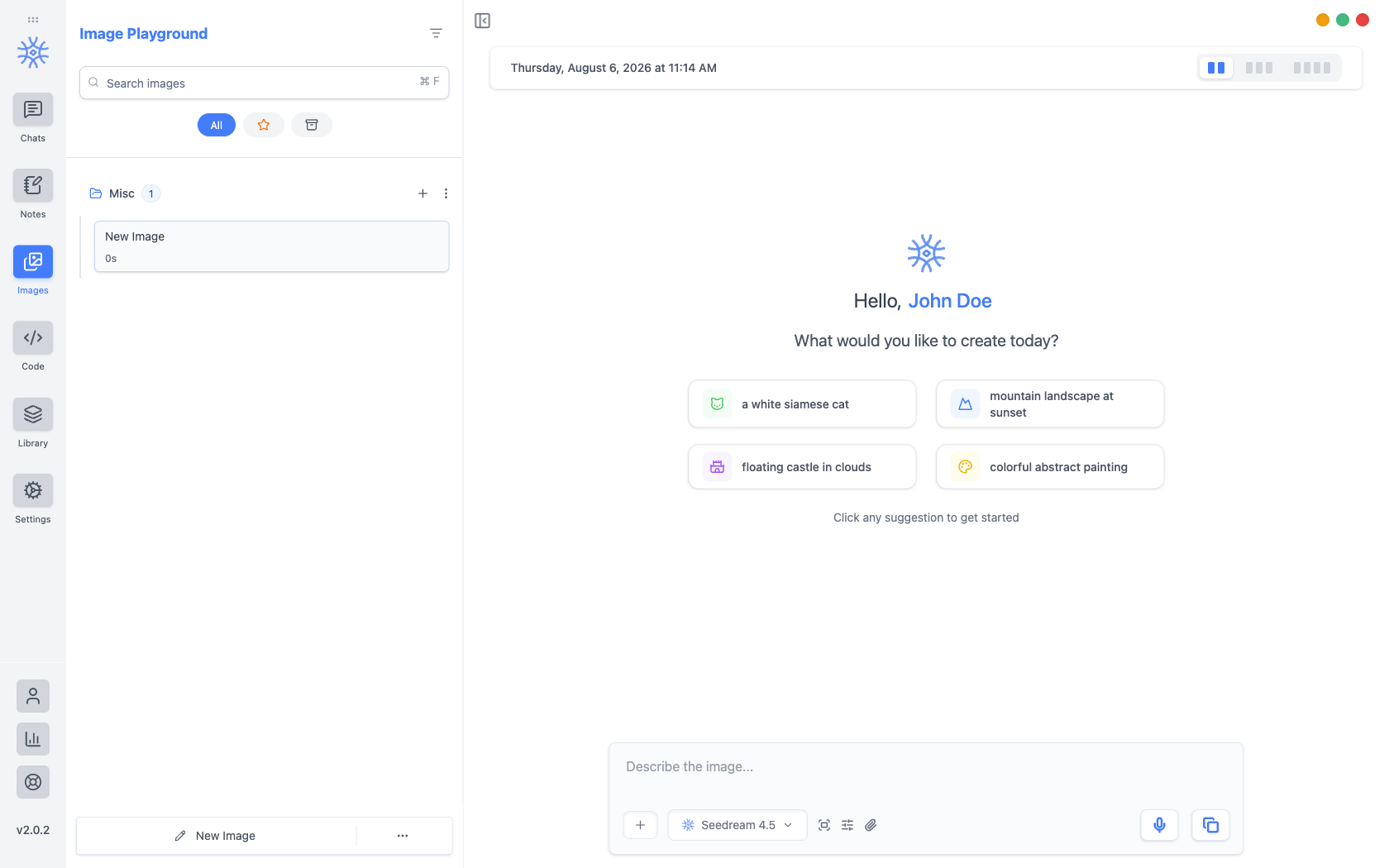
Creating an image
- Open Images in the sidebar.
- Describe the scene, style, lighting and composition. Enhance Input Pro can turn a short idea into a detailed prompt, and Dictate Pro lets you say it.
- Pick the image model under the prompt box.
- Open Image Settings for Aspect Ratio, Quality, Style and Variations (up to 4 at once). The choices follow what the model supports.
- Send. Results appear in the Feed, and every image is kept in the Gallery.
Starting from a picture
Add offers Upload reference image, Paste from clipboard and Take a screenshot, so the model can follow a photo, a product shot or a sketch. The counter shows how many references the model accepts.
What you can do with a result
Open an image's New from this menu:
- Describe as prompt writes a prompt that would recreate the image.
- Vary makes a new take on it.
- Remove background places the subject on a clean white background.
- Upscale makes a larger, sharper version.
- Extend widens the scene beyond the frame.
Each one creates a new image that uses the original as its reference, so the original stays in your gallery. They appear for models that accept reference images.
Every image also has Use as Reference, Download image, Details (with Reuse this prompt) and Delete image. The preview adds Crop, Highlight, Copy Image, Save Image and zoom.
Comparing two images
In Gallery, choose Select, pick two images and choose Compare. Comparing two frames shows them side by side with the differences in their prompts and settings, then Keep left or Keep right.
Editing a region
Edit image Pro opens Edit image region: mark the part you want to change, describe the change in Edit prompt (or use Suggest with AI), and choose Apply Edit. Everything outside the region stays as it was. It is available for models that support editing.
Images in a chat
Ask for a picture in any chat and the assistant uses the Generate Image tool Pro. The image appears in the reply and in your gallery.
Pointing at part of an image
Click an image you have attached to a message to open it, and two actions sit above it: Crop and Highlight. Both work by dragging a box over the picture.
Crop cuts the image down to the box. Use it when the rest of the frame is irrelevant, such as a screenshot with three unrelated panels.
Highlight keeps the whole frame and marks the box instead, dimming everything outside it and drawing a red border. Use it when the point is "look here" rather than "only this": the surrounding context is often what makes the question answerable. On desktop you can mark up to five areas.
Highlight also writes a line into your message pointing at the marked area. Leave it in, or rewrite it to say what you want done with the region.
Neither action changes the file you attached. Both make a new copy and attach that instead, so the original stays available.
On mobile
The playground works the same on Android and iOS. Each image adds Save to Photos and Share Image, plus Copy Prompt and Reuse Prompt.
Cost and privacy
Each image is paid from your 9xChat credits, or by your provider when you use your own API key. Usage Stats shows what images have cost. Your prompt and reference images go to the image model you chose; see Privacy and data flow.