
Notes and AI Editor
A rich editor for notes and highlights, folders and export, and an AI Editor that polishes your writing in one click.
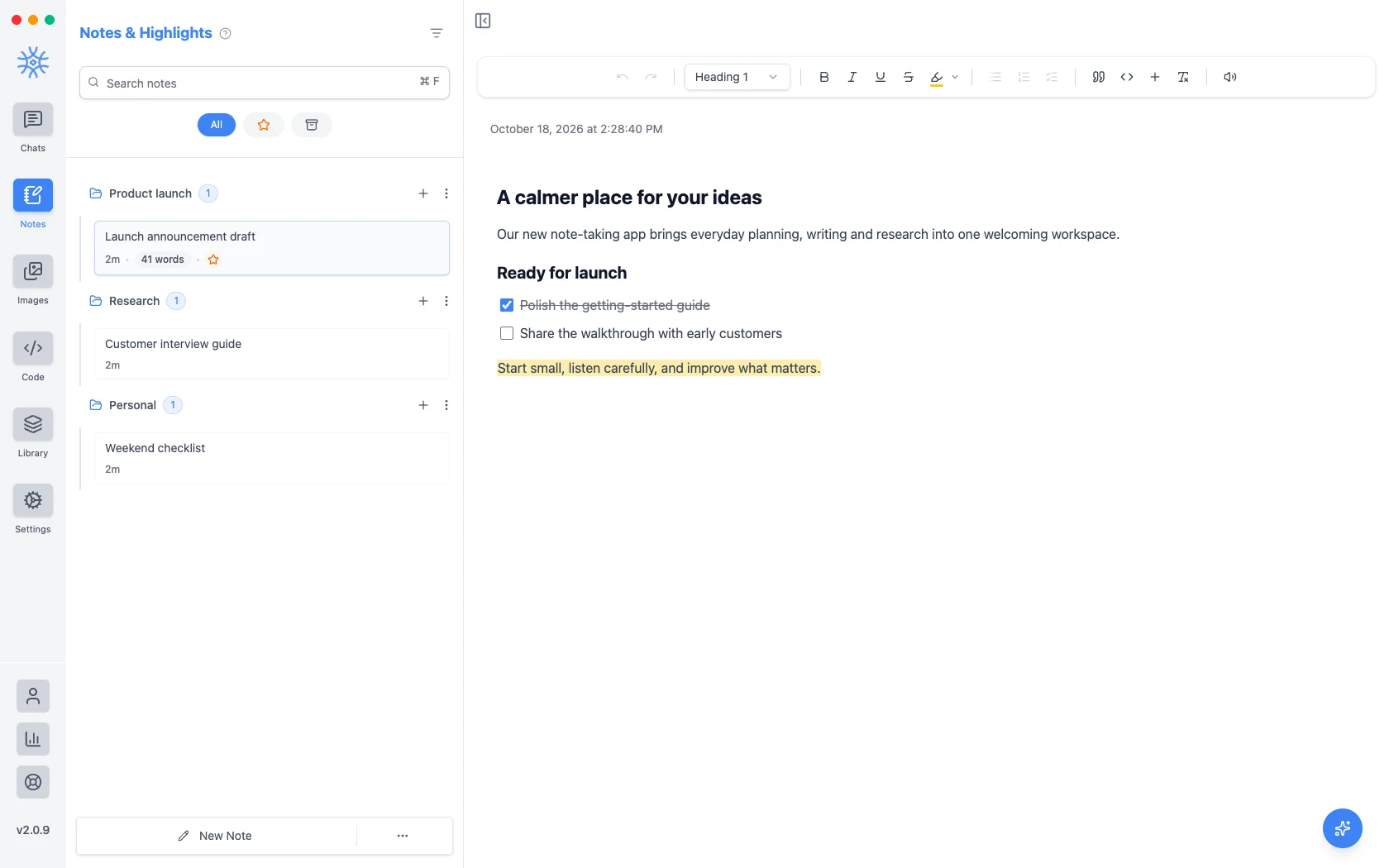
Notes keeps your writing next to your conversations: meeting notes, drafts, research and the best answers from your chats. The editor handles headings, tables, images and checklists, and the AI Editor turns a rough draft into a finished one.
Writing
The toolbar above the note has everything you need:
- Undo and Redo
- Text style: Paragraph or Heading 1 to Heading 4
- Bold, Italic, Underline, Strikethrough
- Highlight in Yellow, Green, Blue, Pink, Purple or Orange
- Bullet List, Ordered List and Checklist
- Quote and Code Block
- Insert: an Image, a Table or a Divider
- Clear formatting
- Read Out Loud for the whole note
In a narrow window some buttons move into More formatting. Select text for a small menu with Bold, Italic, Underline, Add Link, Use as AI Reference and Read Out Loud for just that part.
Tables have their own menu to add or delete rows and columns and turn the header row on or off. Images can be Small, Medium or Full width, and take Alt text.
Keyboard shortcuts
Use Ctrl on Windows and Linux, and ⌘ on macOS.
| Action | Shortcut |
|---|---|
| Bold, Italic, Underline | Ctrl+B, Ctrl+I, Ctrl+U |
| Strikethrough | Ctrl+Shift+S |
| Highlight | Ctrl+Shift+H |
| Quote | Ctrl+Shift+B |
| Code Block | Ctrl+Alt+C |
| Bullet List | Ctrl+Shift+8 |
| Ordered List | Ctrl+Shift+7 |
| Checklist | Ctrl+Shift+9 |
| Tick a checklist item | Ctrl+Enter |
| Link | Ctrl+K |
| Clear formatting | Ctrl+\ |
| Undo, Redo | Ctrl+Z, Ctrl+Shift+Z |
The AI Editor
Choose the round AI Editor button at the bottom right of a note Pro: "Let's polish this note. Pick a task below or ask your own."
- Fix grammar & spelling
- Make it more concise
- Improve the flow
- Summarize it
Or type your own request, such as "turn this into a project plan". On desktop the edits come back as suggestions: Accept or Reject each one, or Accept all. On mobile choose Append to Note or Replace Note.
To work on one passage, select it and choose Use as AI Reference.
The AI Editor uses your Notes model, set in Settings → Default models.
Organizing notes
Notes live in folders, just like chats. Use New Folder, then drag notes between folders. Each note's menu offers Star, Edit Name, Duplicate, Export, Copy, Print (desktop), Archive and Delete Note. Search finds notes by their content, and Global Search (Ctrl+F, or ⌘F) searches notes and chats together.
From chat to note
Save to Notes on any reply, tab or chat turns the conversation into a note, ready to edit. The assistant can also write notes for you with the Manage Notes tool Pro: "save a summary of this chat as a note".
Export and share
Export a note as Text, Markdown, HTML, JSON or PDF, copy it in those formats, or print it on desktop. On mobile, Export & Share sends it straight to another app.
On mobile
Notes are in the drawer. Each note's menu has Search, Archive, Star, Edit Name, Duplicate, Move to Folder, Copy As, Export & Share, Print and Delete, and the AI Editor works the same way.
Notes are stored on each device. To move them, use Settings → Data & exports.